Piano H88
A full 88-key piano that plays to how you touch it — and, over MIDI, two devices can mirror each other to learn or play together (chapter 10). This guide covers every screen and every button.
Why "H88"? Eighty-eight keys, plus the note H — the sounds between the notes: a whistled or hummed tone that swells and slides like a theremin in Glide mode, and the shading a finger's slight movement adds on a key. Those in-between notes are where the name came from.
The touch is the instrument
Piano H88 reads how much of the key your finger is covering — the size of the contact patch — and turns it into loudness, brightness, and how far the key sinks. Flatten a finger for a fuller note; catch a key with a fingertip for a soft one. It works on every modern iPhone and iPad, on every finger at once.
If it feels uneven
Contact area is a coarse signal, and every hand is different. Two settings put you in control (Settings › Touch, or the hand button in the bar):
| Control | What it does |
|---|---|
| Touch dynamics | On, contact area sets the volume. Off, every note plays at one steady velocity — perfectly consistent. It is off by default; turn it on to play expressively. |
| Recalibrate touch (guided) | Walks you through a few soft, firm and natural touches and fits the loud/soft range to your own hand. |
| Deep / Subtle | In Settings ▸ Deep expression: Deep widens the expressive range; Subtle (the default) keeps it piano-like. |
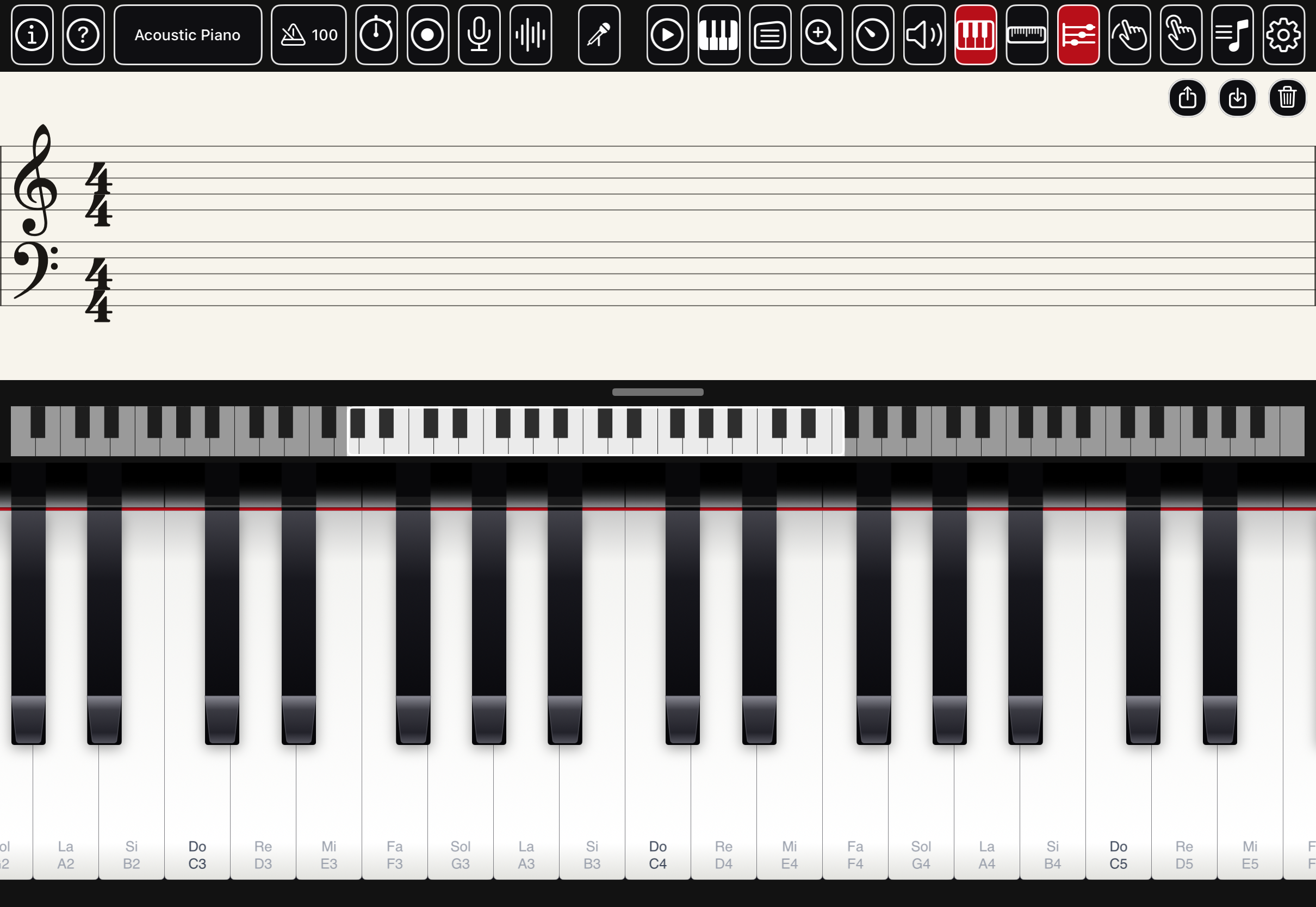
The bar — every button
The control bar runs along the top. It splits into a left cluster (the instrument and what you capture) and a right cluster (what you play with and where you go).

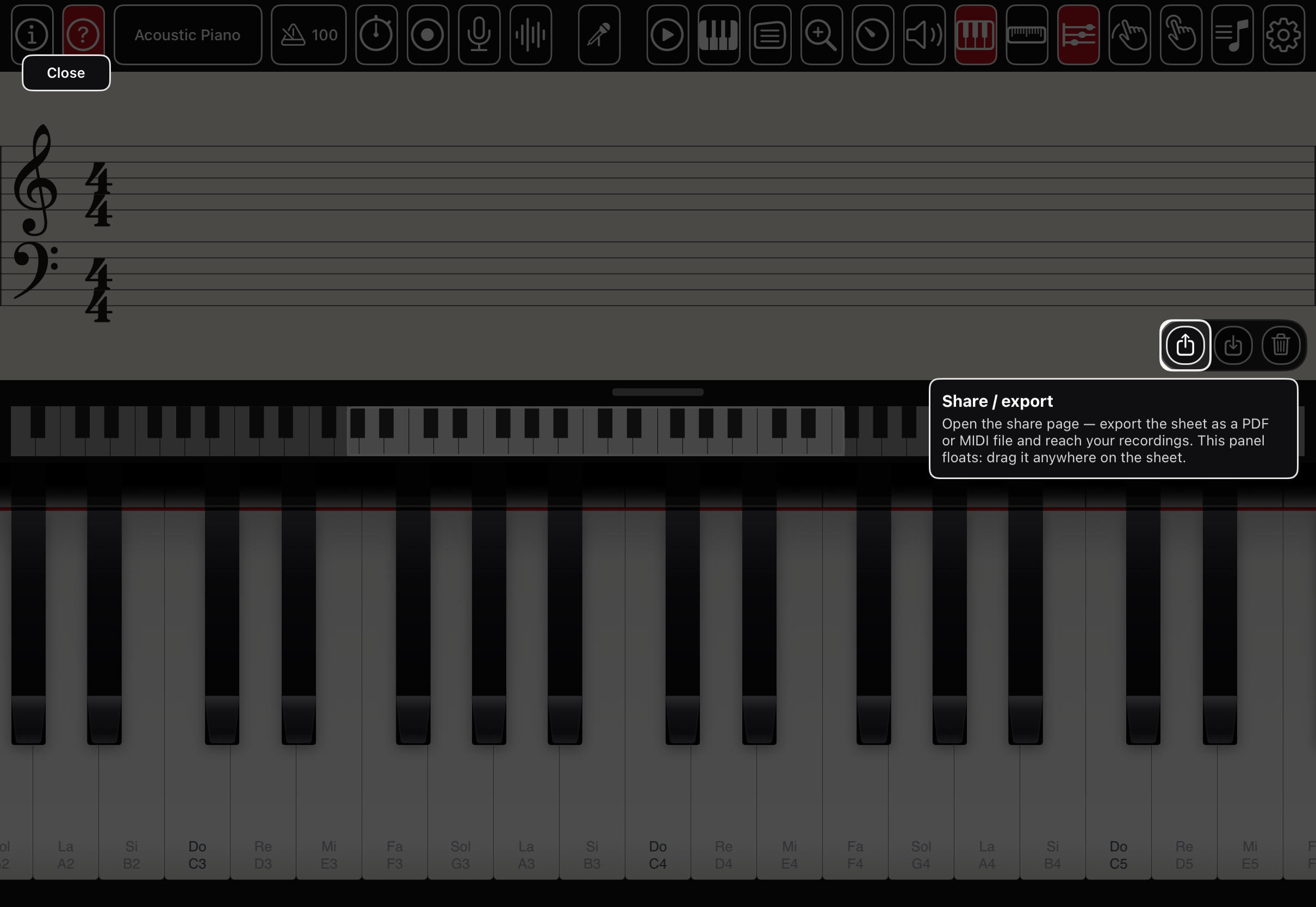
Not sure what a button does? Tap the ? (right after Info). The screen dims and, wherever you tap, the control beneath lights up with a bubble explaining it — a button, a floating slider, the strip, the keys, or the sheet. Tap Close to leave. It's the fastest way to learn the bar — and every other page and panel has a ? of its own, so the same overlay explains the library, Settings, a piece page, the notepad and its floating menus, the tuner, the mixer and the rest.
Left cluster — the instrument & what you capture
 |
Info | Version, credits, this field guide, the website, and the open-source licenses. |
 |
Help | Turns on the help overlay — tap any control to see what it does. Every other page and panel carries its own ? too — Music, Settings, a piece page, the notepad, the tuner, the mixer, the recording players, the camera, the about pages, the browser and this guide — so help is never more than a tap away wherever you are. See chapter 1. |
| Acoustic Piano | Instrument | The current sound — tap to open the catalogue of 134 instruments. On a narrow screen the name shrinks to fit. |
 |
Metronome | The click. Its tempo (shown, e.g. ♩ 100) and metre are shared with the engraving; set them in Settings. |
 |
Timed | A stopwatch. Off (default) is free play — notes are written evenly. On, the sheet records your exact timing and pauses, and disconnects after an idle gap. |
 |
Record | Record the audio of what you play. Felt-red while recording; press again to stop, listen back, and Save to Recordings, Share, or Discard. |
 |
Mic | Fold the room's sound into a recording, and the mic used by voice control. |
 |
Voice | Hands-free voice control and dictated lyrics — see chapter 9. |
Centre
 |
Whistle | Play by whistling or humming (beta). Felt-red while listening; long-press for its settings — see chapter 8. |
Right cluster — what you play with & where you go
 |
Play controls | Show/hide the transport — play, loop, undo/redo, go to start/end — for the sheet's own performance. |
 |
Oct | The octave floating slider — sweep the whole keyboard fast. |
 |
Sus | The sustain floating slider — a dynamic pedal (higher = longer ring). |
 |
Zoom | The zoom floating slider — fewer keys (bigger) or more keys (smaller). |
 |
Speed | The playback-speed slider, for a loaded piece. |
 |
Volume | The master-volume slider. |
 |
Strip | Show/hide the miniature keyboard strip you scroll and glissando from. |
 |
Scale | Show/hide the horizontal zoom row. |
 |
Sheet | Show/hide the live engraved score — a little staff with noteheads. |
 |
Flip | Flip the whole interface 180° so the home bar sits at the top, clear of the keys (felt-red when on). iPhone only — see chapter 11. |
 |
Dynamics | Touch dynamics on/off — felt-red when the contact area drives loudness (a hand). |
 |
Music | The library — pieces, lessons, imports, scanning. |
 |
Settings | Everything else: touch, labels, finger colours, metronome, screen, audio, MIDI, devices and help (a gear). |
The keys
All 88 keys, running edge to edge. Scroll and zoom are done by hand so a glissando is never trapped in a scroll view:
- Scroll — drag the miniature Strip above the keys.
- Zoom — the Scale row or the Zoom slider (fewer keys = bigger keys).
- Glissando — just slide across the keys.
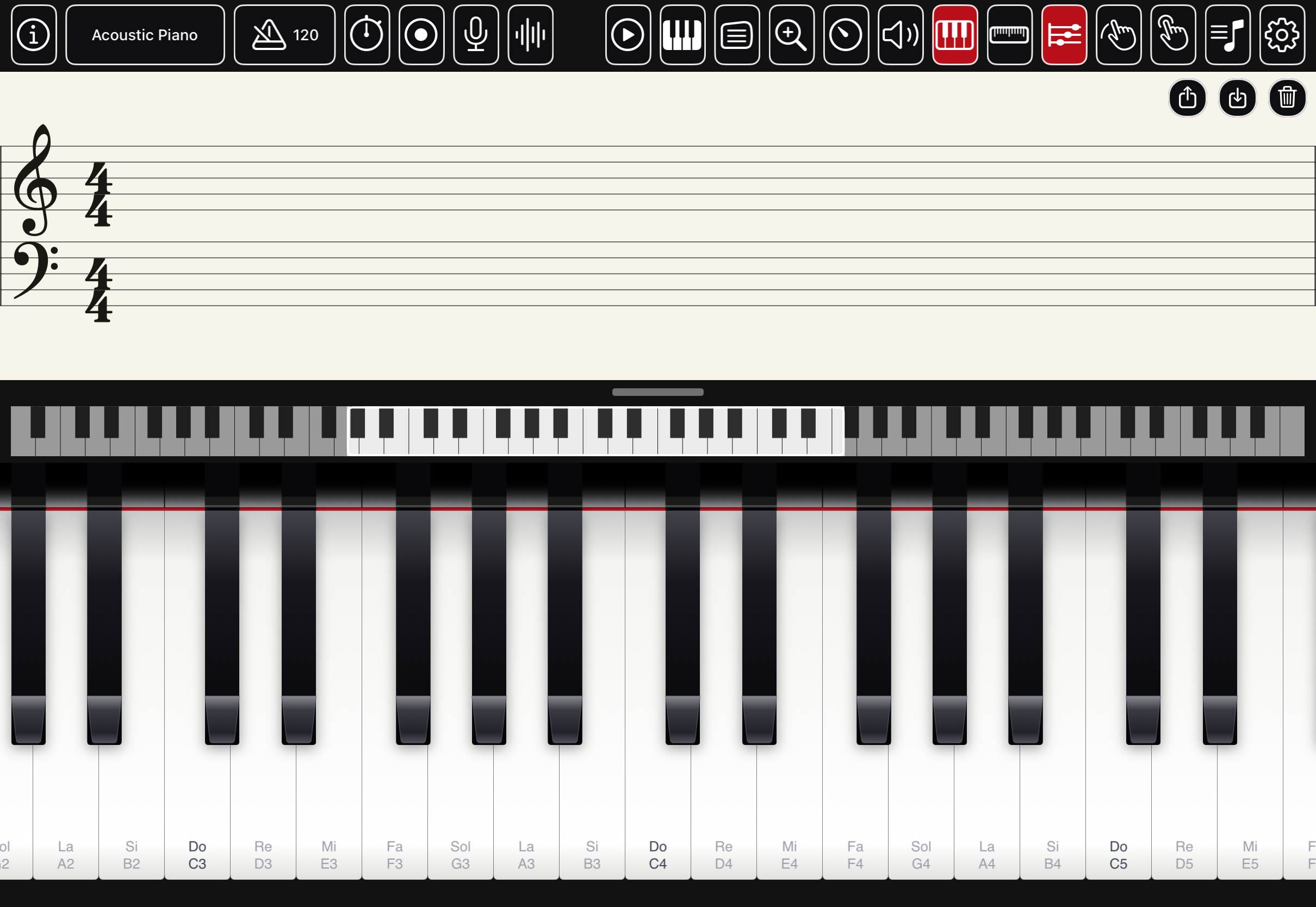
A pressed key lifts to a cool blue, so you can see what is sounding; a black key that stands over a pressed white lengthens its shadow onto it — the small touches that make the keybed read as real. Press harder (more finger on the key) and, with touch dynamics on, the note is louder and the key sinks further.
Label the keys with letter names, fixed-do solfège (Do–Re–Mi), or both stacked — Settings › Note names. Black-key labels can be turned on too.
The floating sliders
Five draggable pads float anywhere on screen. Grab the grip at the top to move one, the bottom edge to resize it, and the middle is the control surface. Each remembers where you left it.
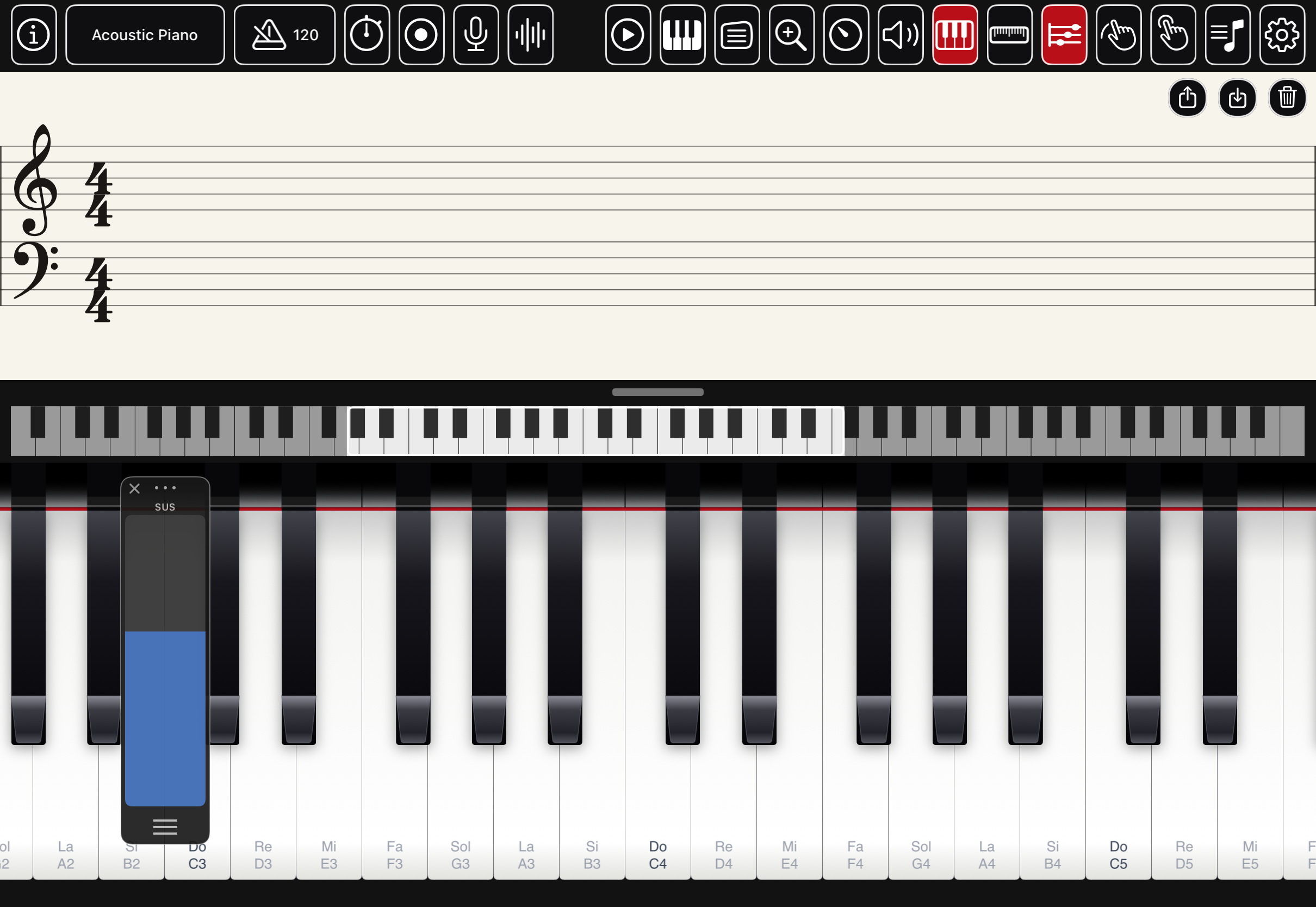
Sustain is a dynamic pedal — the higher the pad, the longer a released note rings. Speed runs from ×0.25 to ×4 — 60% of the way up is normal (×1) — so you can crawl through a hard passage or race a piece. Set the pads' see-through-ness in Settings › Floating pad transparency.
The score sheet
Everything you play is engraved in real time on a grand staff, in a real music font, with correct note values, rests, bar lines and a time signature.
The clefs, key and time signature stay put at the left; as the page fills it slides beneath them, and a thin blue fold line joining the two staves marks exactly where it goes under. Drag the page sideways to read back.
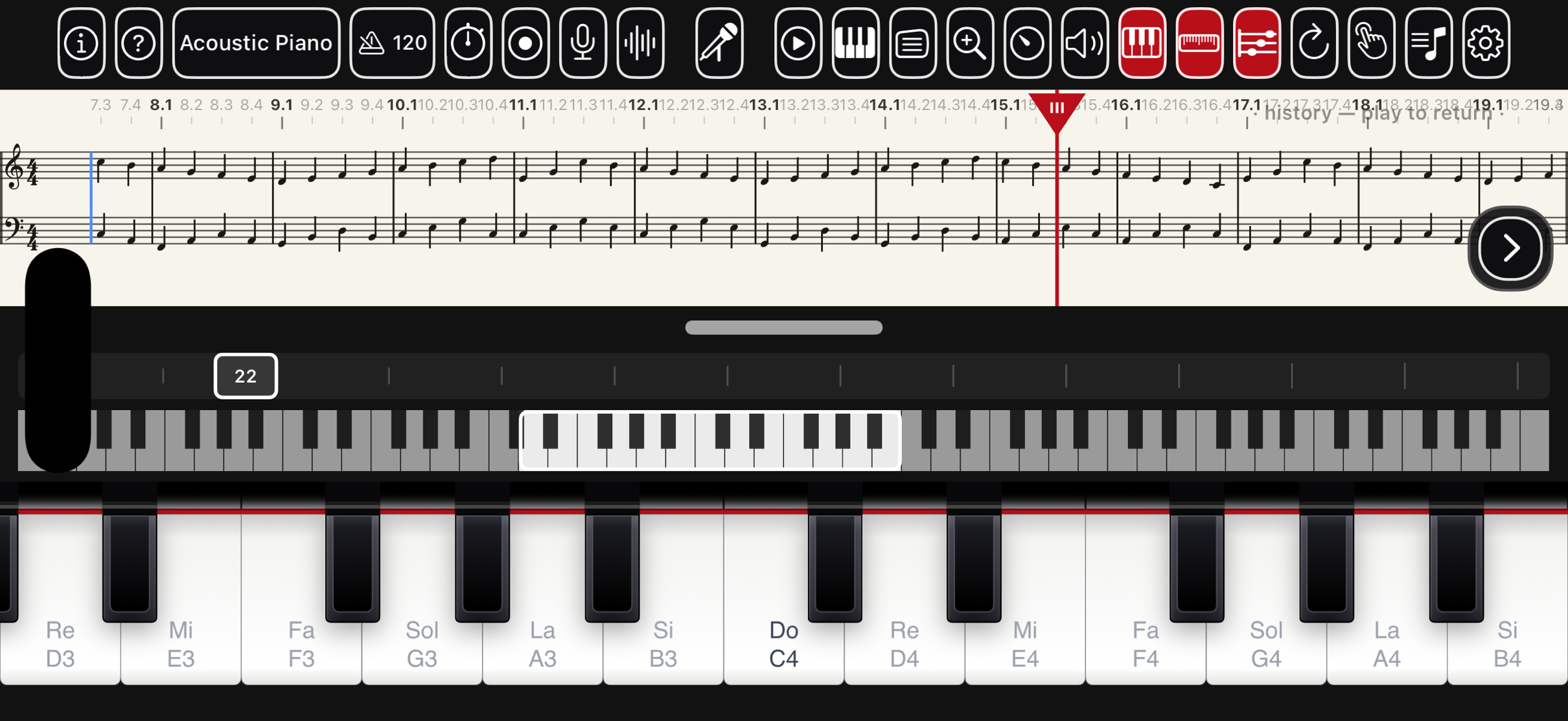
Free play vs Timed
By default (Timed off) notes are written evenly, so casual playing reads cleanly. Turn Timed on to capture your exact timing and pauses.
Editing
- Tap a note to select it; drag it to re-pitch (chromatically) or move it.
- Double-tap empty staff to add a note; drag the red playhead to scrub.
- Chord insert (the tool cluster's stacked-notes button, or Chord on a piece's insert row): while it is on, every key you play — together or one after another — is added to the column just left of the cursor, stacking up as a chord (a pitch already there is skipped). Only on an empty sheet, or with the cursor at the very start, does the first key open a new column for the rest to join. Move the cursor to pick another column, or turn it off. If the chord's column is under the fold line, the page slides just enough to show it. A bar where only one hand plays shows a whole rest on the other staff, and within a bar a hand that pauses while the other plays gets rests of the right length.
- The ♪ music palette (the tool cluster's ♪, or ♪ Palette on a piece's insert row) is a floating bar of notes, rests and accidentals — the notepad's bar, drag its grip anywhere, resize it by its right edge, scroll it sideways. Tap a note to write it at the cursor (it takes the pitch of the note before it; drag it to re-pitch), a rest to leave that much silence — at the very end it waits as a trailing rest for the next note — a sharp or flat to alter the note before the cursor; or pull an element downwards out of the bar and drop it on the staff at the pitch and moment you want — it is placed right there and nothing else moves, so a note dropped into a rest fills that much of the silence. With a note selected (Modify), a tap edits that note instead: a value changes its length in place, a sharp, flat or natural alters it, a rest replaces it with silence. Needs Insert or Modify on.
- Long-press to select a range for cut, copy, paste, duplicate, erase.
- A small floating tool cluster on the sheet holds zoom −/+, share/export, save to My Pieces and clear (which asks first, then empties the page AND puts away the loaded piece, its player and its ribbon — the play controls are the page's own again, so play plays what you write next); its grip collapses it to just a handle you can drag. When a library piece is loaded it also carries Edit (let the keys change it — a save then makes a new piece), Play along and Learn; an imported PDF adds a Ribbon toggle and a cursor Lock. It starts at the bottom-right, drags anywhere (clear of the playhead), and hides with the sheet.
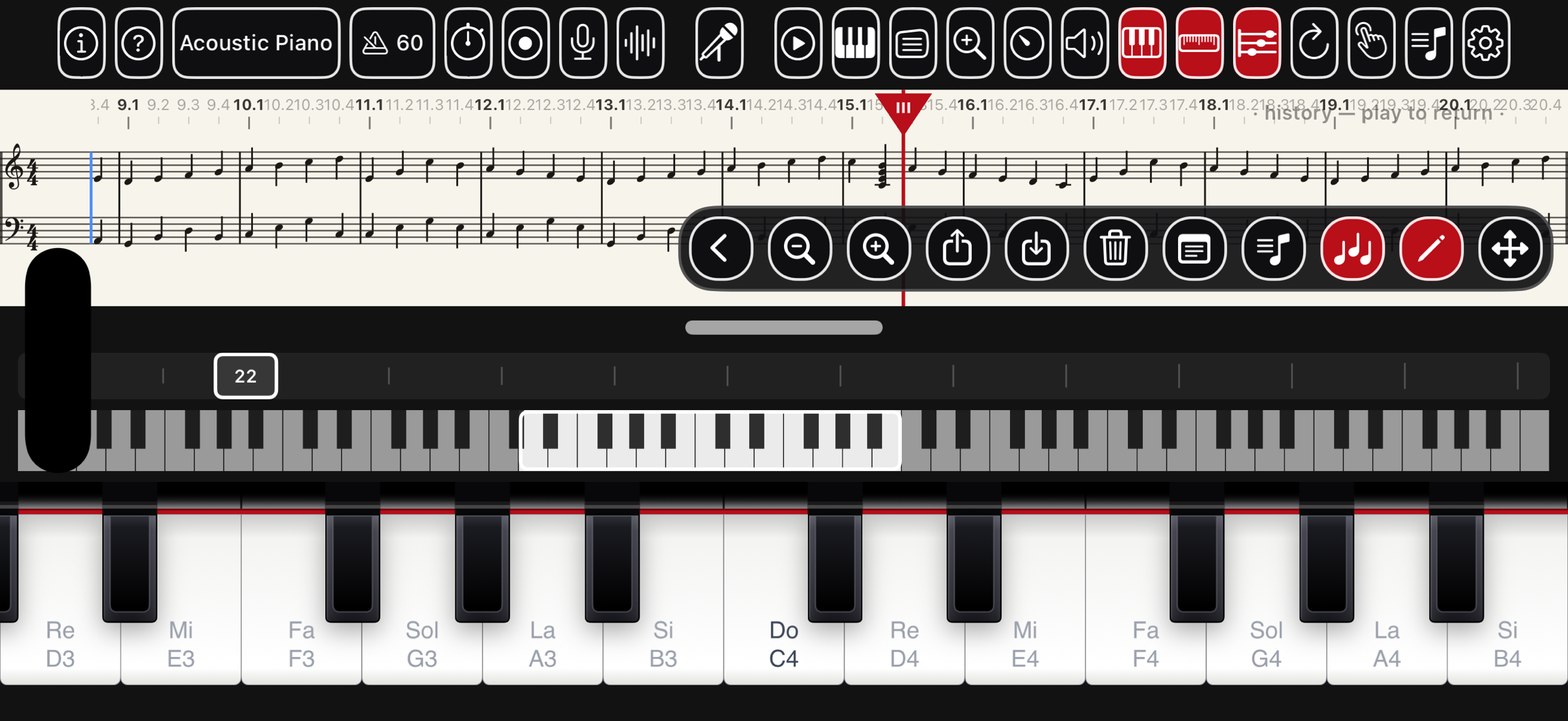
Export a multi-system PDF or a Standard MIDI file, or import a .mid and read it back.
The Notes page
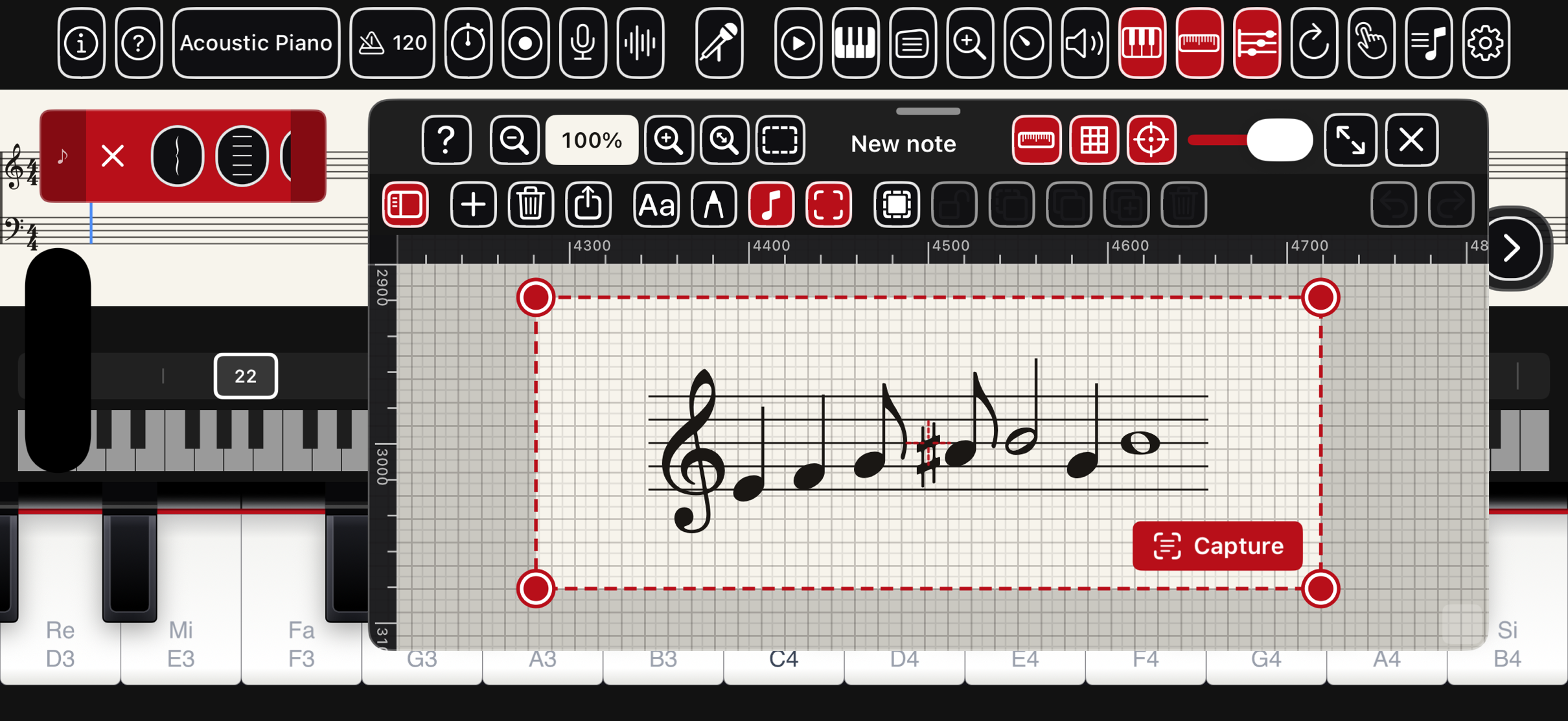
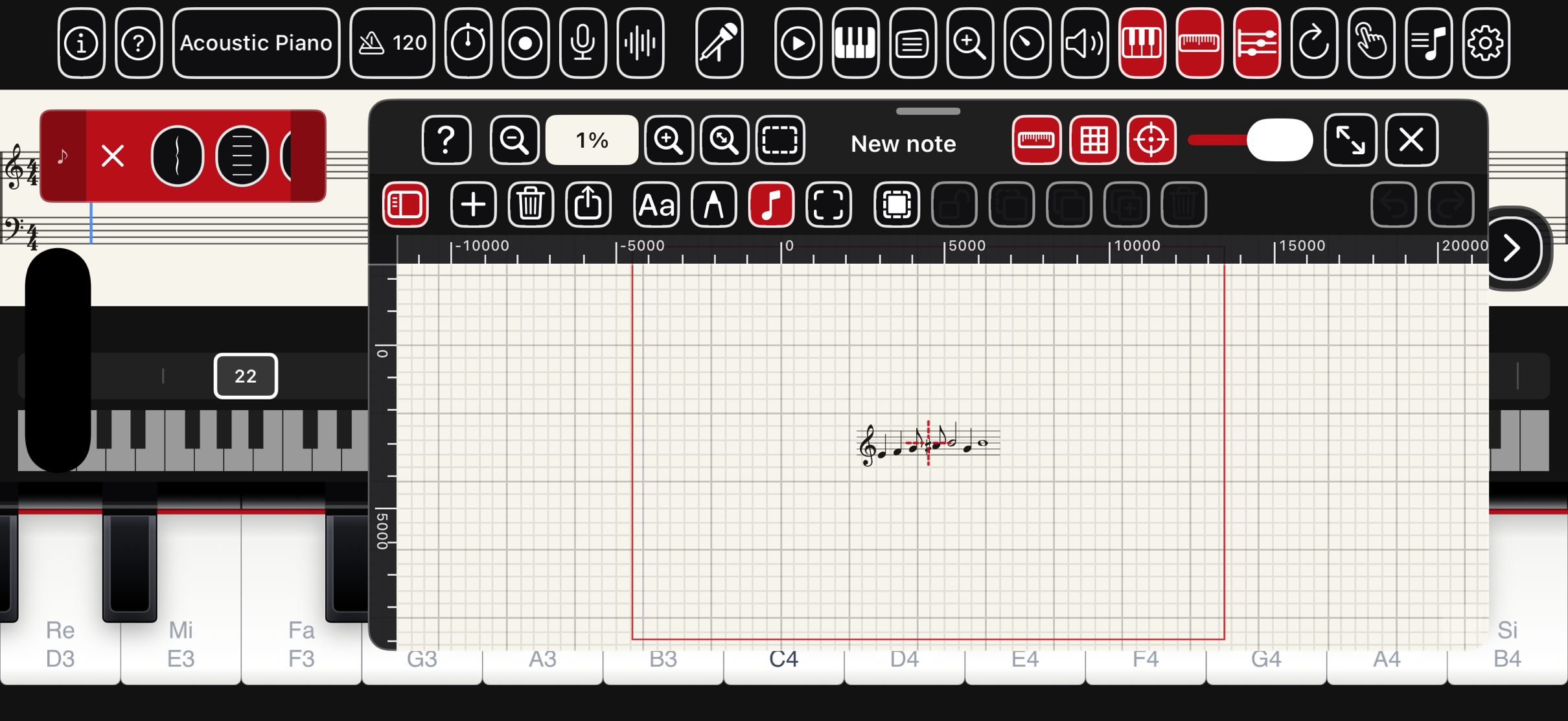
The Notes button on the sheet's tool cluster opens a floating notepad kept with the piece — as many notes as you like, listed on the left. Each note is one canvas: Apple-Pencil or finger handwriting, text boxes, and music elements (staves, clefs, notes, rests, accidentals, lines, beams, ties) placed as objects you can move, resize, group and duplicate.
- Pen is the only mode switch: on, you draw (two fingers zoom and pan); off, nothing draws — tap an object to select it, drag it to move, tap empty canvas to deselect, one finger pans, and a pinch zooms about the point between your fingers.
- A text box commits when you press the keyboard's Done, tap the A tool again, or tap empty canvas.
- Aa and ♪ only show or hide their floating palettes, which can be dragged anywhere on the screen: Aa holds the A text-box tool and the text formatting; ♪ holds the music elements. Drag an element out of its palette onto the canvas — the ghost shows exactly where it will land — or tap it to stamp it at the landing target: the small dotted red cross at the centre of the canvas view, shown whenever a palette is open. It is a fixed guide, not part of the page, so pan the canvas until the cross sits where you want the element, then tap. When a palette is narrower than its items, scroll it sideways. The toolbar's mode buttons — Aa · Pen · ♪ · Read — keep their place in every mode; the object actions appear after them with Pen off. The header starts with a ? (the help overlay, which explains every notepad control and menu item), then the zoom cluster, with the note's name centred in the room that is left.
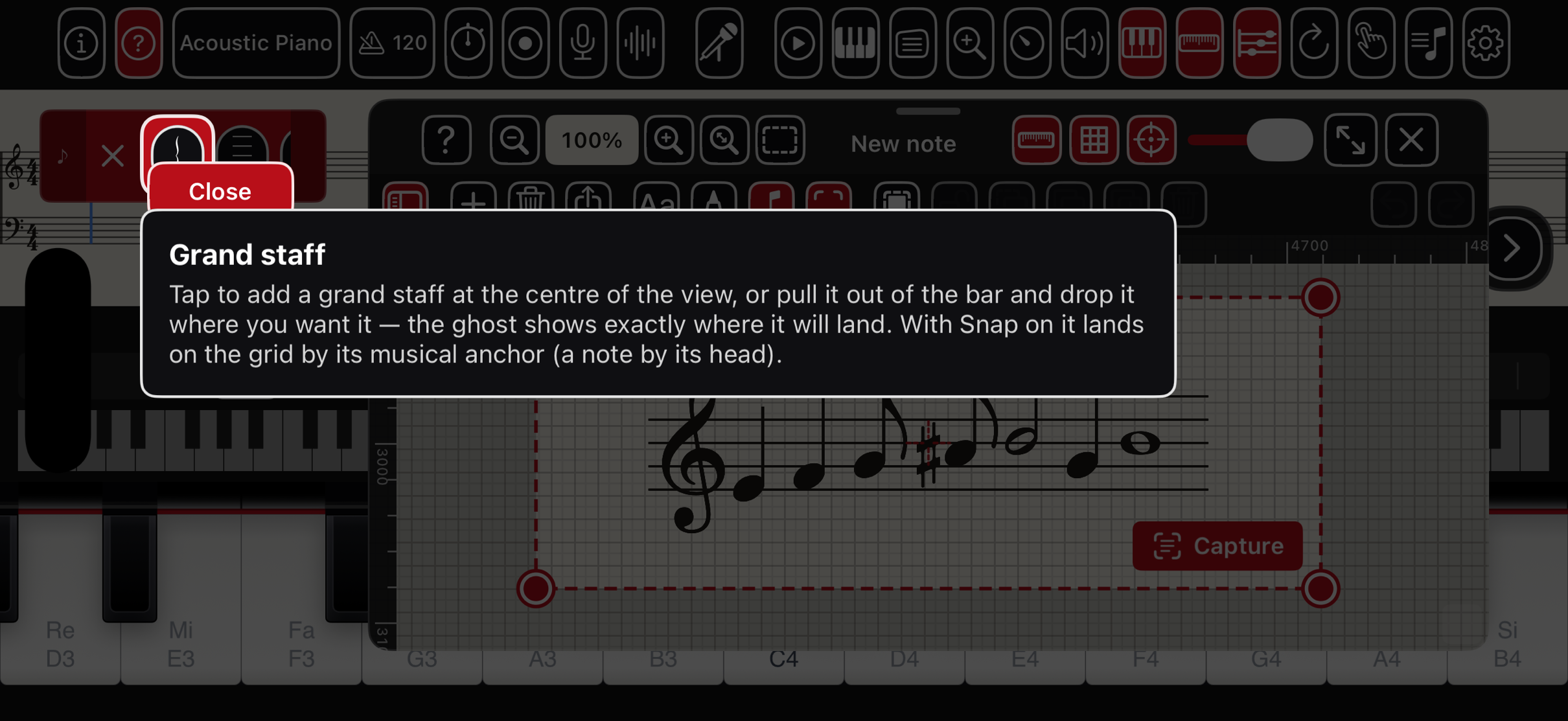
- With Pen off the toolbar gains Select all, Lock, Group, Ungroup, Duplicate and Erase; a long-press on a selection offers the same plus copy and paste. A locked element (grey box, a small padlock) can still be selected and copied but will not move, resize, delete or edit until you unlock it.
- The header carries the zoom: −, an editable scale % (type a number and return), +, fit what you have drawn, and fit the whole canvas (the red frame, below). The scale runs from 0% — a little beyond the thin red frame that marks the drawing's full extent (you can pan out to its edges at any zoom) — through 100% (life size) to 300%, the closest. The maximise button beside close makes the notepad fill the screen; press again to restore it.
- Read into the sheet (beta). The viewfinder button lays a capture frame over the canvas — drag its four corner handles round a staff you have drawn or stamped, then press Capture. Stamped elements are read exactly from where they sit on their staff; handwritten music goes through the same reader as a scanned page. The notes are written into the main sheet at the cursor. If the sheet's Insert mode is off you are asked first: Edit and insert turns it on, closes the notepad and shows the sheet at the cursor. Clean, stamped staves read best; handwriting is a beta.
- Export (beside the delete-note button) saves the whole note — ink and elements on white — as a PDF or a PNG into Files › Piano H88 › Notes › Exports, or hands it to the share sheet.
- Everything about the notepad is remembered: its place and size, transparency, Pen mode, which palettes are open and where, and each note's own zoom and position.
- In the header, rulers along the edges, a grid and snap to grid are toggles. The grid is measured in staff spaces — with snap on, a note's head lands on a line or in a space. Set its spacing in Settings › Notes grid (½ space is one pitch step).
The bar·beat labels along the top can be resized in Settings › Score ruler text — Font − / Font + step them, on both the main sheet and a piece's page, and Scale with zoom grows and shrinks them as you zoom. Loading a piece while the sheet already holds notes asks first — save your playing, discard it, or cancel.
Music — learn & play
The ♪ button opens a library of 1,696 engraved scores across piano, voice, choir, organ, guitar, harpsichord, duet and chamber shelves, plus your own pieces and imports. Search by title or composer; tap a shelf to fold it.
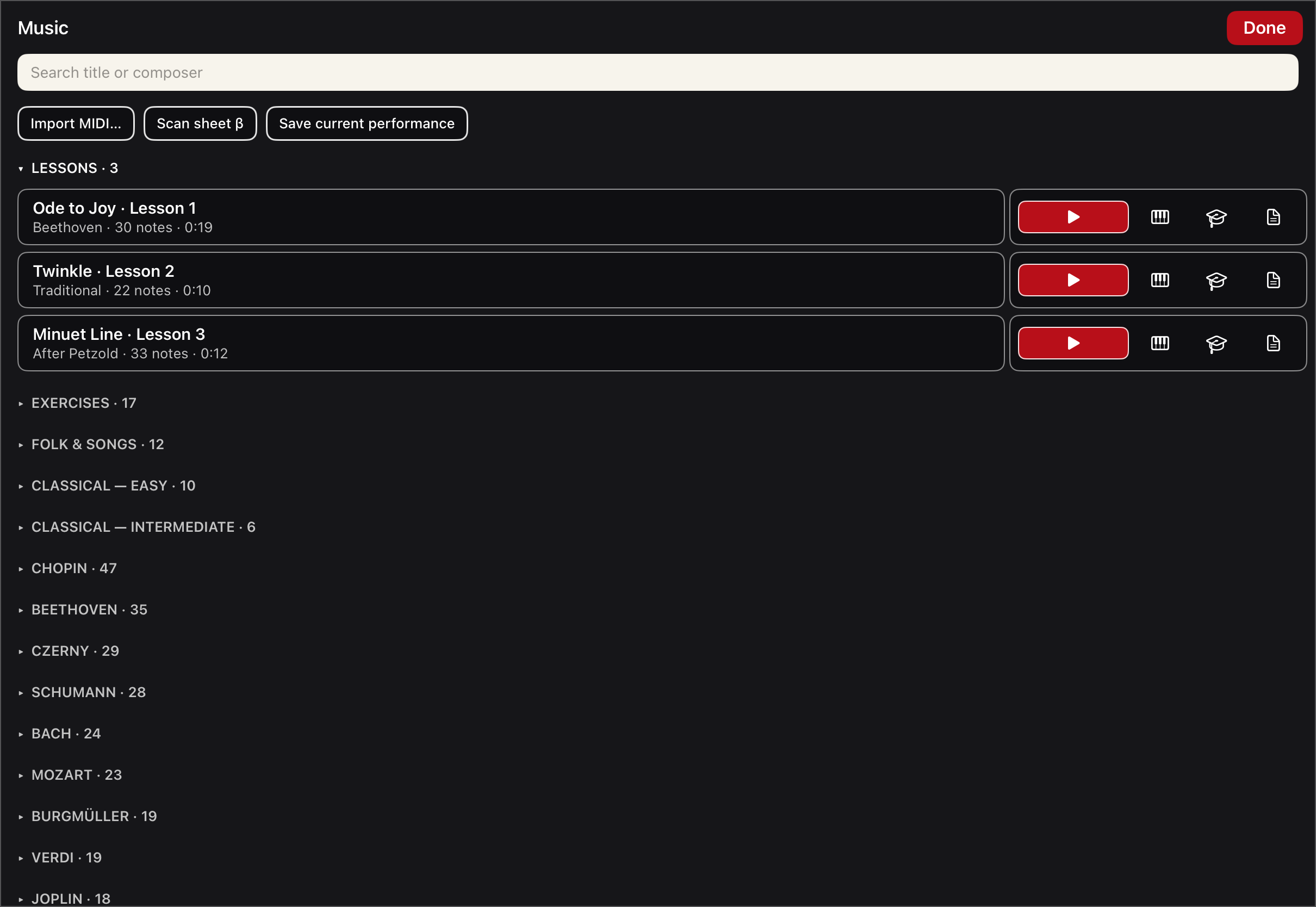
| Action | What it does |
|---|---|
| ▶ Play | Listen right here — the keys light up and the score follows. Tap again to pause. |
| ▥ Along | The piece plays quietly and the next chord's keys light ahead of you. |
| 🎓 Learn | The piece waits until your hands find each chord — no clock, no failing. |
| ▤ Load | Put the piece on the main sheet. |
Edit a piece on its own page
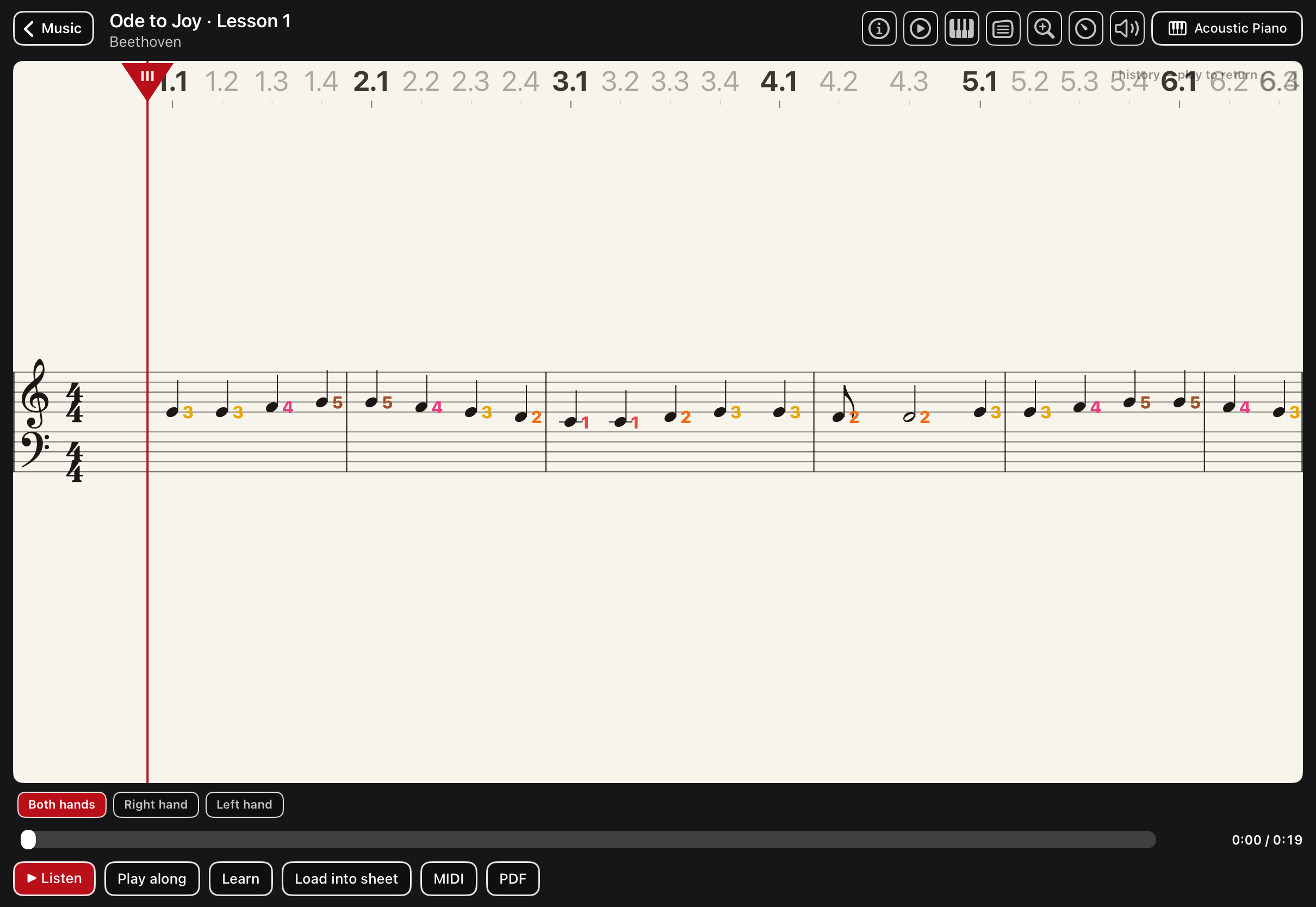
A piece's page is the only place its own copy is edited (from the main sheet, playing the keys over a loaded piece only ever saves a new piece). Tap ✎ Edit to turn editing on, then ⌨ Keys to bring up a floating keyboard you can drag, resize, and shift by octave or zoom from the strips above the keys. Select a note on the staff and press a key to re-pitch it, or play to add notes; Save edits writes the changes back onto the piece. Show the play controls (the ▶ transport) and its ↩ Undo / ↪ Redo step your edits back and forth right there on the page.
Bring in your own — MIDI, PDF, scans
Three matching doors at the top of the Music page bring music in — ⬇ MIDI and ▤ PDF from the Files app, and ⊙ Scan with the camera. The piece opens as soon as it's in — see Voice, scanning & import for scanning and reading printed music.
A whole band — multi-track MIDI
Import a full arrangement and it opens piano-first: only the main line plays, on the piano you chose — every other part is off to start with, so the piece is playable straight away. Each line gets a chip at the foot of the page; tap one (+ strings, + bass…) to bring that part in on its own instrument, on its own labelled staff (♪ when it's sounding), and tap again to fold it back into the piano. On a multi-track piece the 🔒 Lock toggle starts on, so once you stack extra staves they scroll together under one playhead.
The mixer
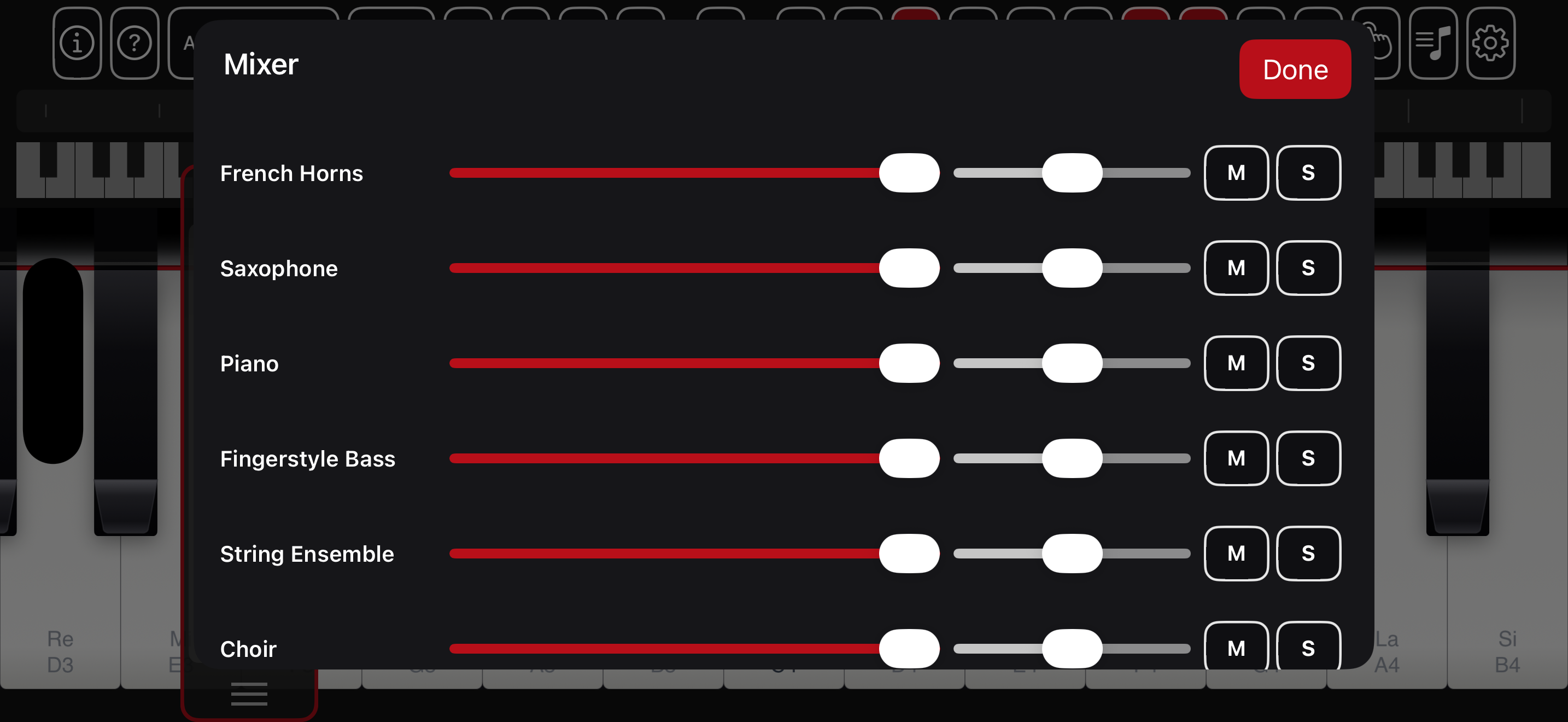
On a multi-track piece a 🎚 Mixer chip opens a per-part desk: a volume fader, a pan slider, and Mute / Solo for every line — the way you'd balance the parts on a mixing board. Solo any part to hear just it; mute the melody to play it yourself over the backing.
Recording
The Record button (the record dot, beside the stopwatch) captures the audio of what you play — your performance, reverb and all — to an audio file. It glows felt-red while recording; press it again to stop and share the take. Turn on 🎙 Mic to fold the room in too. Takes land in the Files app under Piano H88 › Recordings.
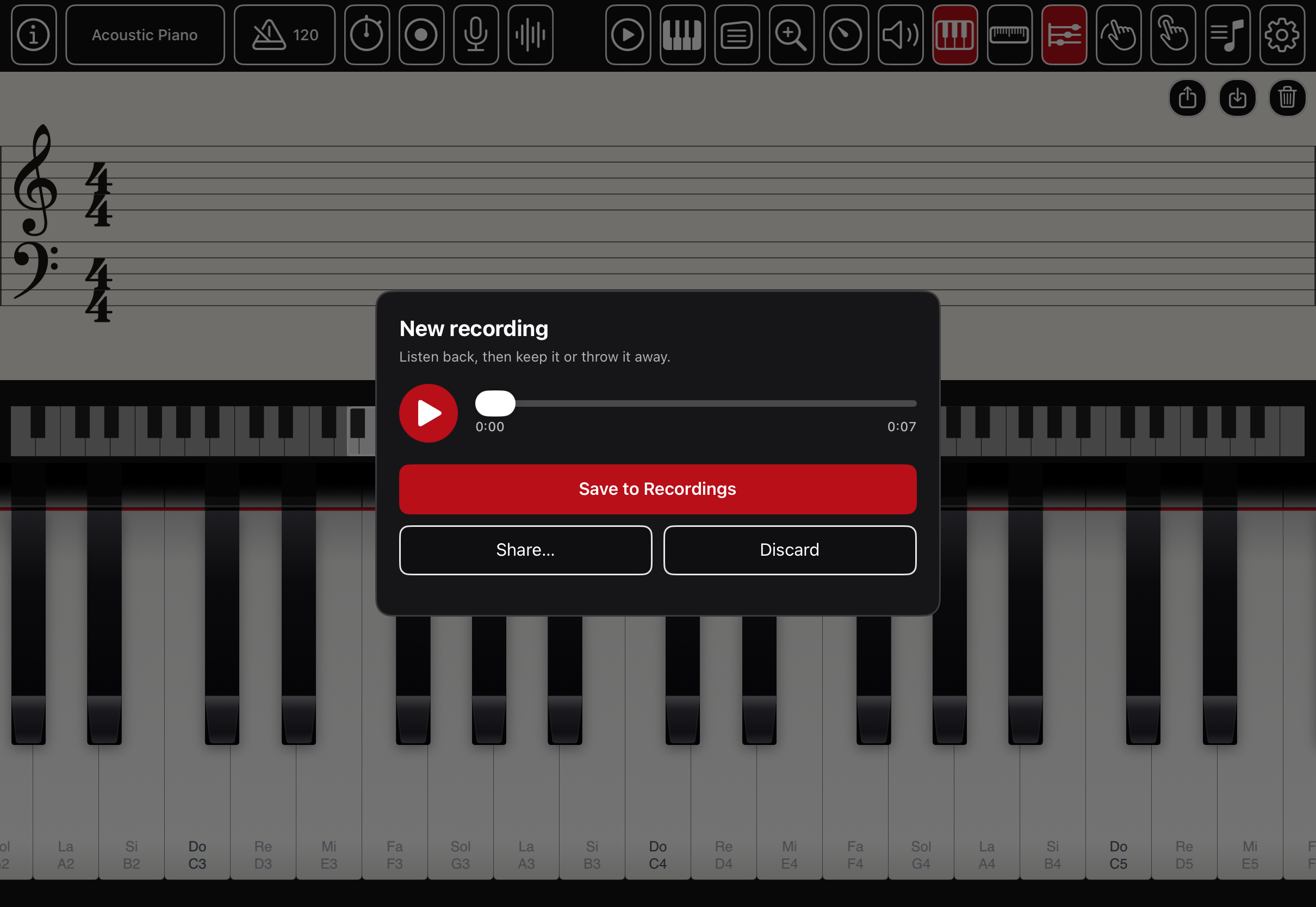
A saved take lands on its own Recordings shelf in the Music library, kept together with the score you played — so you can replay, learn or export it like any piece, and its page carries the audio as a waveform track you can play alongside the notes.
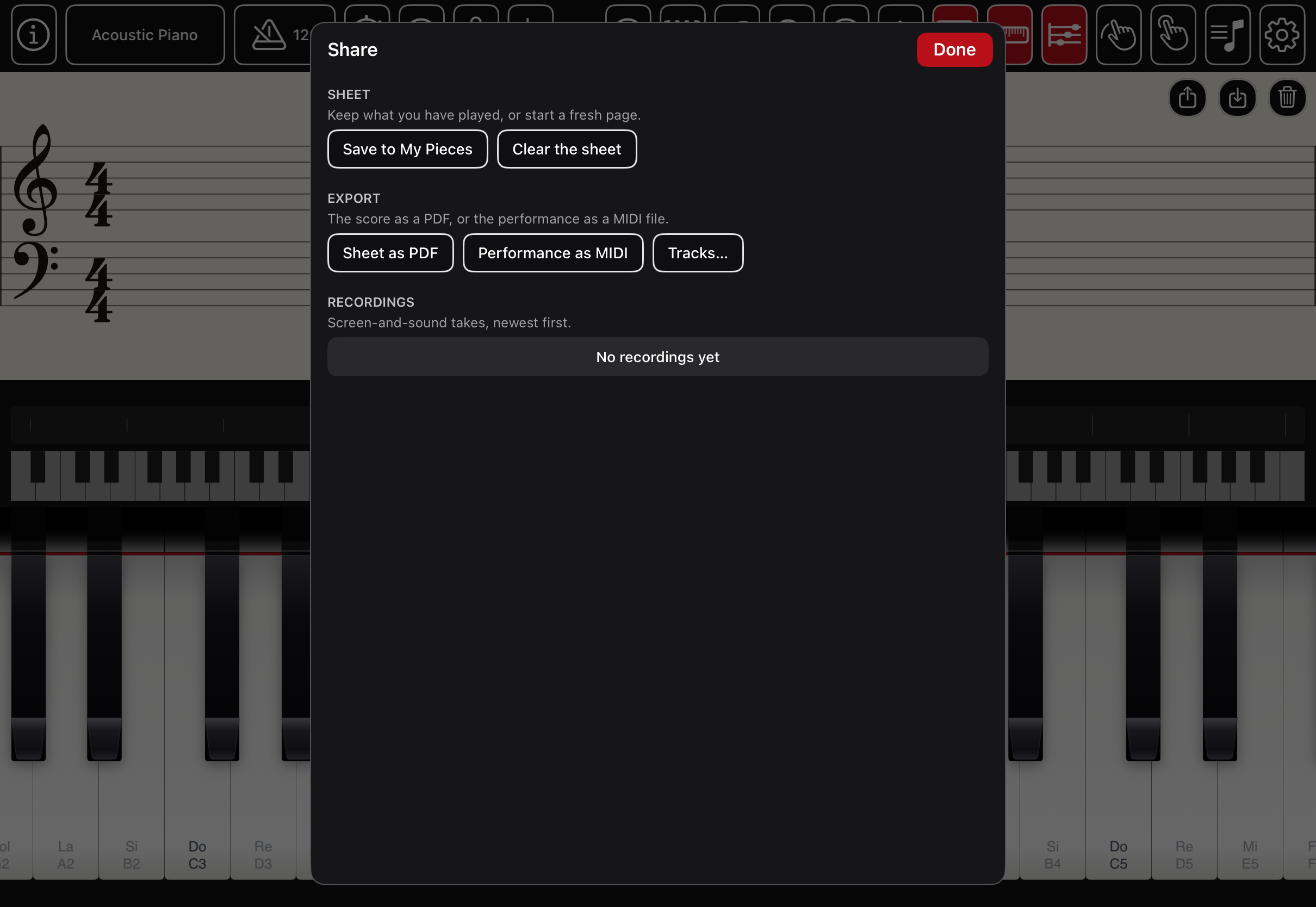
Alongside video, you can export what you played as a print-ready PDF of the engraving or a Standard MIDI file — the same notes you see on the staff.
Instruments & effects
Six house sounds plus all 128 General MIDI programs from the bundled GeneralUser GS bank — 134 in all, grouped by family.
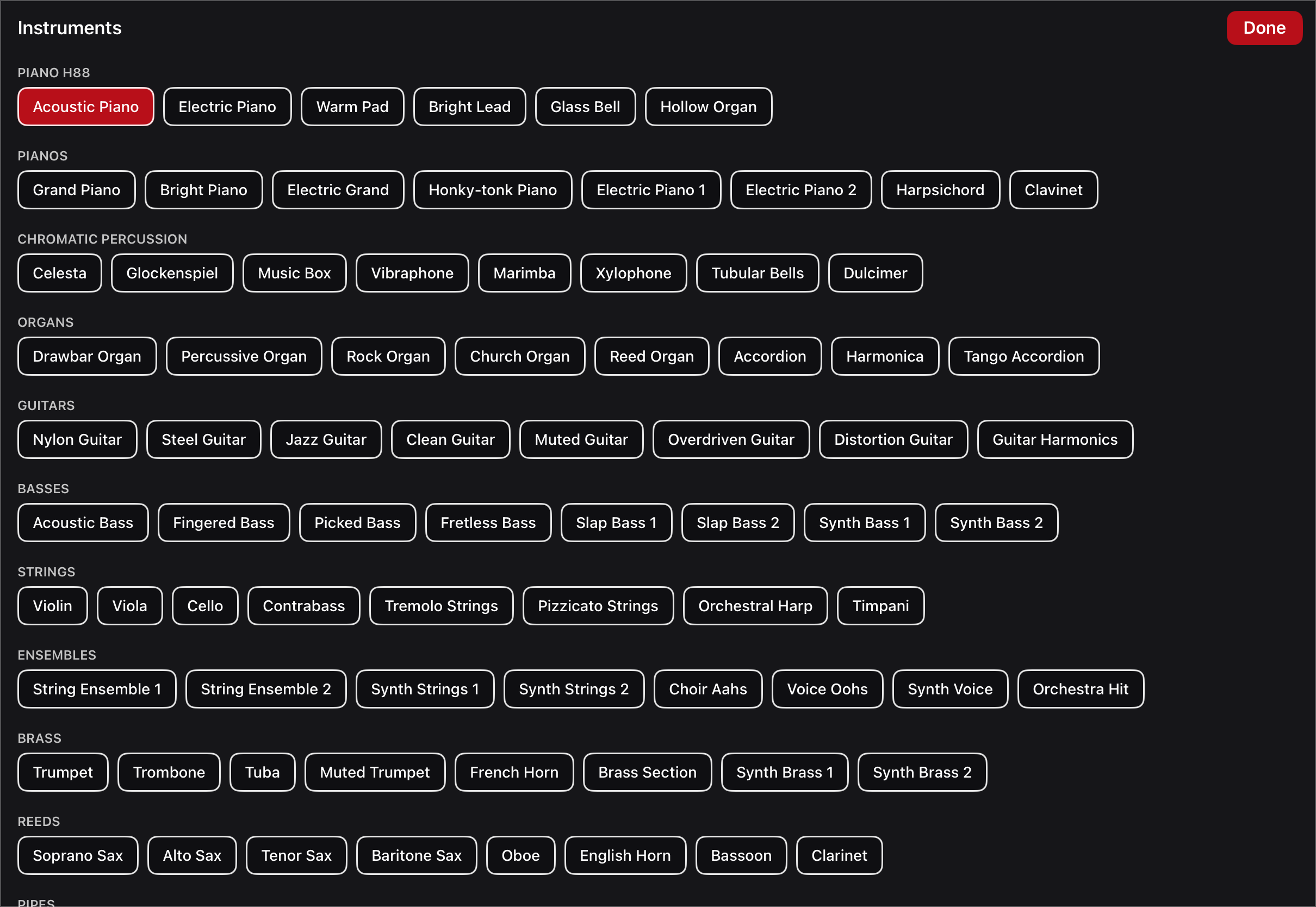
Shape the space in Settings › Audio: reverb room and amount, and an echo with its own time and level.
Voice, scanning & import
The 〰 Voice button turns the whole app into something you can drive hands-free and eyes-free — an accessibility feature as much as a convenience. Nearly every control has a spoken phrase, usually several, and the app speaks a short confirmation back (muting its own ears while it talks). It keeps listening while a piece plays, so pause or stop work mid-playback.
Play music by describing it
play D minor, add C major chord, play chord A, play C3, play middle C, play C sharp four. Roots may be letters or solfège (play sol minor).
Drive the app
| Say something like… | and it… |
|---|---|
| open settings · show the music library · open instruments · open info | opens that panel; close or go back dismisses it |
| play · pause · stop · loop · from the top | runs the transport |
| faster · slow down · normal speed | changes playback speed |
| octave two · zoom in · louder · sustain full | adjusts the keys and sound |
| show sheet · timed on · dynamics off · sustain pad · start recording | toggles that control |
| save to my pieces · undo · clear the sheet | edits the score |
Destructive actions ask first: clear the sheet → the app says “Clear the sheet? Say yes or cancel.” — answer yes or cancel. With Lyrics from speech on, any words that are not a command are written under the newest note.
Type by voice
When you search the library or rename a piece, the app's keyboard has a 🎤 key. Tap it and speak: whole words are dictated, and you can also spell — say letters and digits and they run together (m a c → “mac”), with space for a gap. Tap ■ stop to finish.
Experimental: whistle or hum to play
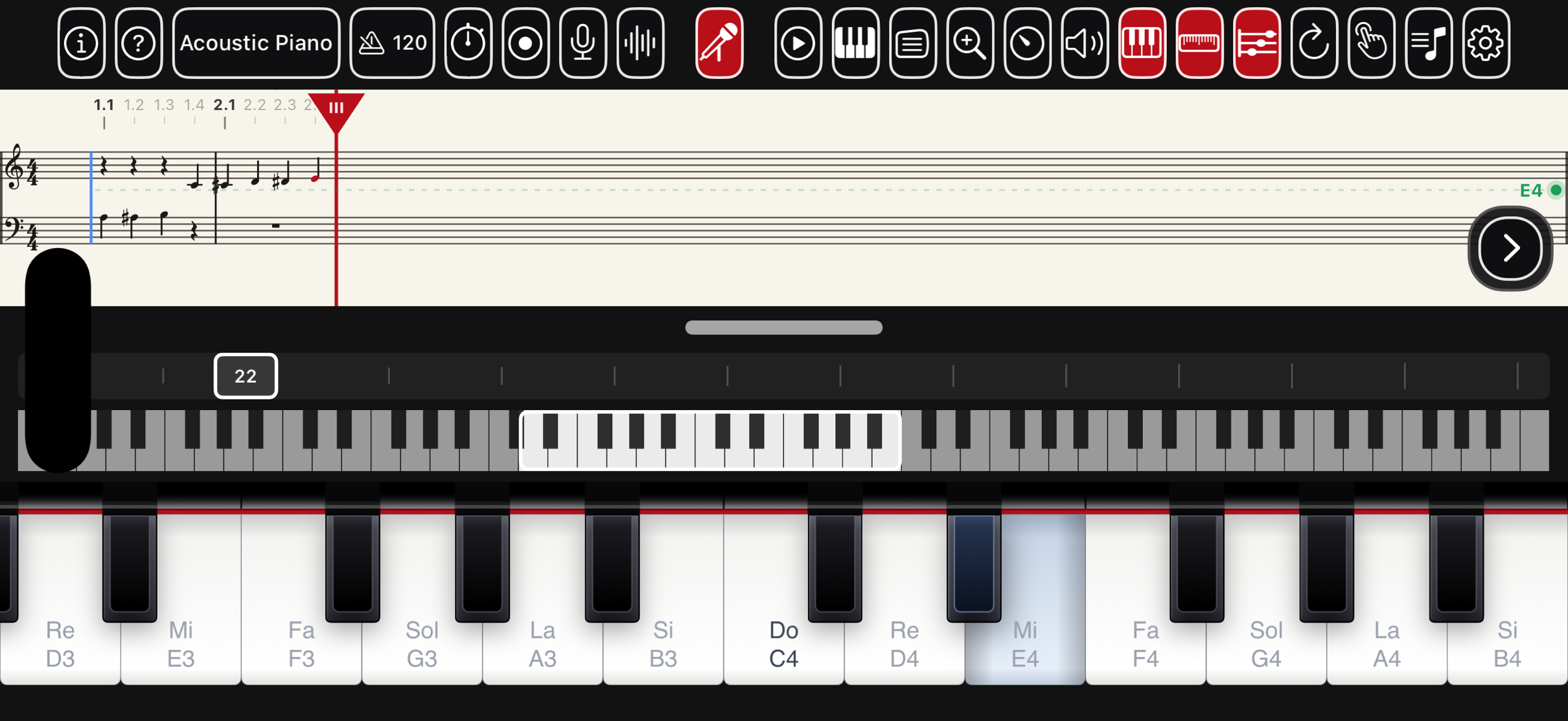
Tap the 🎤 whistle button in the centre of the top bar (or turn on Play by whistling or humming in Settings › Experimental). The app listens through the microphone and plays the note nearest the pitch you make — a hands-free way to sketch a melody. The button glows felt-red while it is listening; a long press on it opens the settings below. It wants a quiet room and a real device, and it turns voice control off while it runs (the microphone does one job at a time).
What you whistle or hum is a full input: the notes sound, the keys light, and they are written onto the sheet just like notes you play by hand — so you can hum a tune and then read, edit, export or learn it. The pitch tracker uses the McLeod method, which is good at hearing the true note of a hum rather than jumping an octave.
A green live-pitch dot glides up and down the right edge of the staff as you sing, naming the nearest note, so you can aim your voice before the note commits.
Settings › Experimental also has a Tuner — a chromatic tuner using the same ear: it shows the note you are singing or playing and how many cents sharp or flat, turning green when you are in tune. It only listens; it never makes a sound.
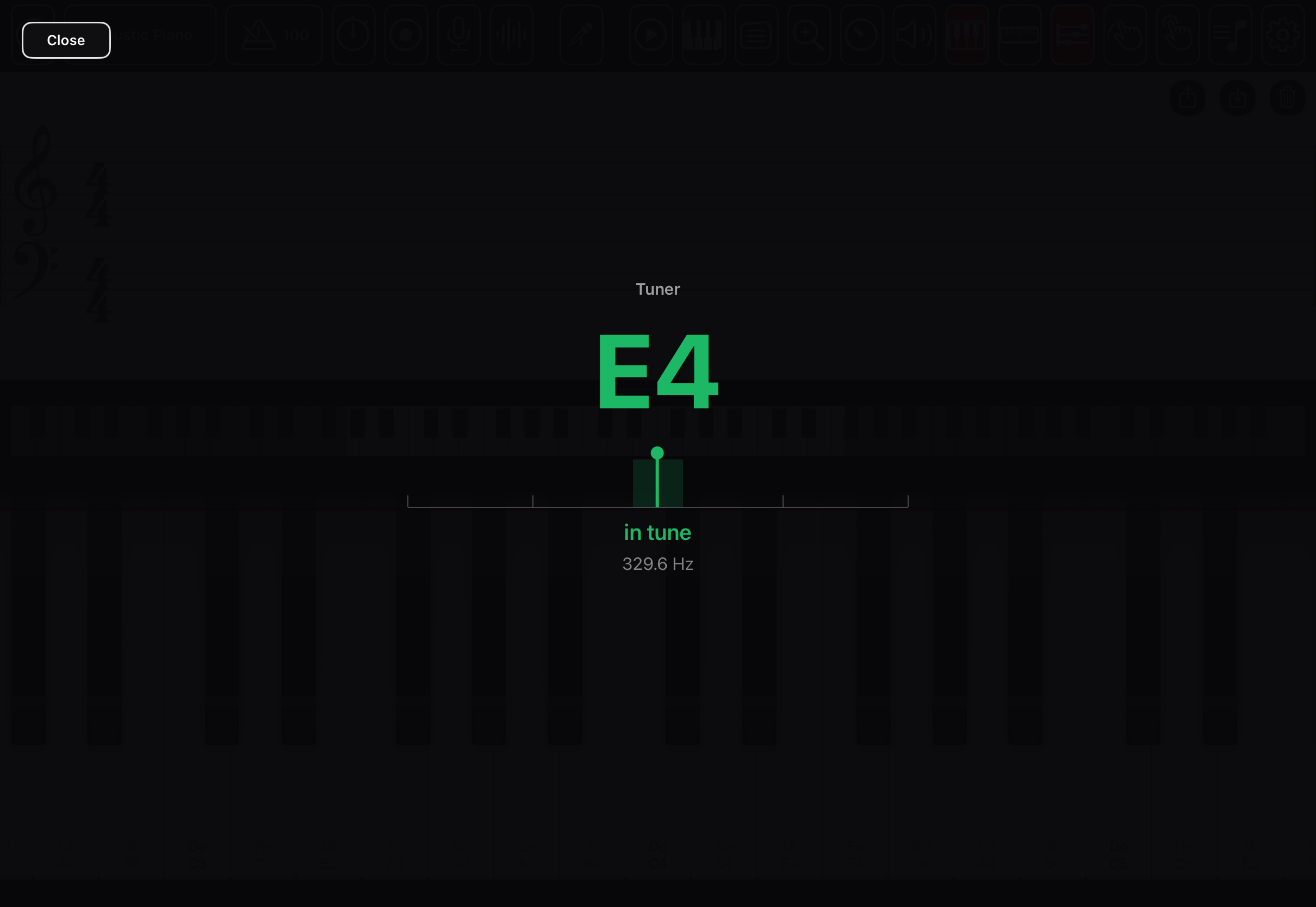
Tune it in Settings › Experimental:
- Key lock — snap every note into a scale (Major, Minor or Pentatonic on any root), so slightly-off singing still plays in tune.
- Octave — shift the played note down or up; whistling reads high, so −1 or −2 often feels right.
- Input sensitivity — how quiet and how noisy a sound still counts (High for a quiet room, Low to ignore background noise).
- Response — Fast switches notes instantly; Smooth waits for the pitch to settle and ignores wobble.
- Loudness sets the volume — sing louder for a louder note, and in Glide mode the held note swells continuously with your voice, so you can shape a note after it starts — the theremin's second hand.
- Glide (theremin) — turn on Play by whistling or humming, then this, and one voice slides smoothly with your pitch, bending continuously like a theremin. The lit key follows your voice, and the melody it traces is written to the sheet note by note, so you still get a score of what you played even though the sound glides between the notes.
- Pitch engine — how the note is heard: a bundled Core ML model (SwiftF0, the default) is the most robust, especially in a noisy room; the built-in McLeod tracker is also there to choose.
The whistle settings only take effect while the microphone is listening, so they appear greyed until Play by whistling or humming is on — the same way any setting that depends on another is dimmed until the feature it needs is turned on.
Read printed sheet music (beta)
Piano H88 can turn a photo, scan or PDF of printed music into notes you can play, learn and edit — entirely on the device, with a bundled neural network; nothing is uploaded. The reader understands the grand staff (both the treble and bass clefs), reads the key signature, and gives notes real durations — whole, half, quarter and eighth. It is a beta: expect to correct it, and it does best on clean, well-lit printed scores. Everything you bring in is kept even if the reader misses notes, so nothing is lost.
Three doors, all in the Music page (♪):
| Door | What it does |
|---|---|
| Scan sheet | A manual camera (hold the phone in landscape). Fit the page inside the red target box — only that area is kept — using the rule-of-thirds grid, then tap the round shutter (lower right). Add as many pages as you like; a shutter sound and a tap confirm each shot (when sound / haptics are on). |
| Import PDF sheet | Bring in a PDF or image from the Files app — each page becomes a page, rendered sharp for the reader. |
| Import MIDI (.mid) | Bring in a Standard MIDI File — see Music — learn & play above for how multi-track files open with every part on its own instrument. |
A scanned or imported sheet opens straight away on its own Scanned Sheets shelf, with its pages shown as a row you can edit: tap a page to open the image editor, drag to reorder, ✕ to remove, + to add more. When you are happy, tap Re-analyze notes to (re-)transcribe the edited pages onto the score — which you can then fix by hand with the sheet's own tools.
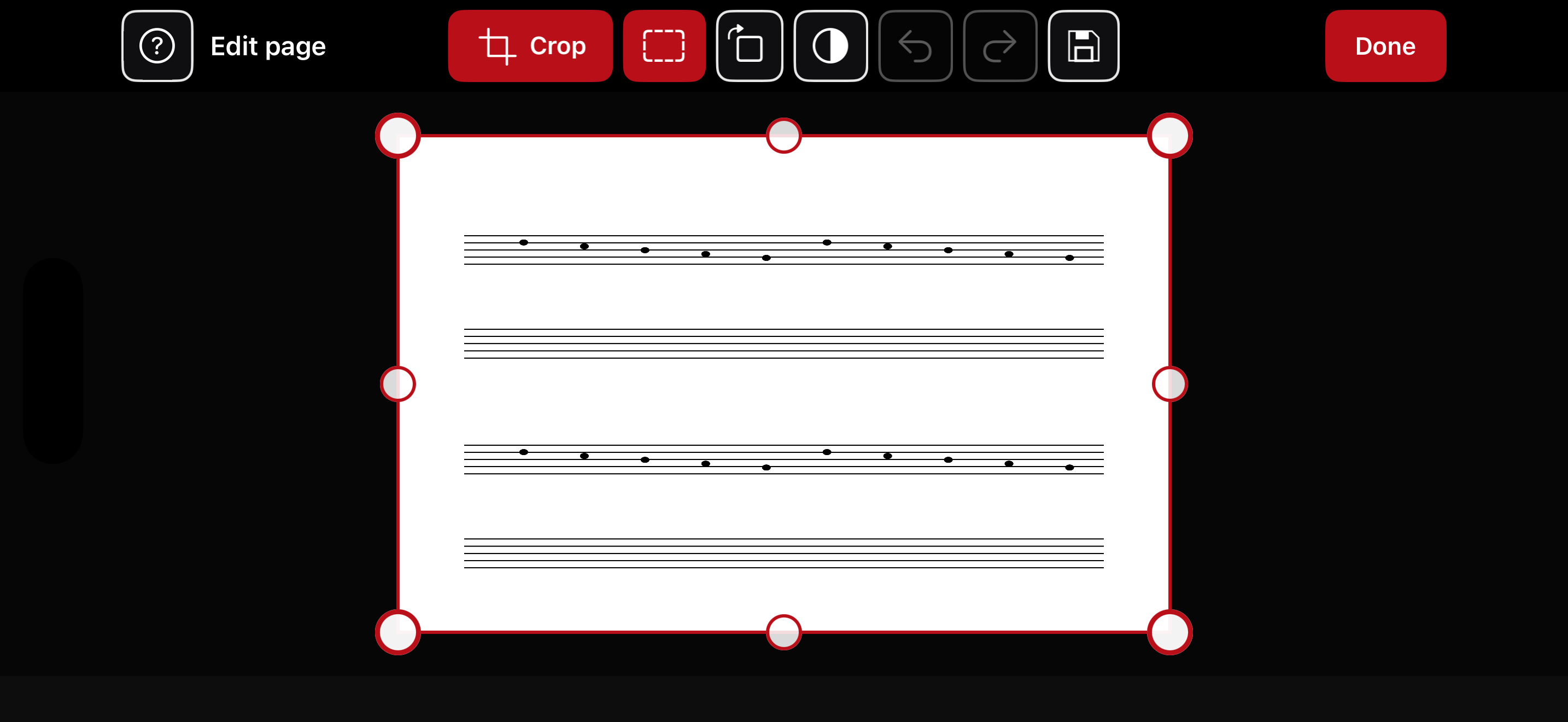
The camera and microphone are used only for these features, and only when you turn them on. Where there is no camera the scan falls back to the photo library. On some simulators the reader under-performs; a real device gives the full result.
Piano Link & MIDI
Piano Link (Settings › Devices) joins two devices side by side into one long keyboard over the local network — one is the host, the other offers itself as extra keys. There is no account and no server; each device sounds its own keys with no lag.
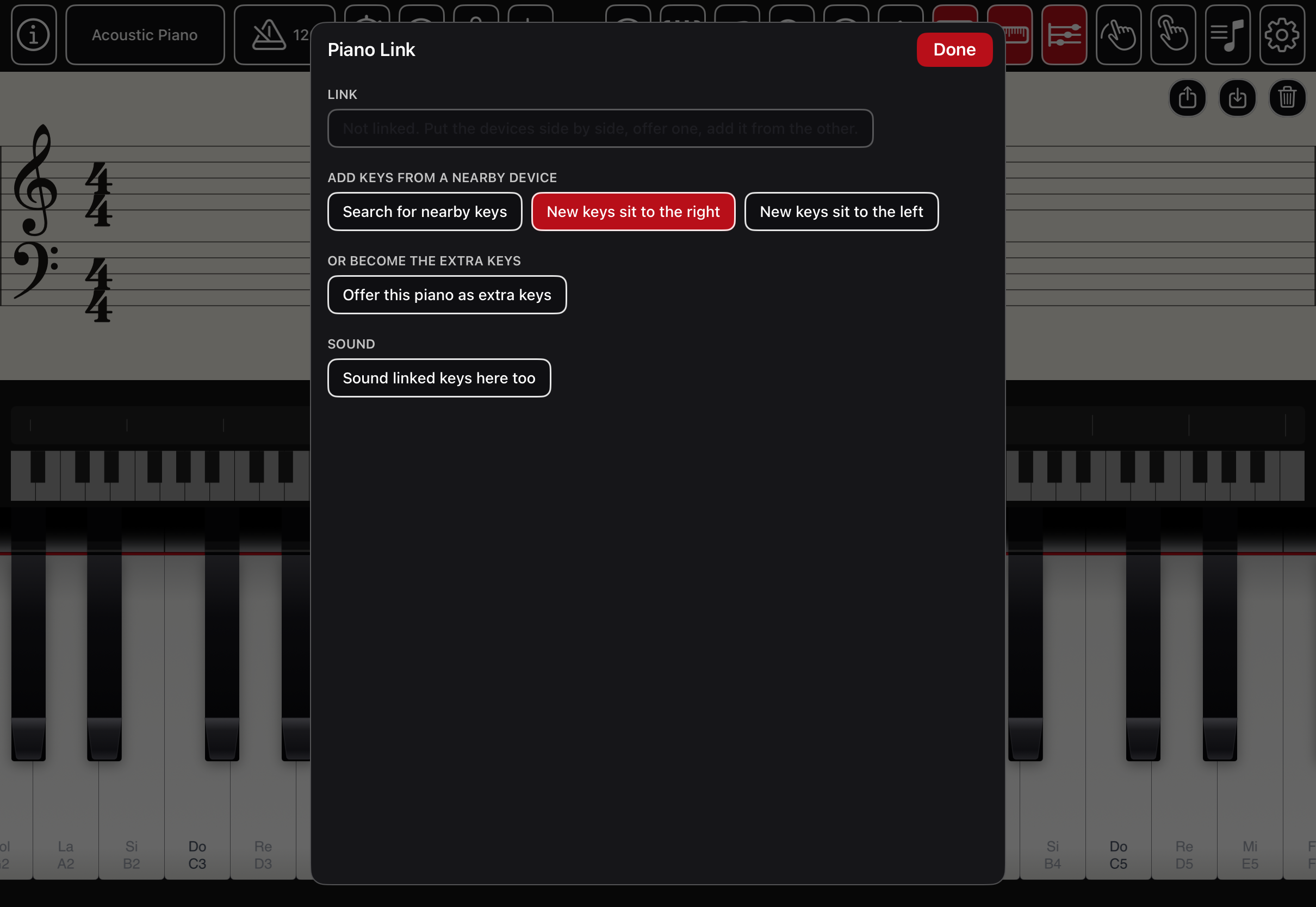
A hardware MIDI keyboard — USB or Bluetooth — plays Piano H88 exactly as touches do, including Learn mode. Pair Bluetooth MIDI from Settings › MIDI keyboard.
Piano H88 is a MIDI device too
The app publishes itself to Core MIDI as “Piano H88” — a destination other apps and devices can play, and a source that carries out the notes you play. So you can use these keys to drive another synth or app, or use Piano H88 as a sound module for an external controller.
| In Settings › Advertise as a MIDI device | |
|---|---|
| Reachable over Wi-Fi | Turns on network MIDI (RTP), so other devices on the same network can find and use Piano H88. |
| Advertise over Bluetooth… | Makes this device discoverable as a Bluetooth-LE MIDI instrument for a nearby phone, tablet or computer. |
| Silent controller | These keys send MIDI out but make no sound here — so this device drives another (a synth, or a second Piano H88) as a mute keyboard. |
Mirror play — learn on two devices at once
Connect two devices running Piano H88 (pair them over Bluetooth, or turn on Wi-Fi MIDI on both) and they mirror each other: a note played on either sounds on both, the keys light on both, and both score sheets follow. It is a lovely way to learn together — a teacher plays on one and it appears, sounds and is written on the student's, or two players share one part across two screens.
The screen & settings
On iPhone the interface is rotated 180° so the home indicator sits at your top, away from the hand playing the low keys, and the keys lie on a screen edge with no system gestures. This is why the app looks upside-down in a screenshot or the Simulator — hold the phone the way the content reads upright.
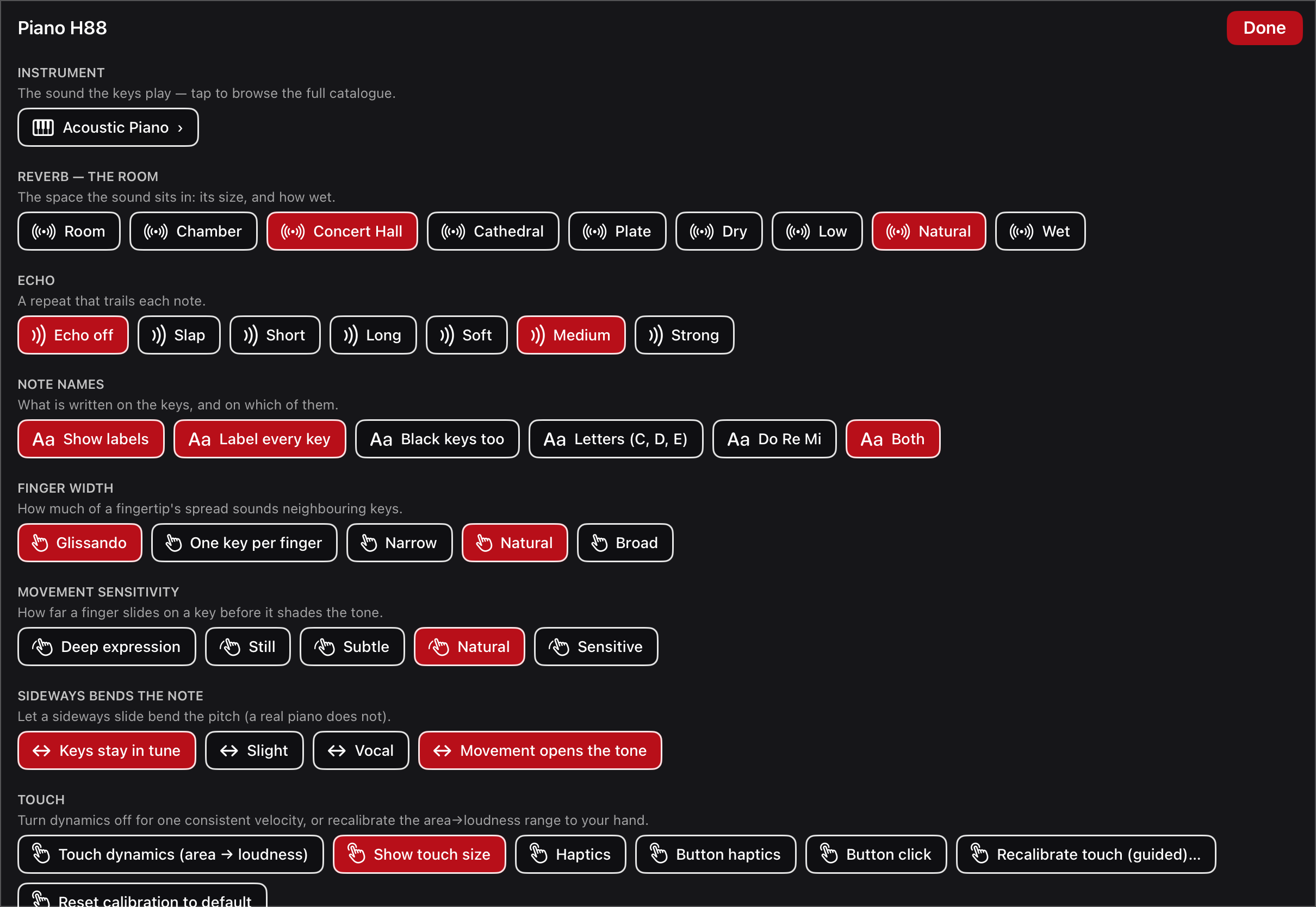
Settings also holds note names, finger colours, finger-width sensitivity, expression, haptics, the metronome's tempo and metre, audio output, and a practice diary.
Typing in the app
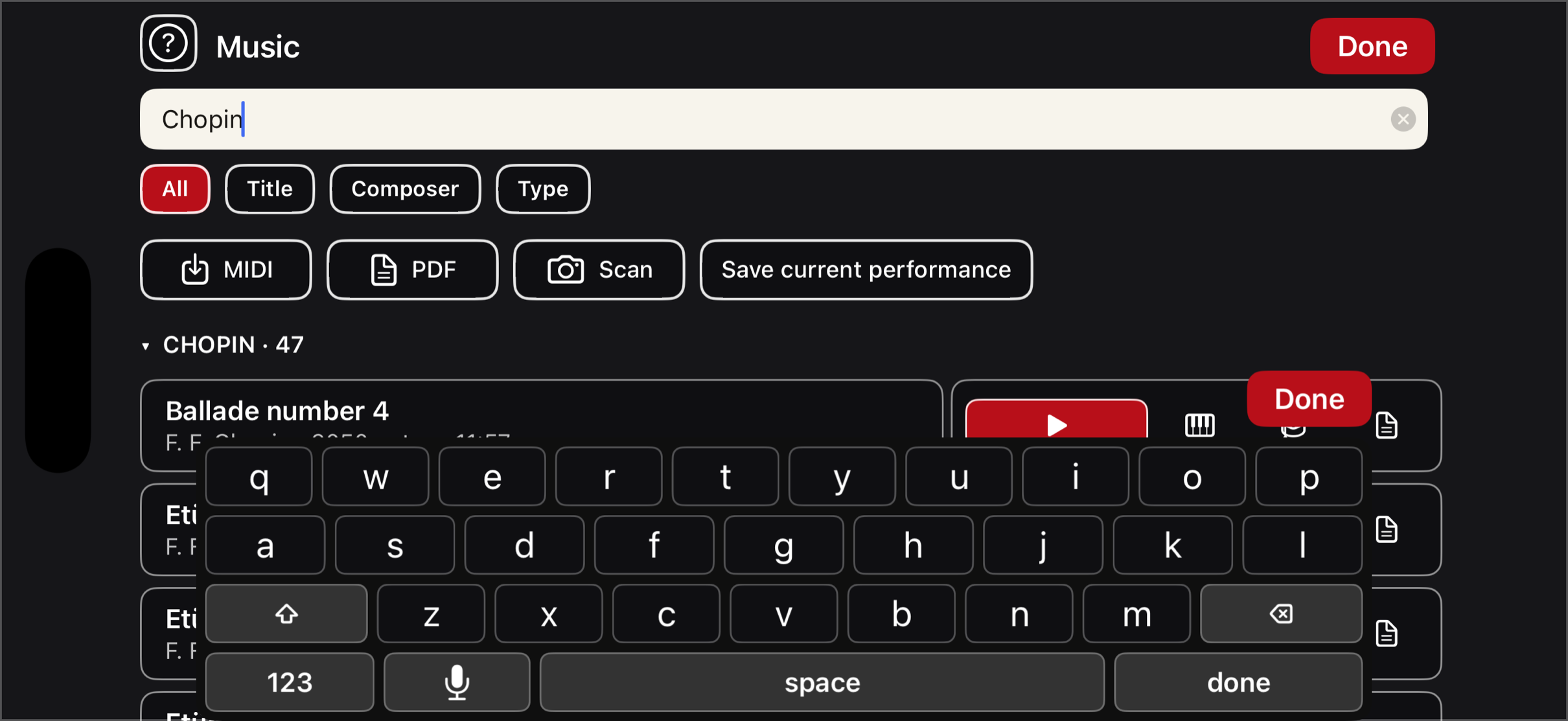
When you search the library or rename a piece, Piano H88 shows its own soft keyboard in the app's language rather than the system one — so text entry reads the right way up on the rotated phone, just like every other panel. It has the usual letters, numbers and symbols layers, shift, delete, space and return, and a felt Done riding its top-right corner that commits the entry and puts the keyboard away. Every key gives the same tap and click as the app's buttons when those are on in Settings › Touch.
Type by speaking
Tap the 🎤 key and talk: whole words are transcribed live into the field. You can also spell — say letters and digits and they run together (m a c → “mac”), with space for a gap — which is handy for names and short titles. Tap the key again, or leave the field, to stop. It shares the one microphone with voice control, so starting one stops the other.