Field manual · Calculator ft+ · MacDevStudio
Calculator ft+
An RPN construction calculator with a real dimensional engine. Lengths in nine units with carpenter fractions, cross-unit arithmetic, first-class areas and volumes, and true derived units — velocity, force, energy — computed from SI dimension vectors. Type requests in plain English, speak them, or press-hold the value to edit it on a construction keyboard with units, constants and tape-measure fractions. And in ft+, a second machine lives behind the calculator: a full RPL computer in the spirit of the great HP handhelds — infinite object stack, programmability, unit objects, plotting and symbolic algebra. This manual documents every key, every formula, and every rule both engines apply.
Anatomy of the calculator
Everything lives on one screen. Tap a label below to highlight where it sits.
RPN: enter, stack & stack keys
Calculator ft is a Reverse Polish Notation calculator: you push values onto a stack with enter, then apply an operation. There is no equals key — an operator computes immediately using the values already on the stack.
ans and x↔y sit in the right prime column; the rest of the stack keys live on the last function page:
| Key | Action | Example |
|---|---|---|
| enter | Push the displayed value onto the stack — with its unit and dimension. | 5 enter → stack: [5] |
| x↔y | Swap the two topmost values. Only values swap — never operators. | 8 enter 2 x↔y ÷ = 0.25 |
| drop | Remove the topmost value. | 5 enter 7 drop → 5 |
| dup | Duplicate the topmost value. | 3 dup × = 9 |
| ans | Recall the most recent result from history, unit included. | …= 42 → reset → ans → 42 |
| undo | While typing: delete the last digit. Otherwise: remove the top stack item and recompute. | 123 undo → 12 |
| reset | Clear the stack and the display. Store slots and history are kept. |
Entering numbers & precision
Digits, . and ± work as expected. Three keys deserve a note:
| Key | Action | Example |
|---|---|---|
| EE | Scientific-notation entry: appends an exponent. Press it twice for a negative exponent. | 1 EE EE 9 → 1e-9 |
| rand | A uniform random number in [0, 1). | 0.20412037 |
| copy / paste | Clipboard in and out. Paste accepts only text that parses fully as a number. |
Display precision
Results show 8 decimal places. Outside the everyday range the display switches to scientific notation automatically, so a tiny result is never mistaken for zero:
The nine-unit panel adapts its precision to the size of each number — every row gets a ~12-character budget:
Lengths, feet–inches–fractions
Tap a gold unit key after a number and it becomes a length: the panel converts it to all nine units at once, and the feet–inch–fraction readout decomposes it the way a tape measure reads.
Feet–inch–fraction entry
Build a tape-measure value left to right: feet, then inches, then a fraction key.
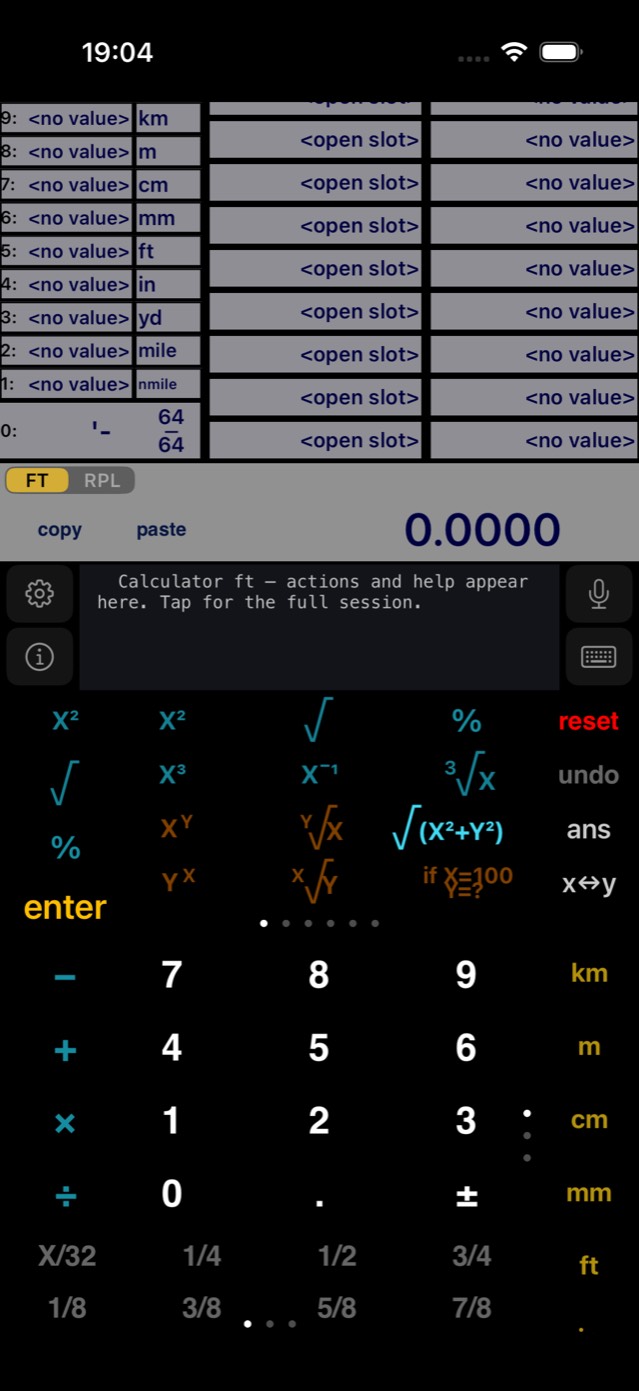
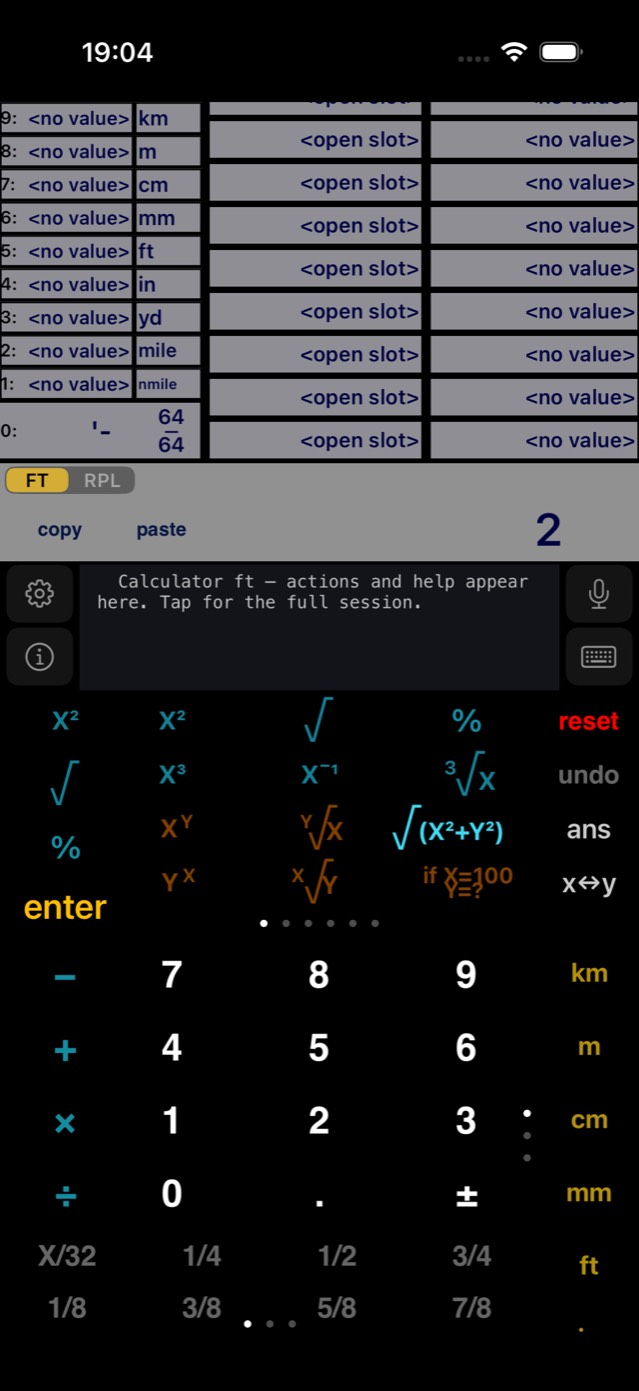
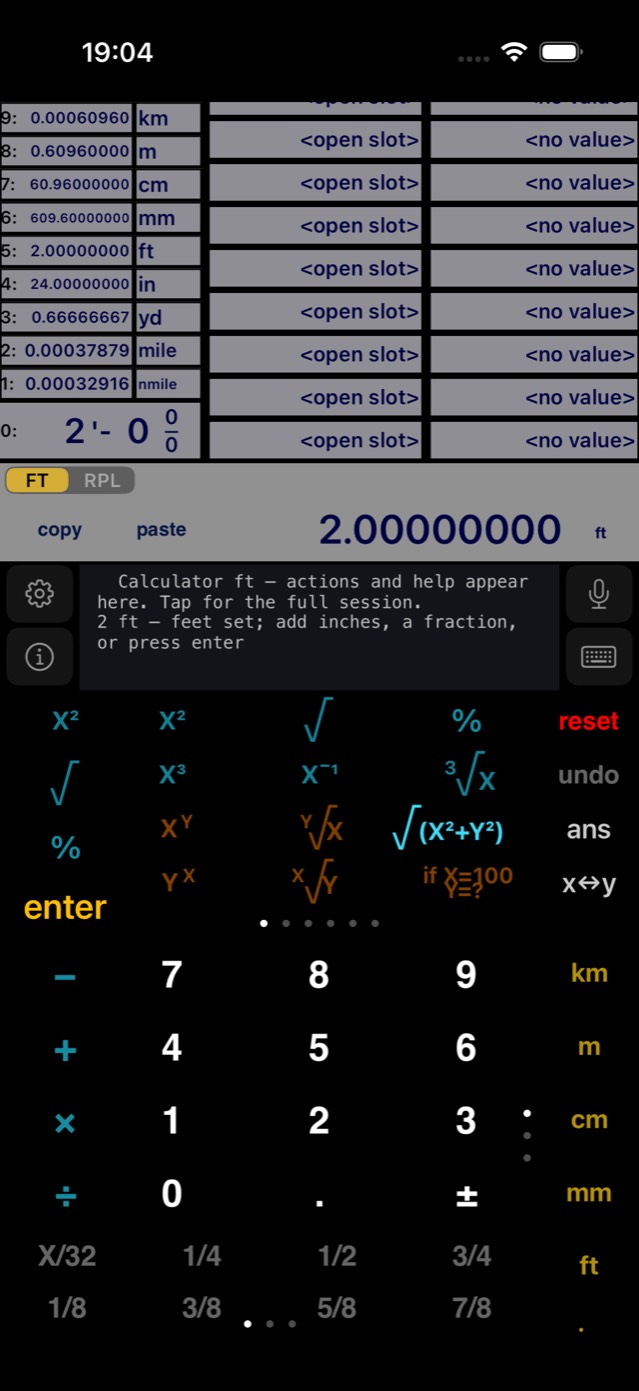
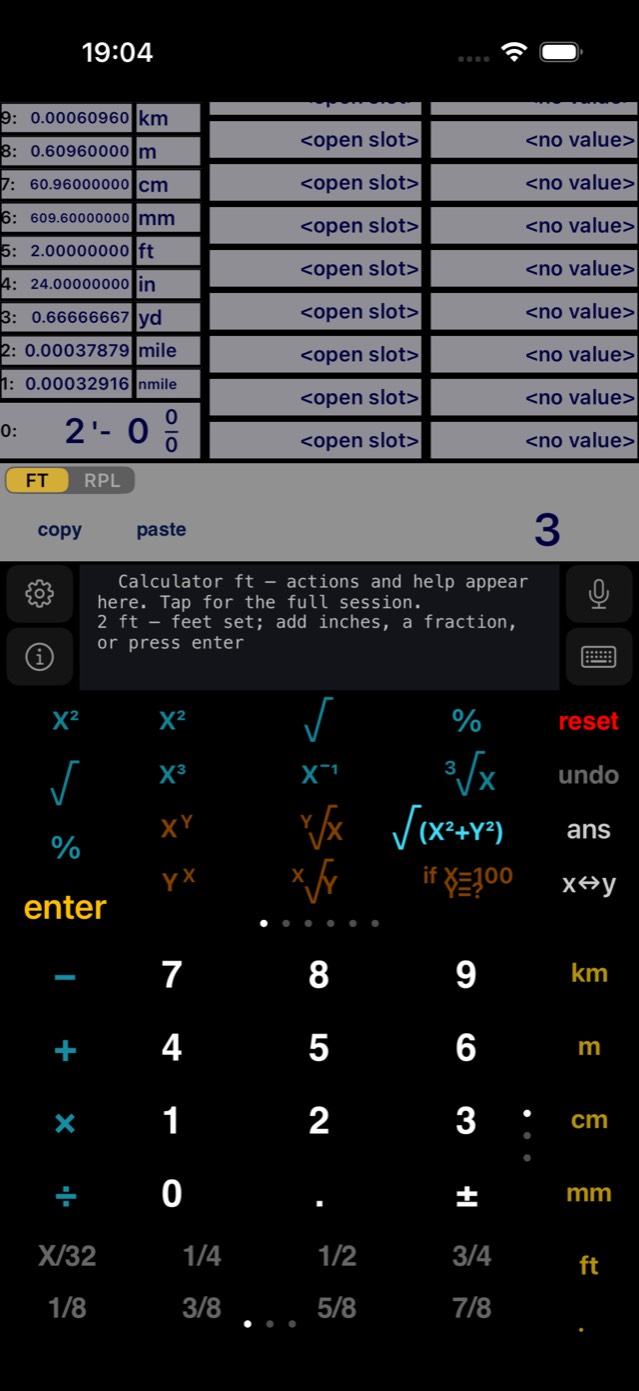
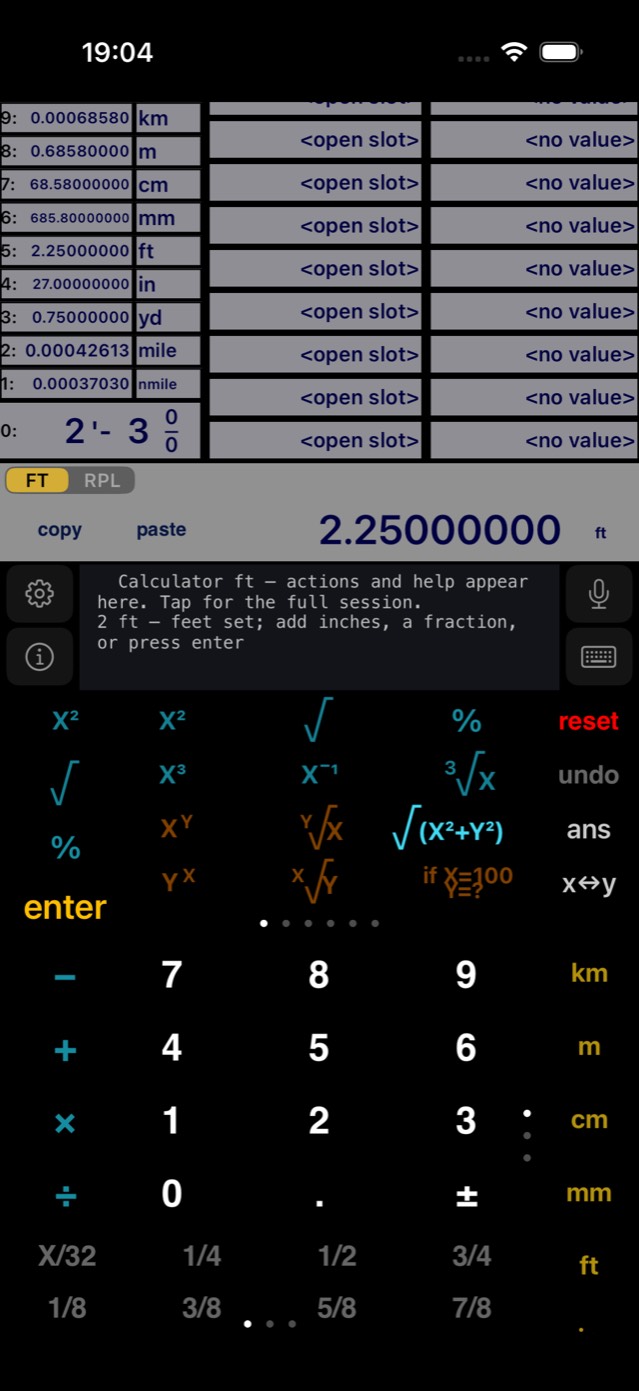
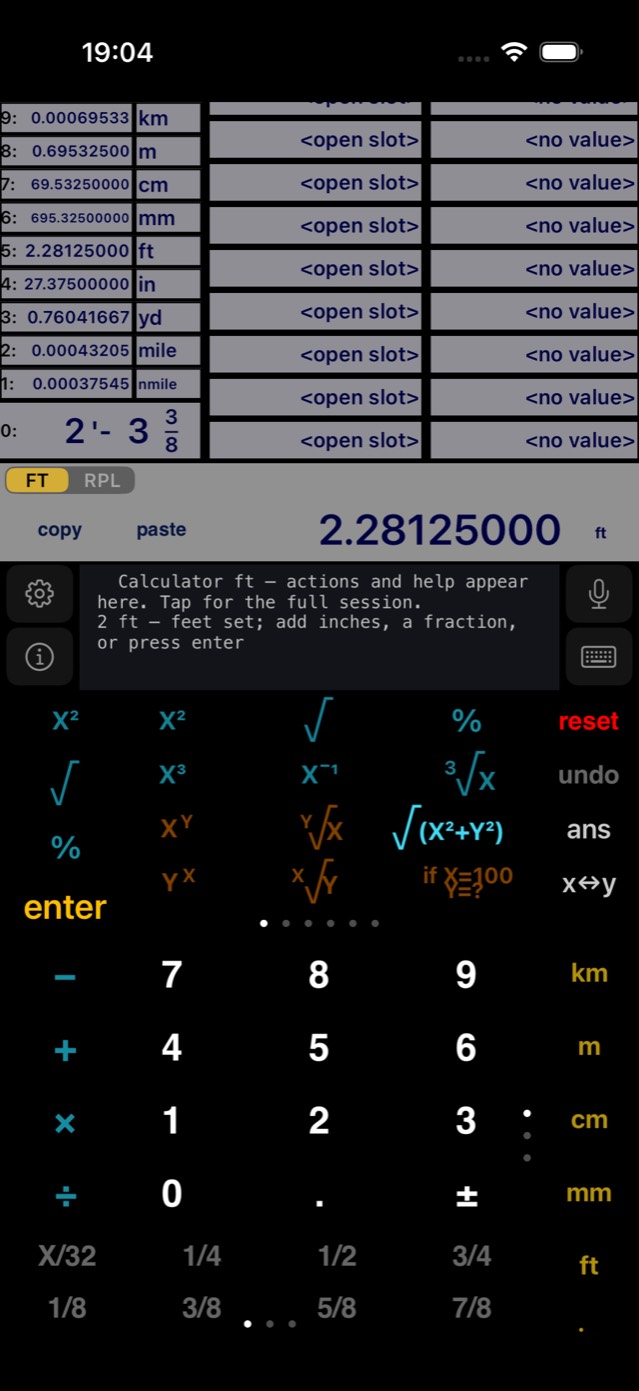
Illustrated · 2 ft 3⅜ in
Thirty-seconds & the fraction readout
X/32 turns the whole number on screen into 32nds of an inch: 5X/32→0.15625 in (= 5/32″). Going the other way, any length's inch remainder is snapped to the nearest 64th for the readout:
Cross-unit arithmetic
Mix units freely in one calculation. The rule is always the same:
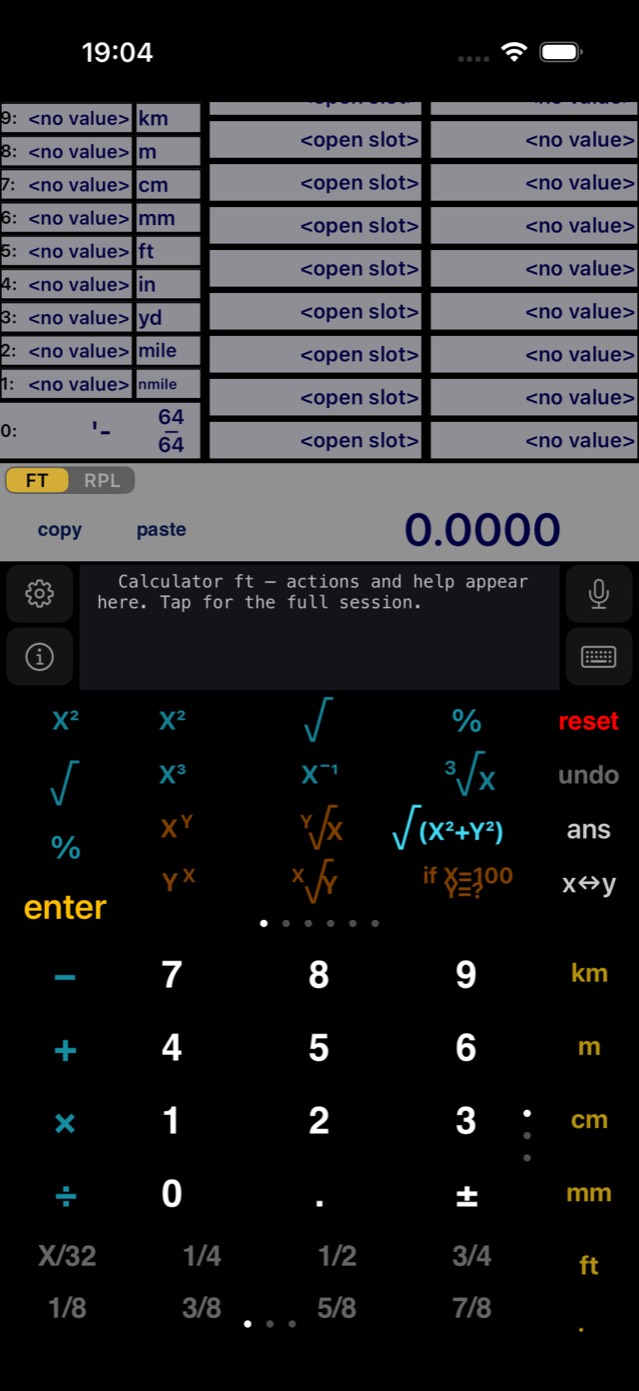
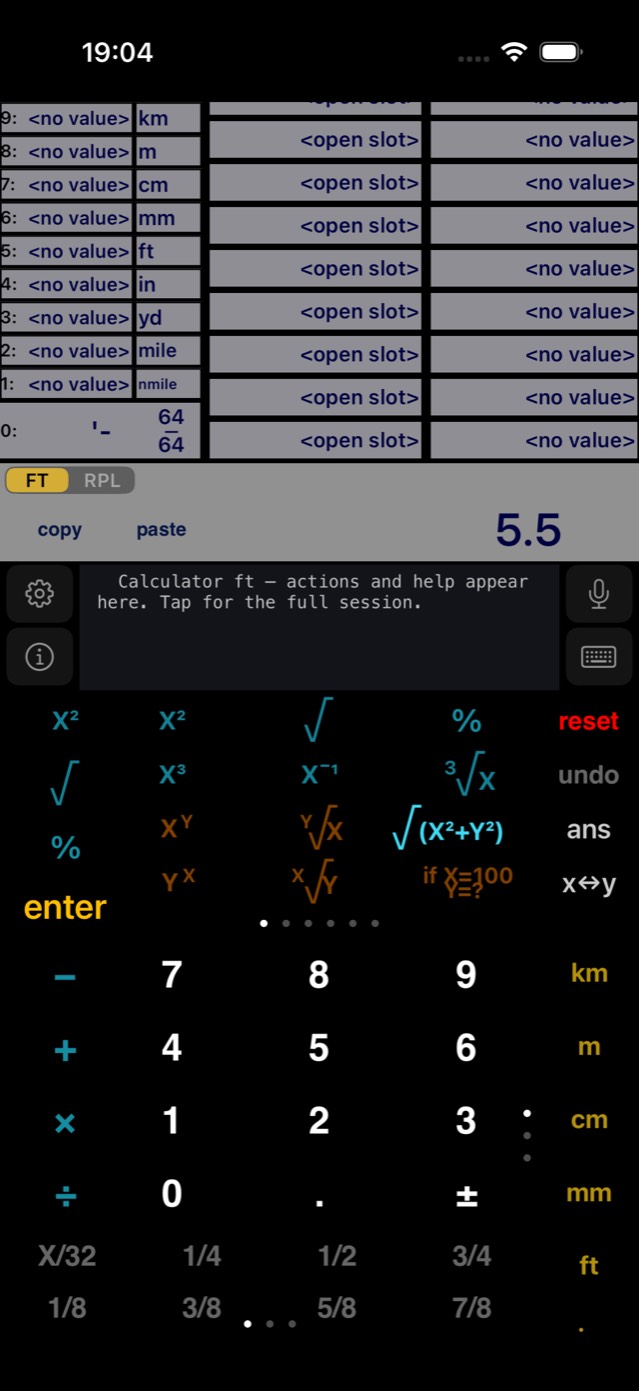
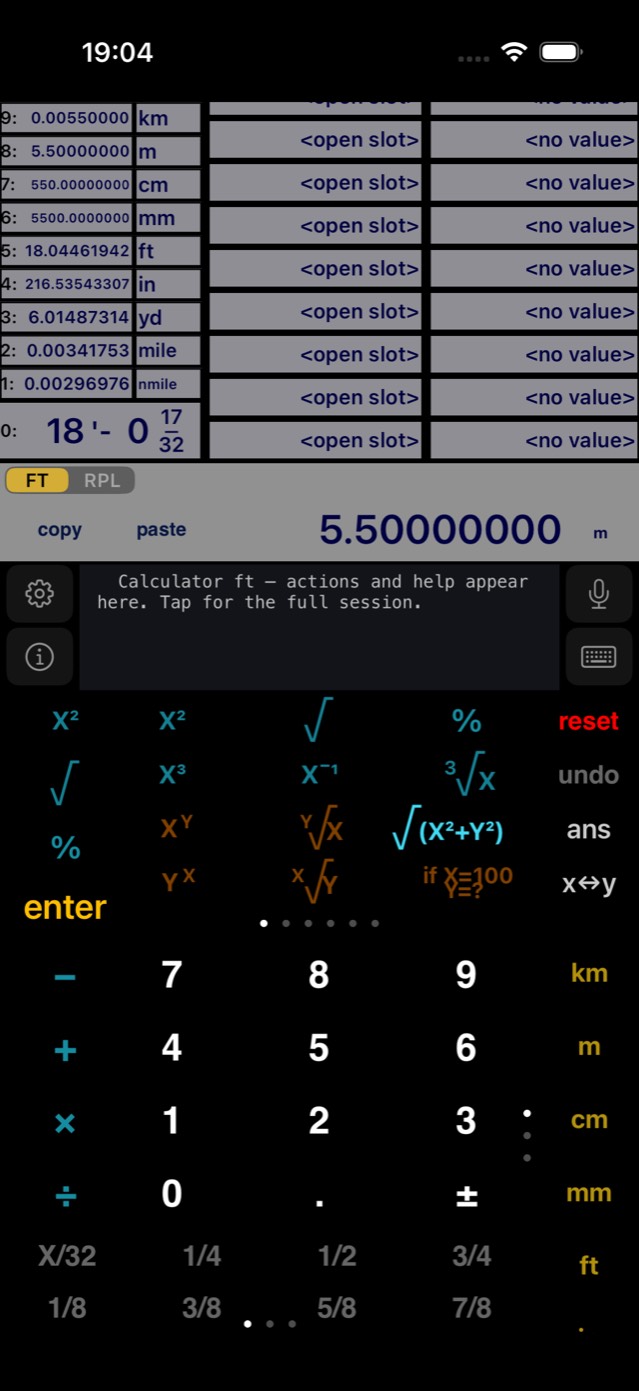
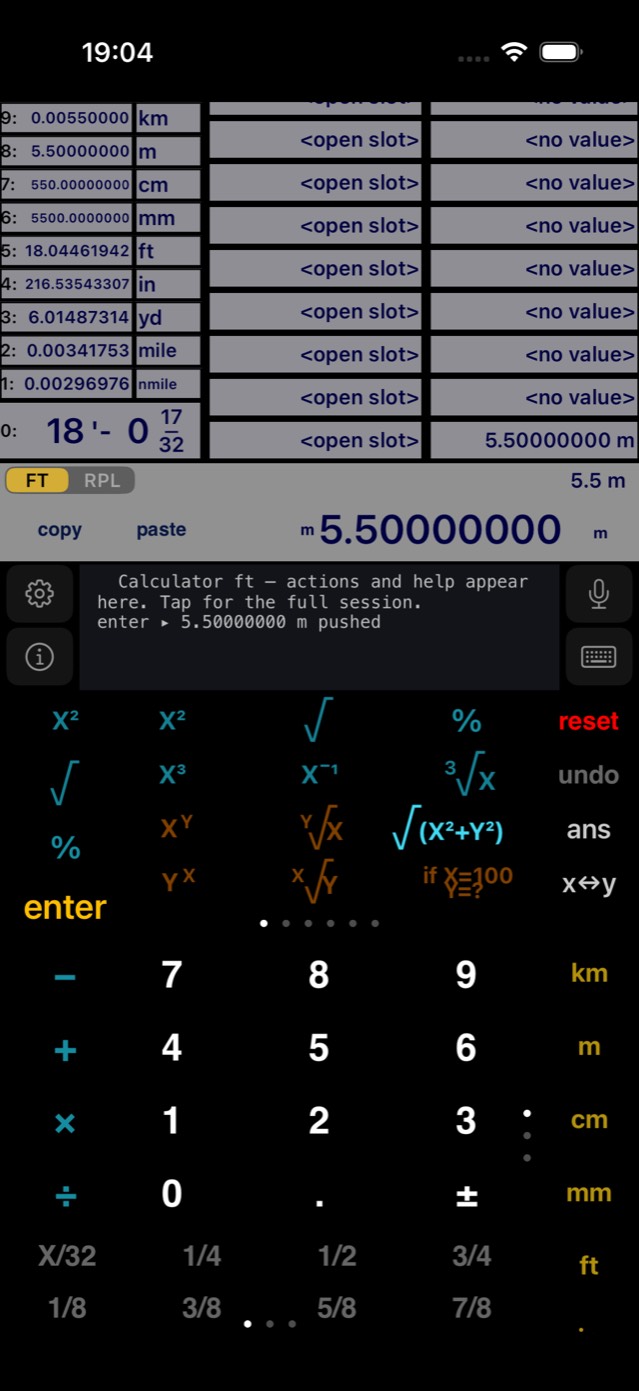
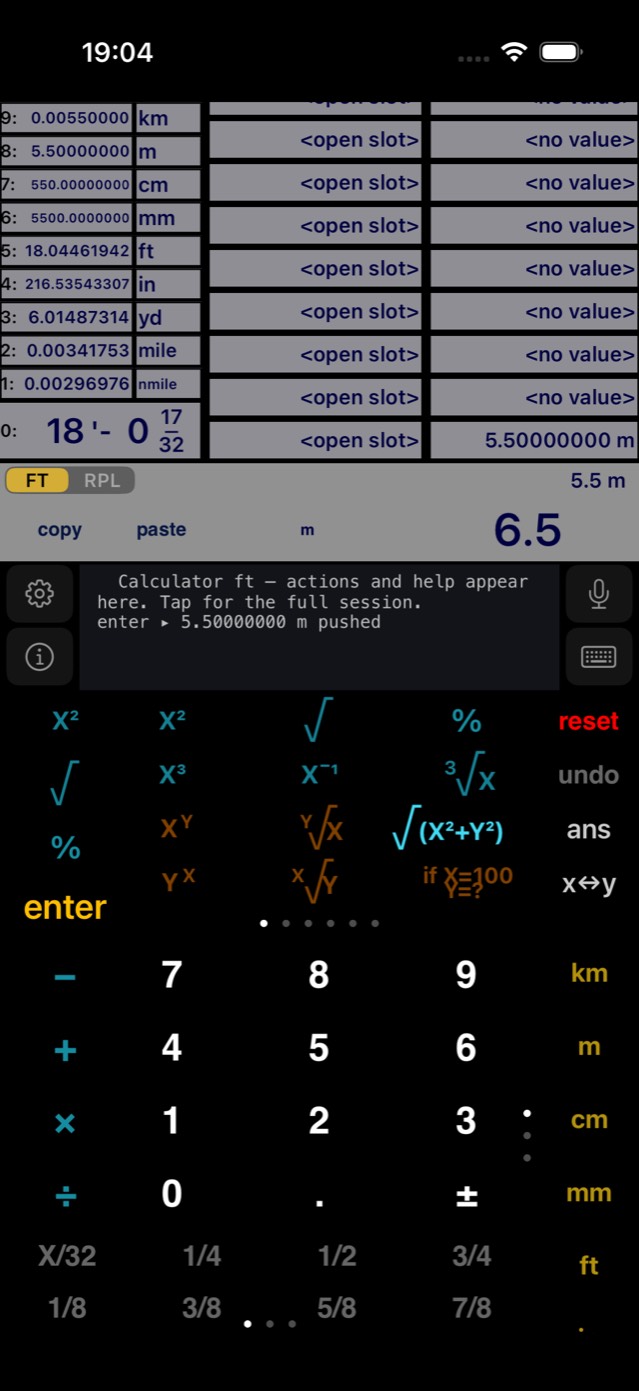
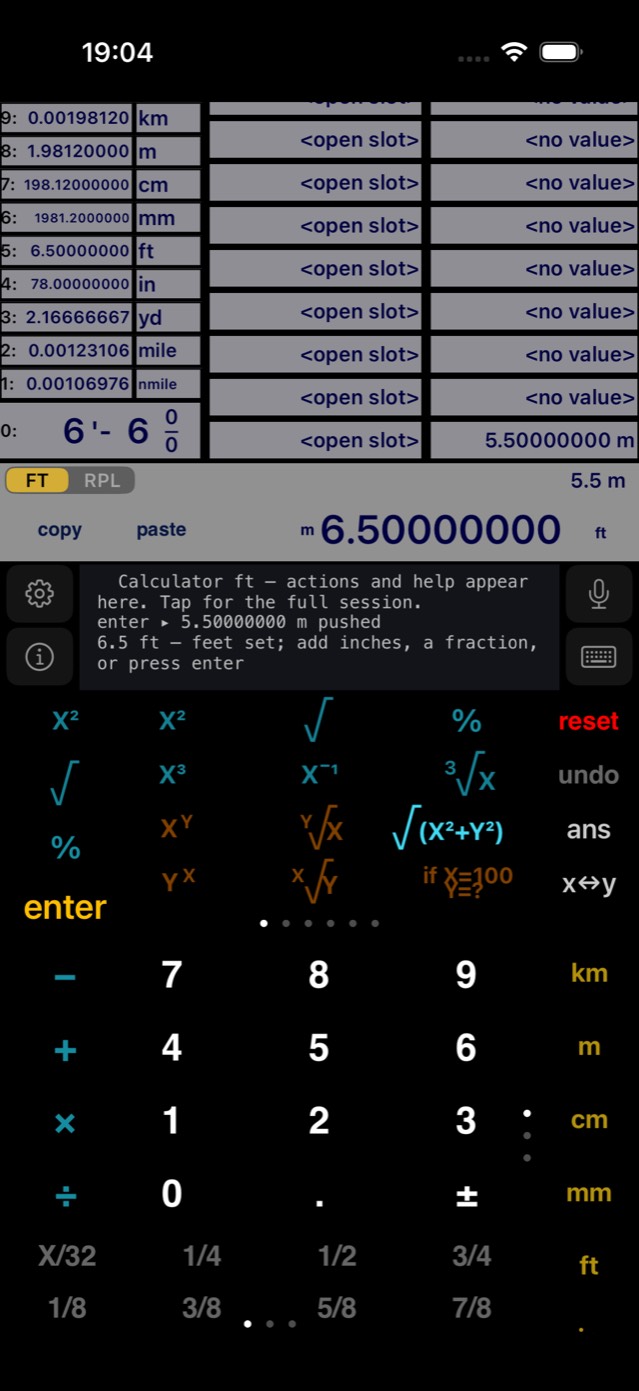
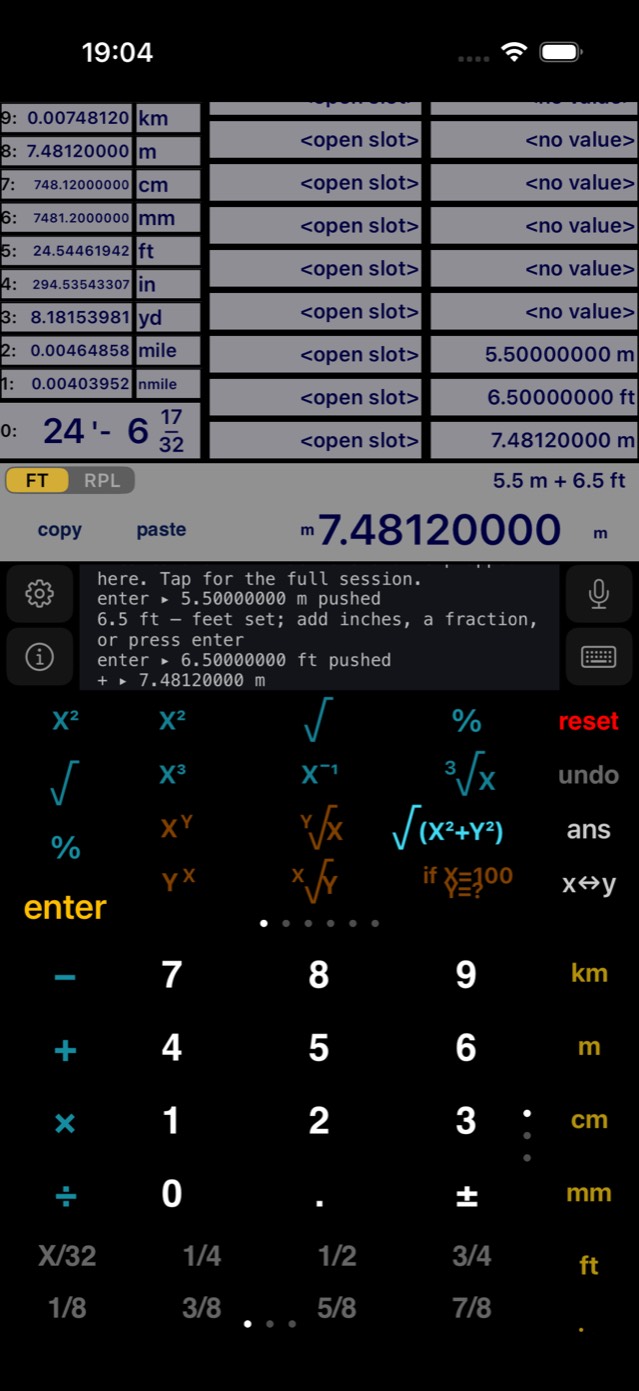
Illustrated · 5.5 m + 6.5 ft
Chaining keeps units. Continue with 2× and you get 14.9624 m. Results re-enter the stack as full unit values, so a whole cutting-list calculation stays in your working unit from start to finish.
Areas, volumes & dimensional algebra
Lengths carry a dimension — a power of length. Multiplying lengths raises it, dividing lowers it, and the engine tracks it exactly:
| Keystrokes | Computes | Result |
|---|---|---|
| 2 m enter 3 m × | length × length | 6 m² |
| 6 m² ÷ 2 m | area ÷ length | 3 m |
| 2 m enter 3 m × 4 m × | area × length | 24 m³ |
| 2 m X³ then ³√x | volume, then its cube root | 8 m³ → 2 m |
| 3 m enter 3 m × ²√x | √area | 9 m² → 3 m |
| 1 m enter 100 cm × | cross-unit area | 1 m² |
| 1 m enter 50 cm ÷ | like ÷ like | 2 (ratio) |
| 5 m enter 9 m² + | length + area | Dimension mismatch! |
Geometry keys produce properly-dimensioned results: πX² (circle area) and XY/2 (triangle area) give unit², π2X (circumference), 2(X+Y) (perimeter) and √(X²+Y²) (diagonal) give lengths. The m²⇾ft² / ft²⇾m² keys convert real areas in either direction.
Physics: time, mass, velocity, force
Beyond lengths, every quantity carries an SI dimension vector (L, T, M) — exponents of length, time and mass. Multiplication adds the vectors, division subtracts them, and addition requires them to match:
| Physics | Keystrokes | Result |
|---|---|---|
| Force F = m·a | 10 kg enter g × | 98.0665 N |
| Energy E = F·d | …N 2 m × | 196.133 J |
| Distance d = v·t | 5 m/s enter 10 s × | 50 m (full length value) |
| Time t = d / v | 100 m enter 5 m/s ÷ | 20 s |
| Unit preference | 3 min enter 2 × | 6 min |
| Type safety | 5 kg enter 3 s + | Dimension mismatch! |
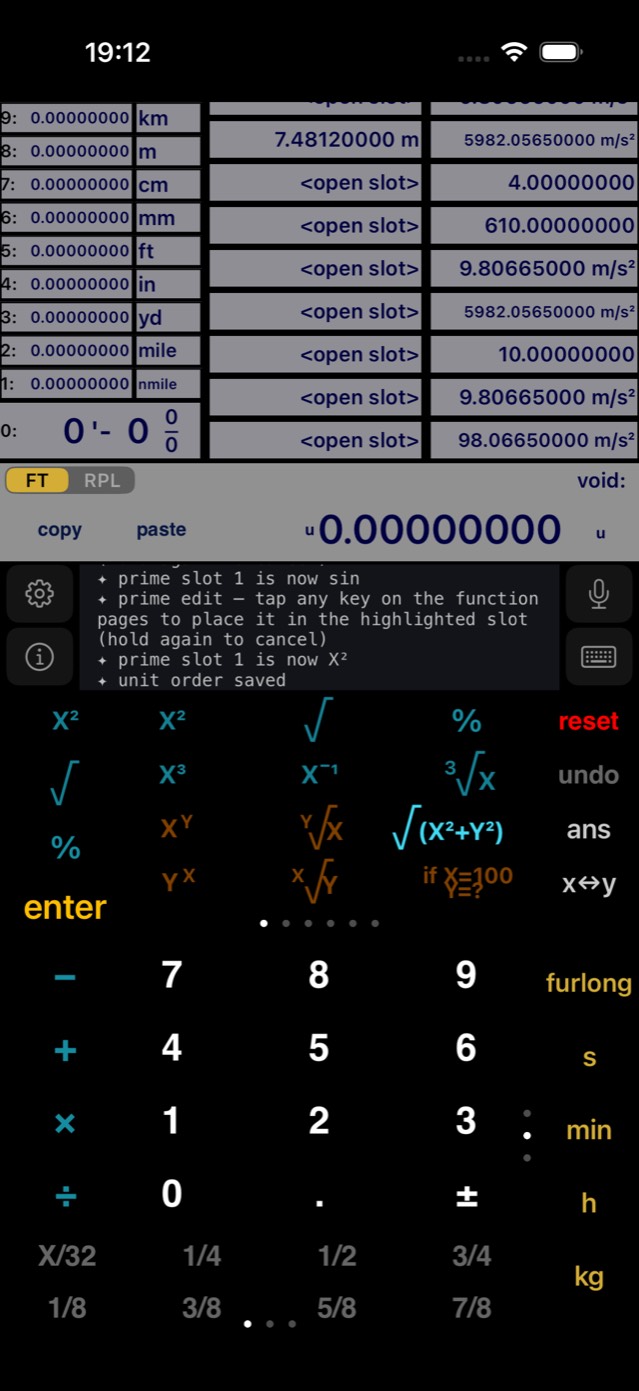
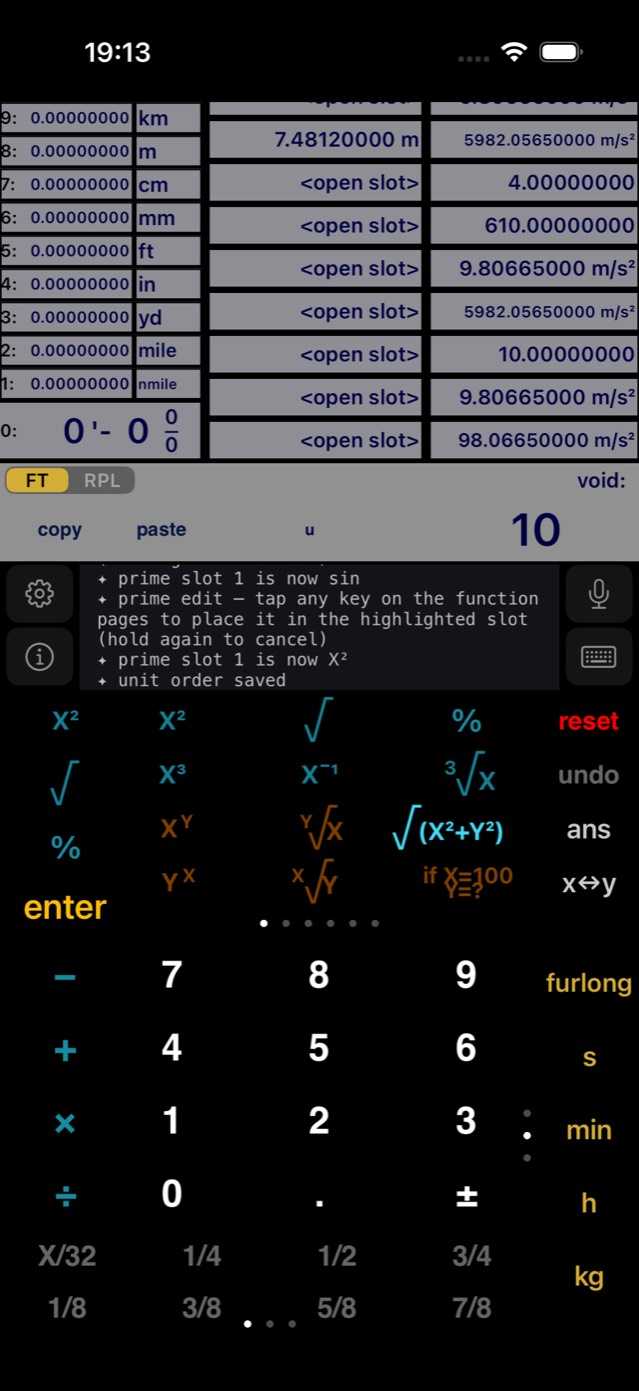
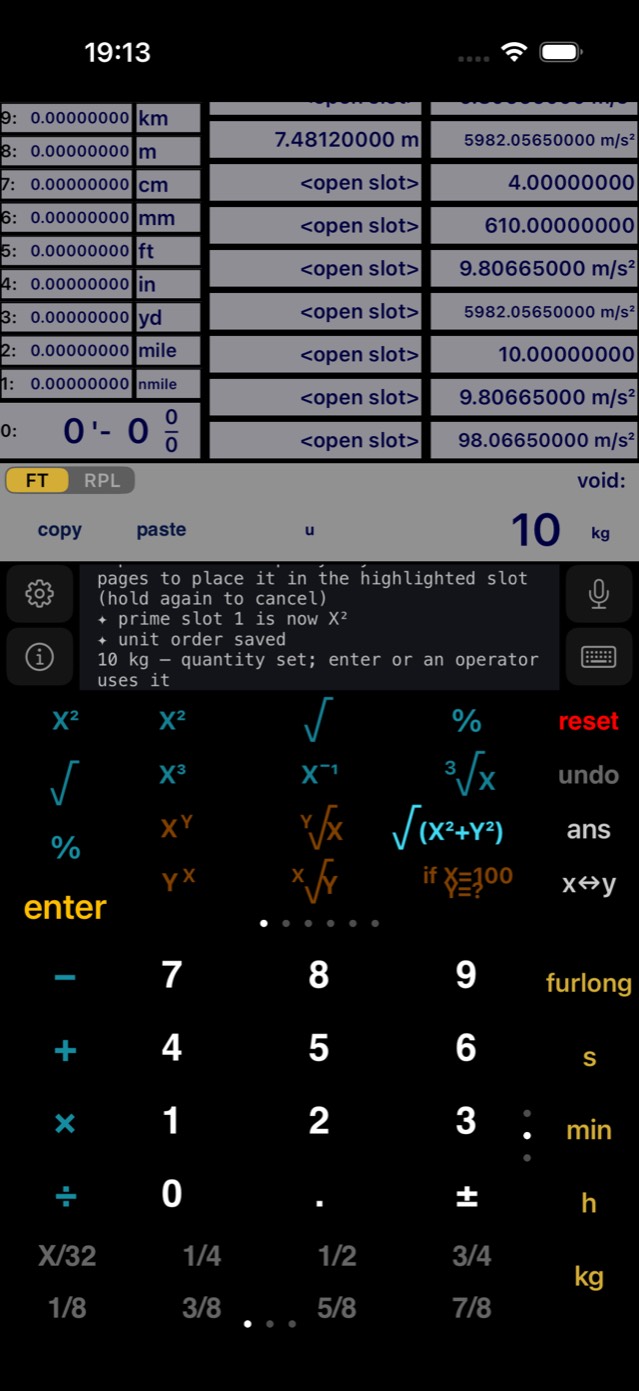
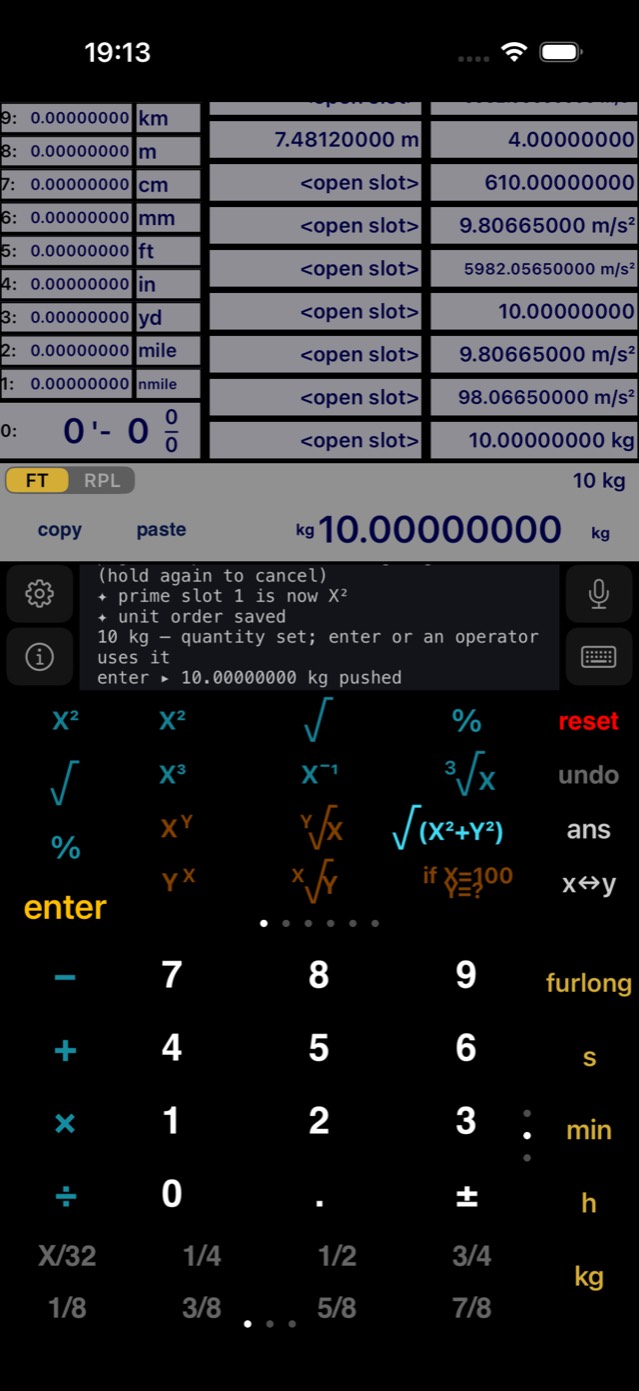
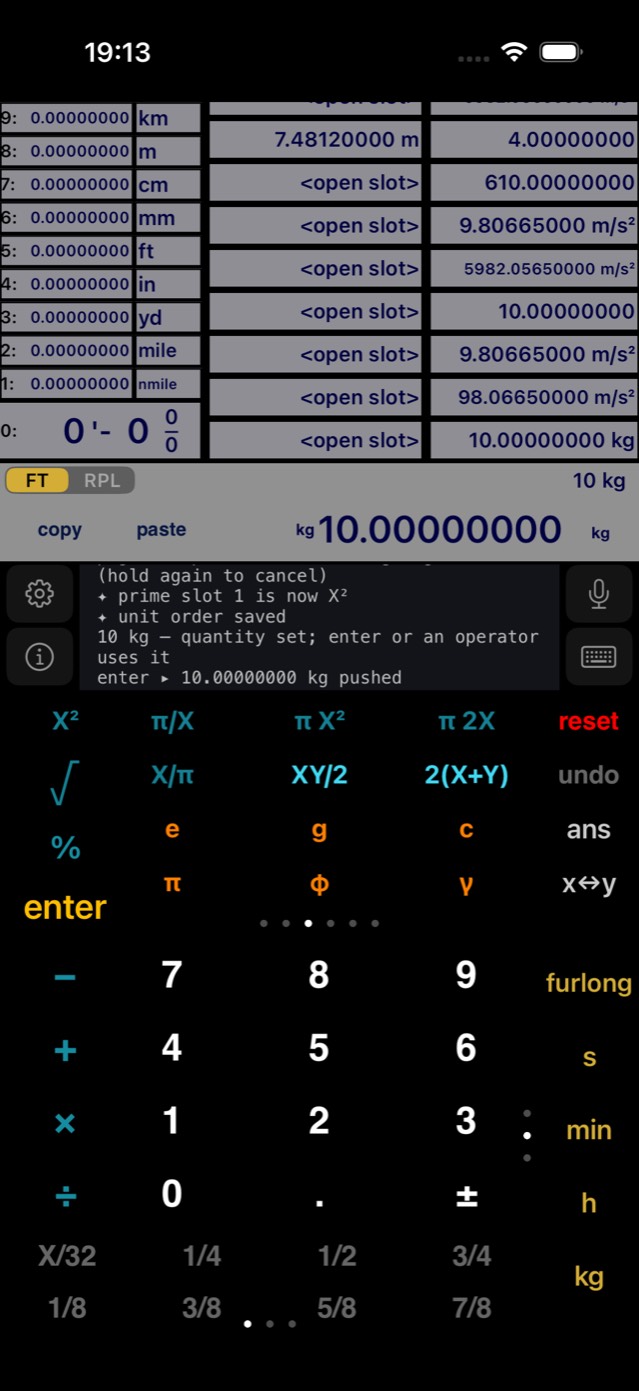
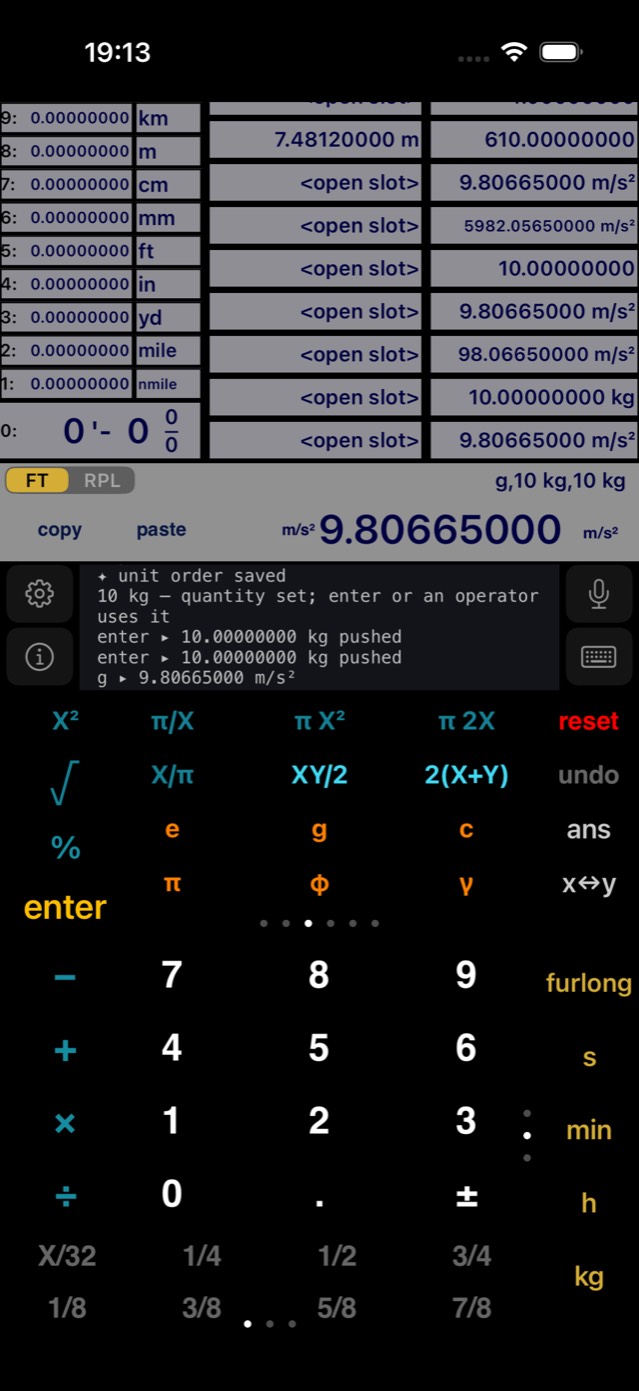
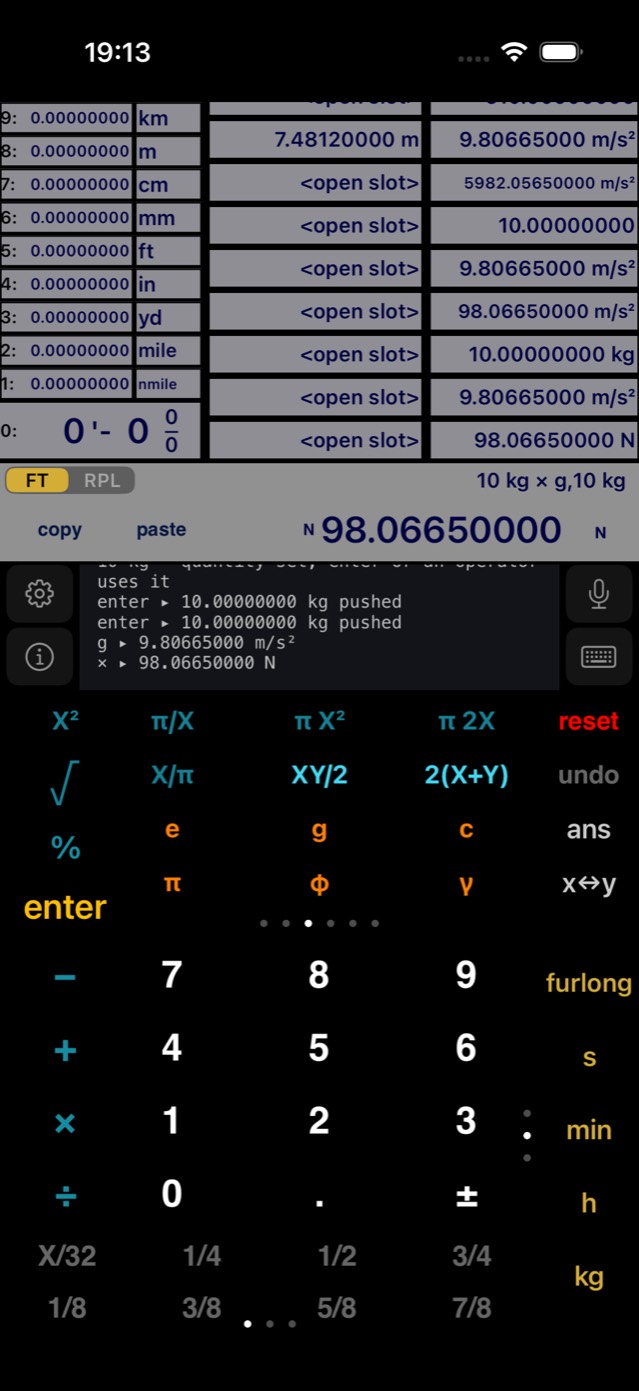
Illustrated · F = m·g
Composite units generate themselves. An area divided by a time displays as m³/s-style composites when no named unit exists for the dimension vector. The constants g and c, and results from the kg⇾lb and mph⇾km/h converters, all participate in the algebra.
Angles, trig, pitch & slope
The DEG/RAD toggle on the last function page (or in Settings) sets the angle mode for all six trig functions and their inverses. Degrees is the default — the key shows the active mode, and the choice persists across restarts.
Roof pitch & grade
Two purpose-built cyan construction keys on page 5 take rise then run — in any mix of length units:
Memory slots, history & ANS
Eighteen store slots hold values with their units, and everything persists across app restarts. To save: tap the main display to arm save mode (slots turn white), then tap a slot. To recall: just tap a filled slot.
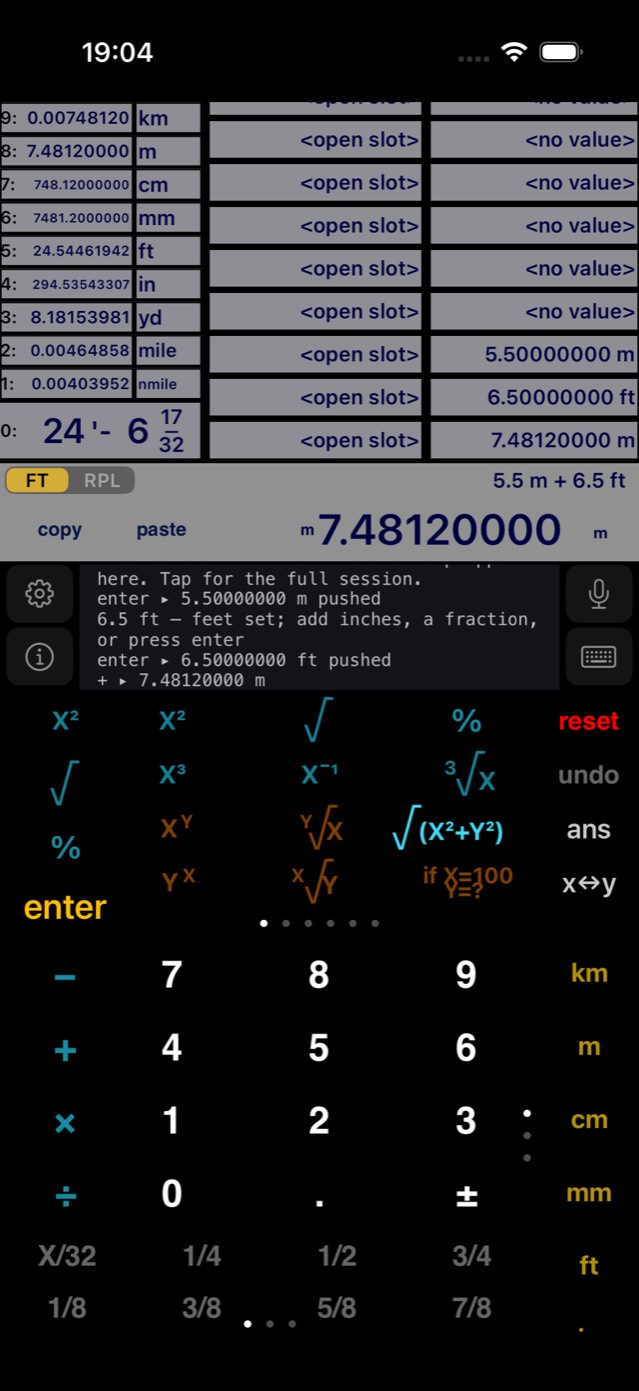
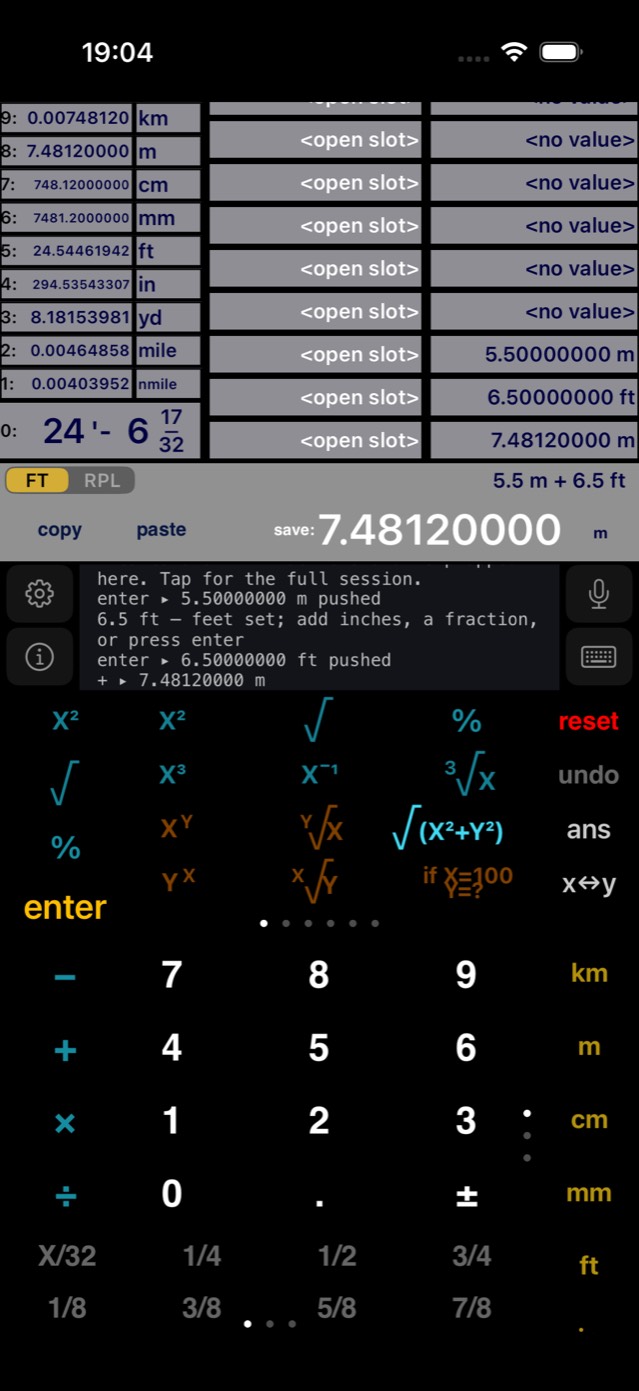
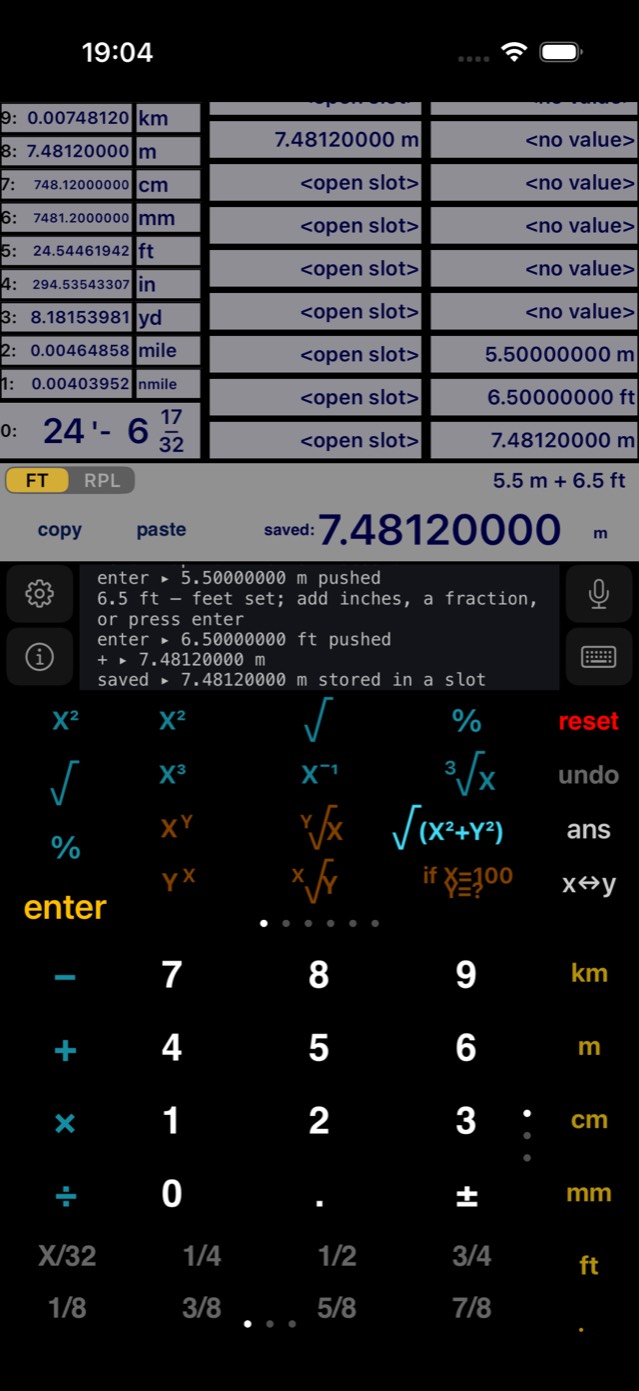
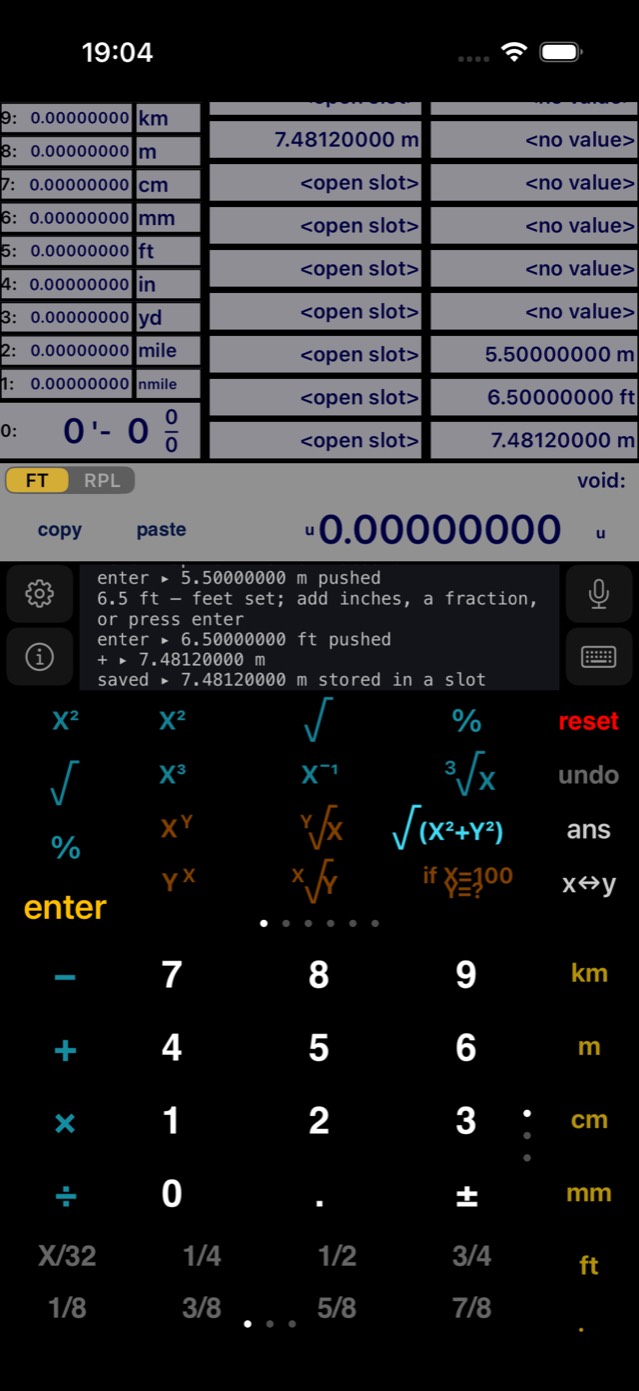
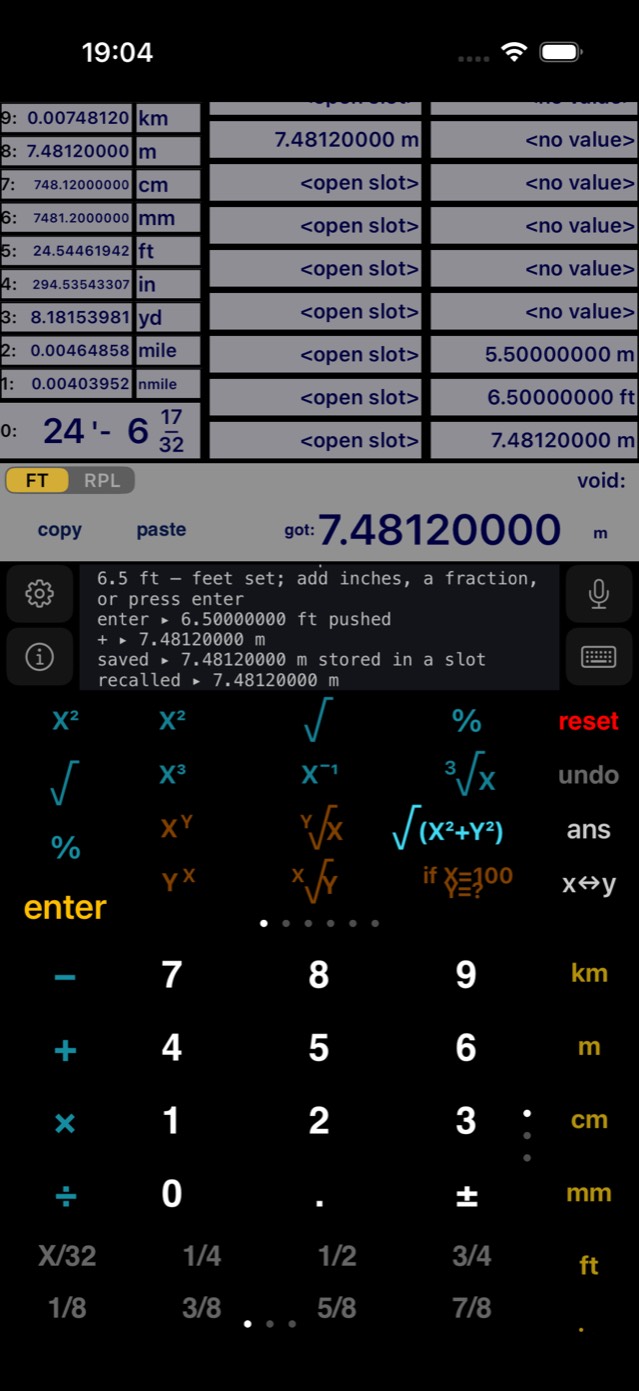
Illustrated · save & recall
The history stack logs every entry and result with its unit — tap any row to bring it back, and note the display tap that arms save mode fires on release, so it never fights the press-hold editor. The stack grows without limit: when the visible grid fills, older values move into extra rows above it instead of being lost, and the whole column stays scrolled to the newest entries. ans (right prime column) recalls the newest entry without leaving the pages. Slots, the full history and the angle mode are all restored when the app relaunches.
Key reference: all 6 function pages
Swipe the function strip or tap a page dot. Keys are colour-coded by role:
| Colour | Role |
|---|---|
| teal | One-value operations — act on the displayed value. |
| amber | Two-value operations — combine y (first-entered) with x. |
| periwinkle | Trigonometry. |
| green | One-shot unit conversions. |
| cyan | Construction helpers — diagonal, area, perimeter, pitch, slope. |
| gray | Stack & entry utilities. |
| orange | Constants and the DEG/RAD mode key. |
| gold | Unit keys (in the vertical column and the entry keyboard). |
The prime columns flank every page: X² √ % and enter on the left (the top three are your slots — hold one to swap in any key, chapter 17); reset undo ans x↔y on the right. In the tables, x is the last-entered value and y the one before it.
Page 1 · Powers & roots
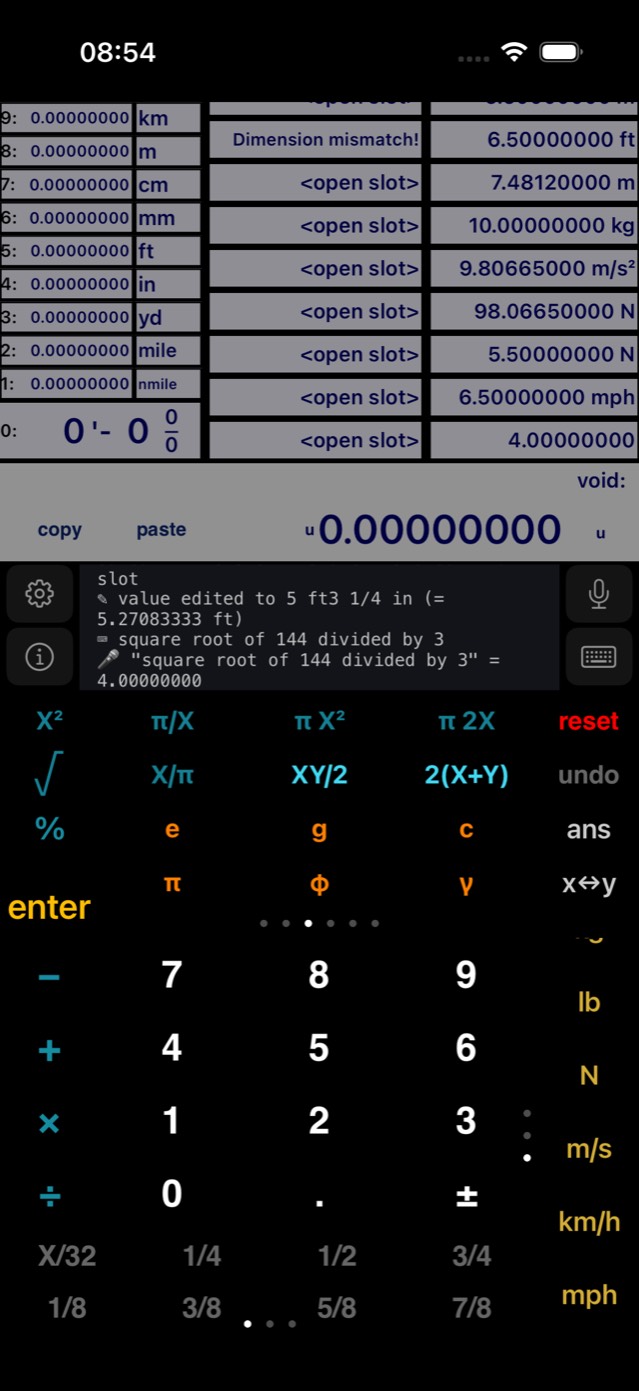
| Key | Formula | Example |
|---|---|---|
| X² / X³ | x², x³ — dimension-aware: (2 m)² = 4 m² | 12 → 144 |
| √ / ²√X | √x — halves even dimensions: √(9 m²) = 3 m | 9 → 3 |
| ³√X | x^(1/3) — ³√(8 m³) = 2 m | 27 → 3 |
| X⁻¹ | 1/x | 5 → 0.2 |
| % | x / 100 | 50 → 0.5 |
| Xʸ / Yˣ | y^x and x^y | 3 enter 4 → 81 / 64 |
| ʸ√X / ˣ√Y | y^(1/x) and x^(1/y) | 8 enter 3 → 2 |
| √(X²+Y²) | hypot(y, x) — the diagonal; a length if operands are lengths | 3 m enter 4 m → 5 m |
| if X=100 Y=? | 100·x / y — x as a percentage of y | 50 enter 25 → 50 % |
Page 2 · Trigonometry
sin, cos, tan, their inverses, and the hyperbolic family with inverses — twelve periwinkle keys. The circular six honour the DEG/RAD mode (chapter 08); inverse results are labelled with the active angle unit. Hyperbolic arguments are pure numbers.
Page 3 · π & constants
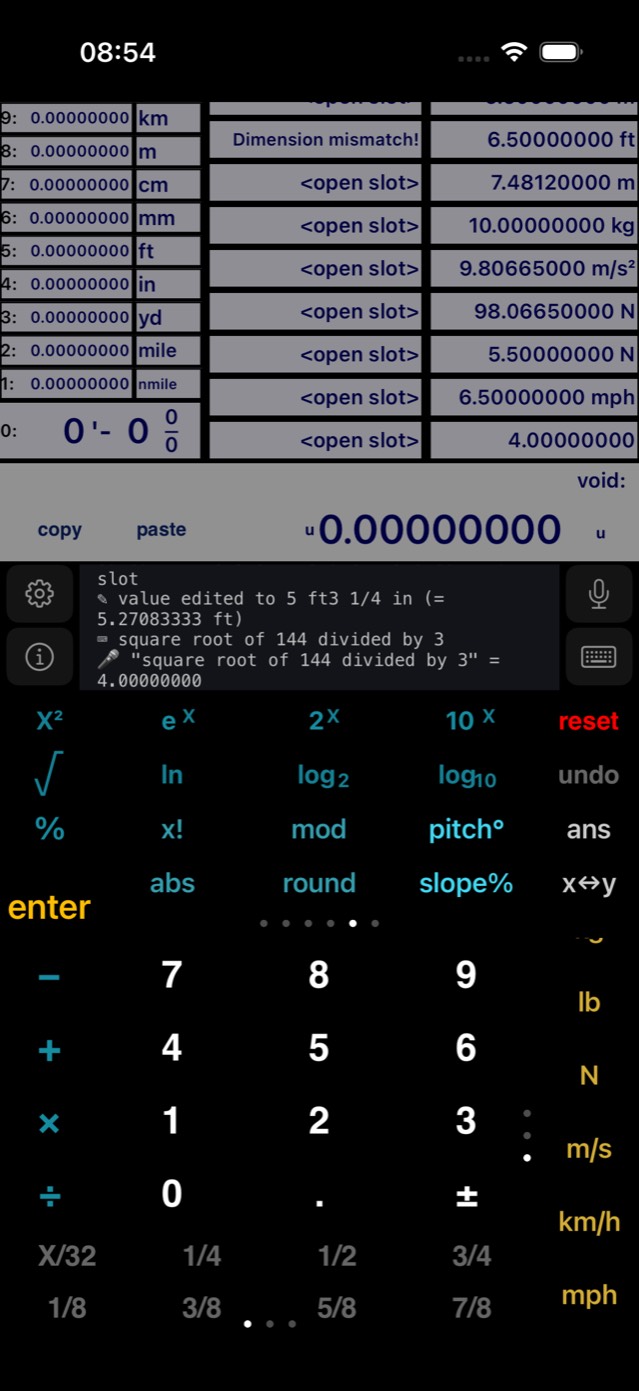
| Key | Formula | Example |
|---|---|---|
| π/X / X/π | π/x and x/π | 2 → 1.5708 |
| πX² | π·x² — circle area from radius, dimension-aware | 2 m → 12.5664 m² |
| π2X | 2π·x — circumference from radius | 2 m → 12.5664 m |
| XY/2 | y·x/2 — triangle area; length×length → area | 3 m enter 4 m → 6 m² |
| 2(X+Y) | 2(y+x) — rectangle perimeter | 3 m enter 4 m → 14 m |
| π e φ γ g c | Constants — chapter 11; g and c carry real units | g → 9.80665 m/s² |
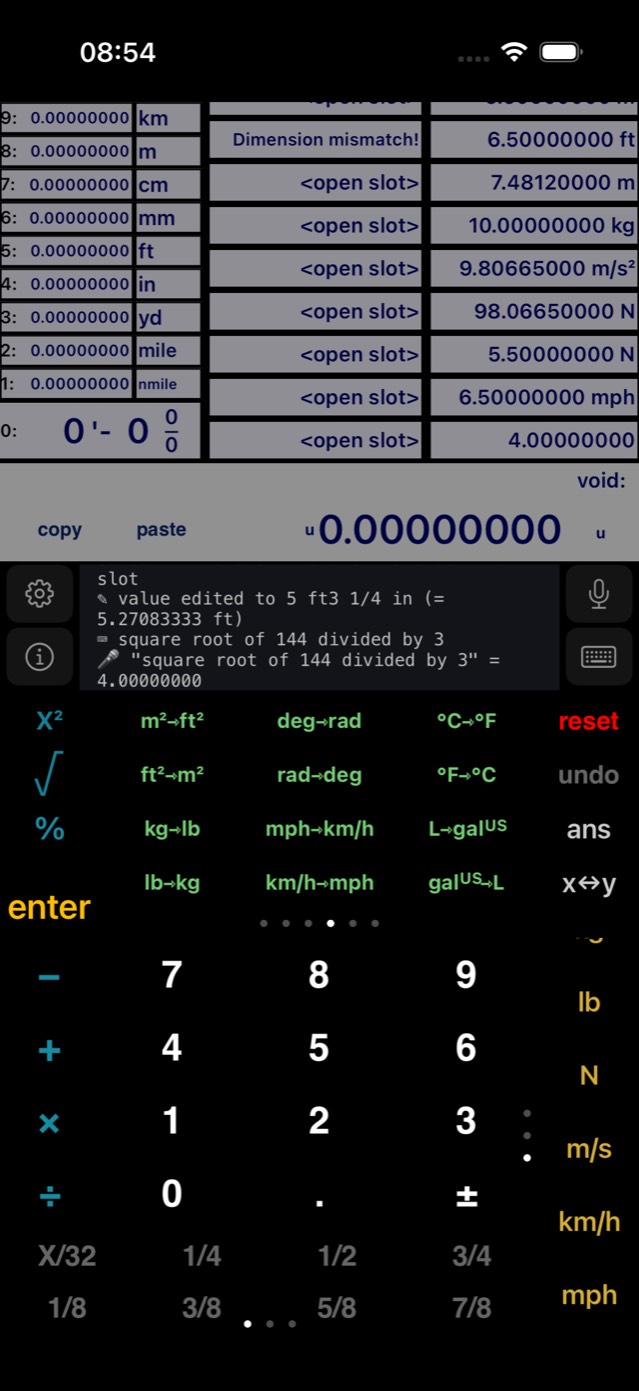
Page 4 · Conversions
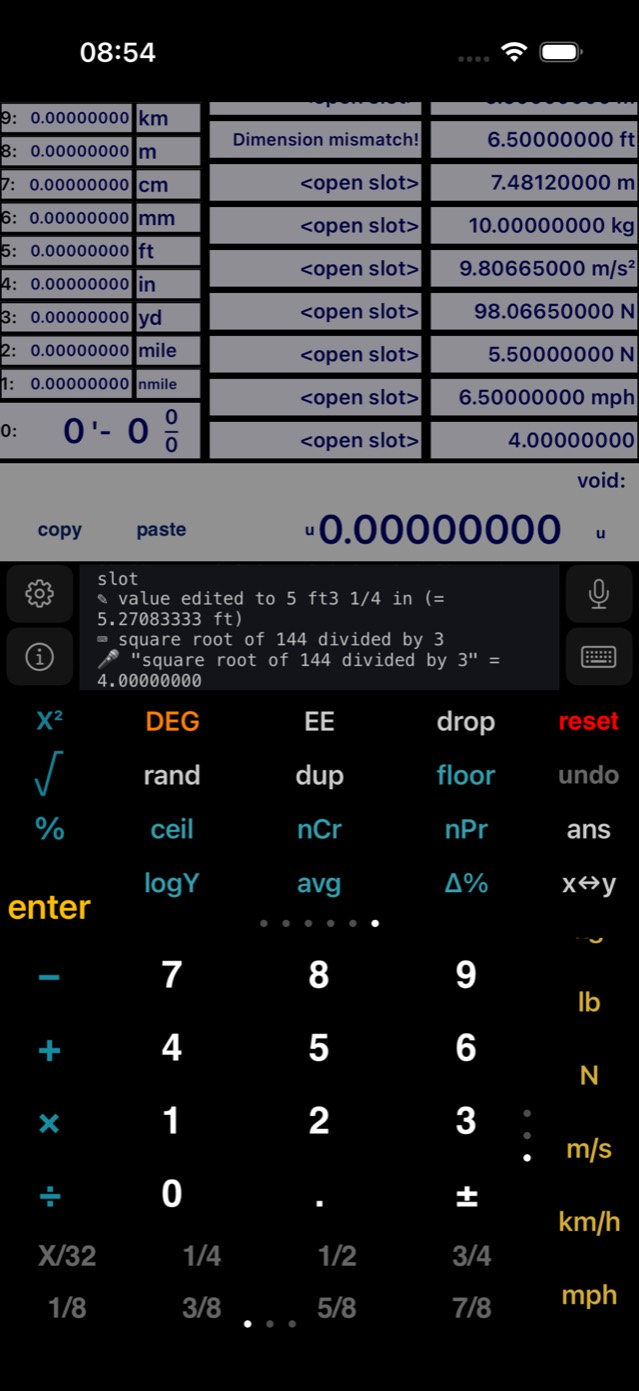
All twelve green one-shot converters on a single page: m²⇾ft² ft²⇾m² deg⇾rad rad⇾deg ℃⇾℉ ℉⇾℃ kg⇾lb lb⇾kg mph⇾km/h km/h⇾mph L⇾galᵁˢ galᵁˢ⇾L. Results are real tagged quantities — a converted mass or speed keeps participating in the dimensional algebra.
Page 5 · Exponentials, logs & construction
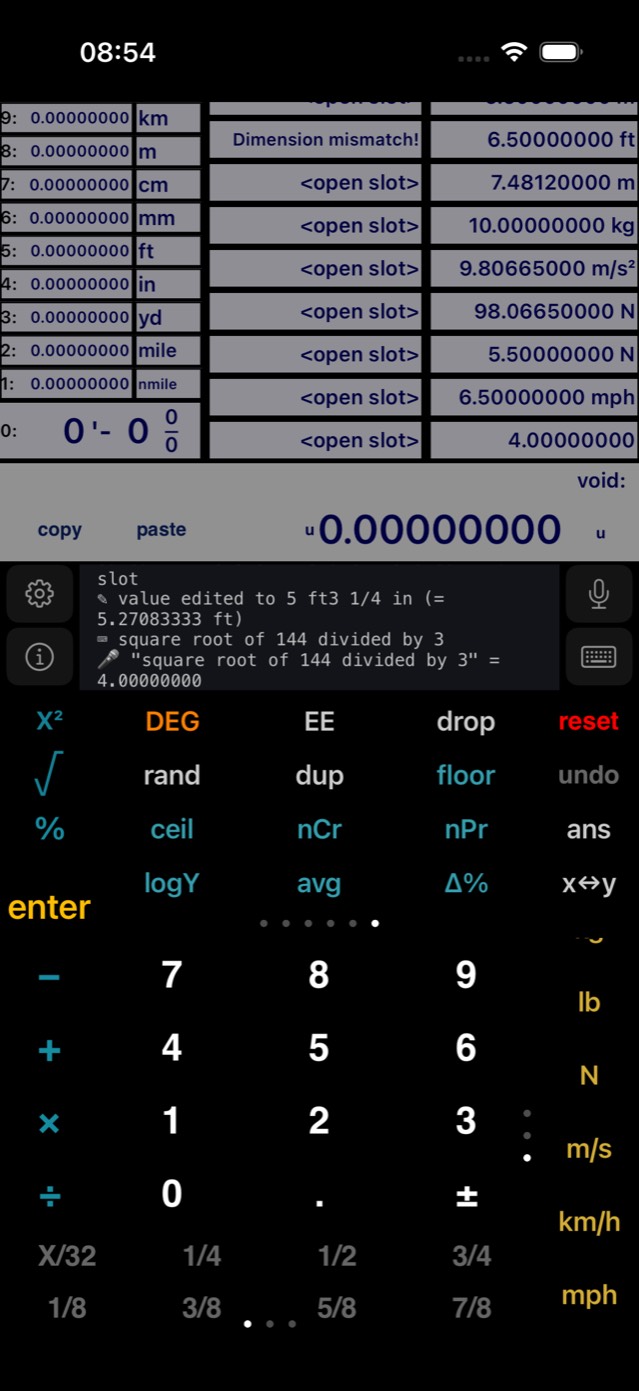
| Key | Formula | Example |
|---|---|---|
| eˣ 2ˣ 10ˣ | exponentials of the displayed value | 10ˣ: 3 → 1000 |
| ln log₂ log₁₀ | natural, binary and decimal logs | log₁₀ 1000 → 3 |
| x! | factorial | 5 → 120 |
| mod | y mod x — unit-aware remainder | 10 m enter 3 m → 1 m |
| pitch° | atan(rise/run) in degrees | 6 enter 12 → 26.5651 deg |
| slope% | 100·rise/run | 6 enter 12 → 50 % |
| abs / round | |x| and round(x) | −2.5 → 2.5 / 3 |
Page 6 · Stack, combinatorics & statistics
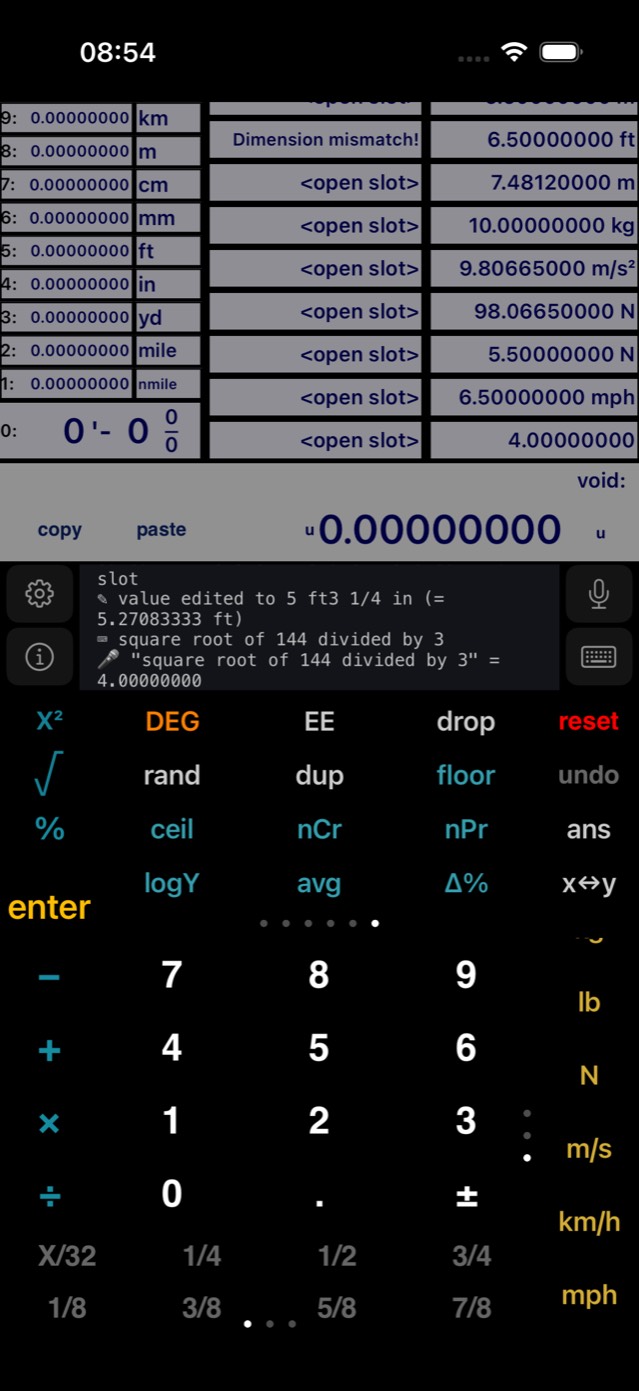
| Key | Formula | Example |
|---|---|---|
| DEG/RAD | angle-mode toggle — shows the active mode | |
| EE | scientific-notation entry; twice for a negative exponent | 1 EE EE 9 → 1e-9 |
| drop dup rand | stack utilities — chapter 02 | |
| floor / ceil | ⌊x⌋ and ⌈x⌉ | 2.3 → 2 / 3 |
| nCr / nPr | combinations and permutations of y things taken x at a time | 5 enter 2 → 10 / 20 |
| logY | log of y in base x | 8 enter 2 → 3 |
| avg | (y + x)/2 — unit-aware average | 2 m enter 4 m → 3 m |
| Δ% | 100·(x − y)/y — percent change from y to x | 50 enter 60 → 20 % |
Constants
| Key | Name | Value | Unit |
|---|---|---|---|
| π | Pi | 3.14159265358979… | — |
| e | Euler's number | 2.71828182845904… | — |
| φ | Golden ratio (1+√5)/2 | 1.61803398874989… | — |
| γ | Euler–Mascheroni | 0.57721566490153… | — |
| g | Standard gravity | 9.80665 | m/s² |
| c | Speed of light | 299 792 458 | m/s |
g and c are true quantities: they keep their units through arithmetic (g2×→19.6133 m/s²) and combine dimensionally (mass × g = force in newtons).
Unit tables
Length units (metres per unit)
| Unit | Metres | Unit | Metres | Unit | Metres |
|---|---|---|---|---|---|
| km | 1000 | ft | 0.3048 | yd | 0.9144 |
| m | 1 | in | 0.0254 | mile | 1609.35 |
| cm | 0.01 | mm | 0.001 | nmile | 1852 |
Areas and volumes convert by the factor raised to the dimension: k^p — 1 m² = 10.76391 ft² because (1/0.3048)² = 10.76391.
Quantity units (SI factor · dimension vector L,T,M)
| Unit | SI factor | Dims | Unit | SI factor | Dims |
|---|---|---|---|---|---|
| s | 1 | (0,1,0) | m/s | 1 | (1,−1,0) |
| min | 60 | (0,1,0) | km/h | 0.27778 | (1,−1,0) |
| h | 3600 | (0,1,0) | mph | 0.44704 | (1,−1,0) |
| kg | 1 | (0,0,1) | ft/s | 0.3048 | (1,−1,0) |
| lb | 0.45359237 | (0,0,1) | m/s² | 1 | (1,−2,0) |
| N | 1 | (1,−2,1) | J | 1 | (2,−2,1) |
| W | 1 | (2,−3,1) | Pa | 1 | (−1,−2,1) |
| Hz | 1 | (0,−1,0) |
Press-hold value editor
Press and hold the main value (or the feet–inch readout) and it becomes an editable field: place the cursor, select, erase and retype like text. A dark scrim isolates the edit, and a purpose-built construction keyboard comes up — number pad and Go bar on the left, every unit key in gold and every constant in orange on the right, and three rows of tape-measure fractions across the top.
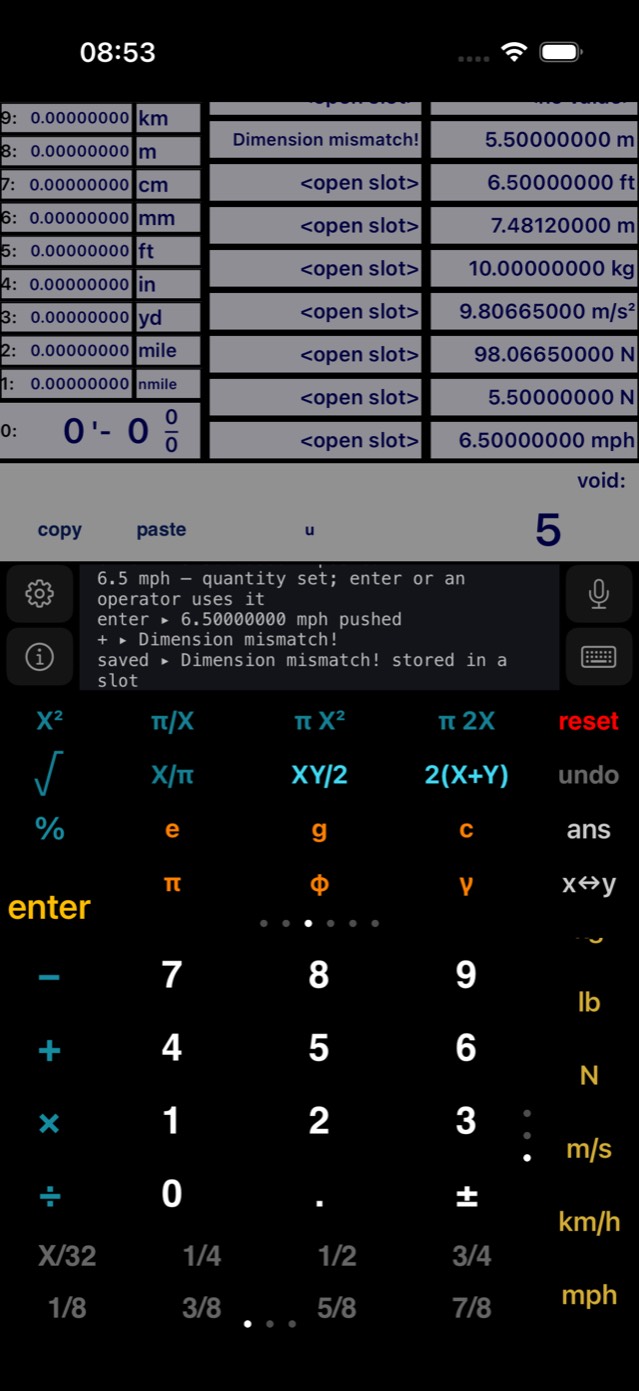
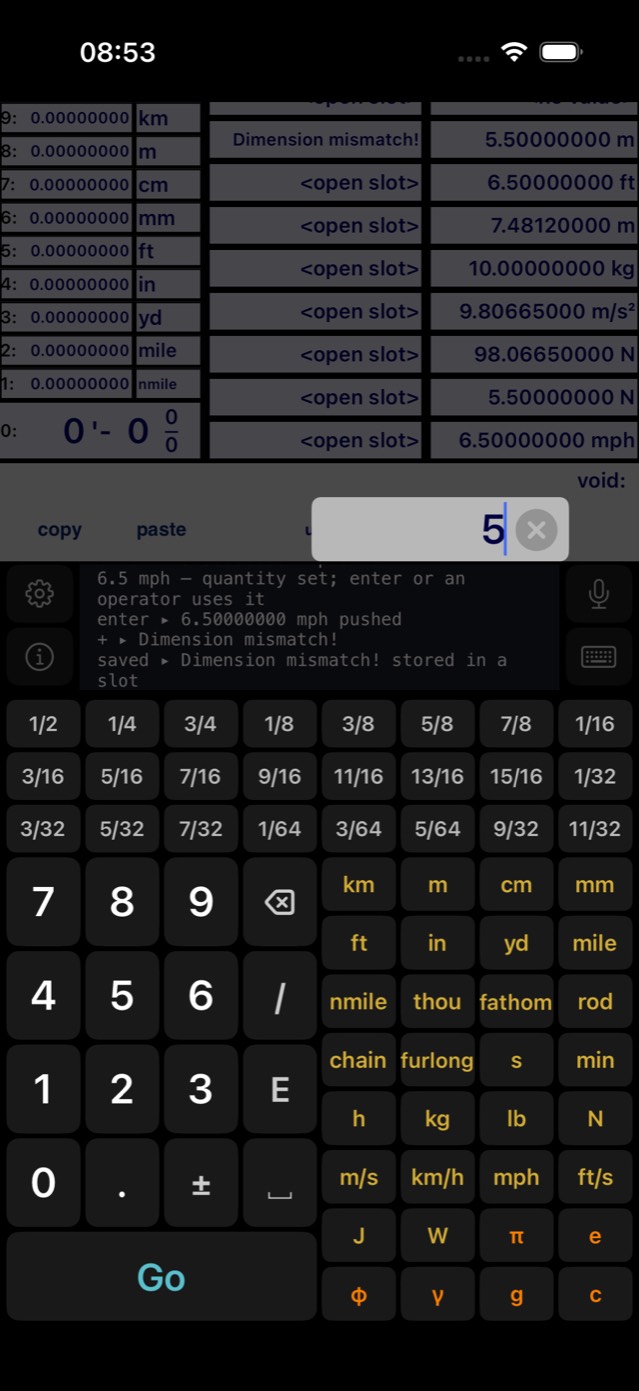
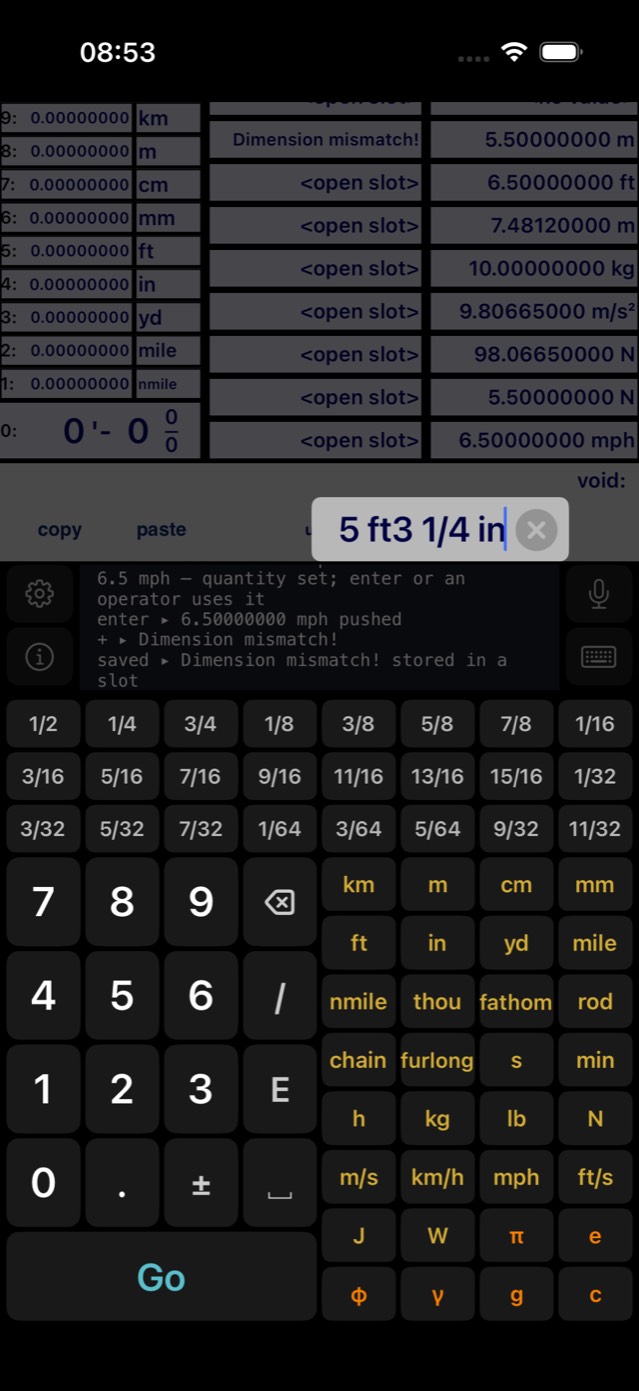
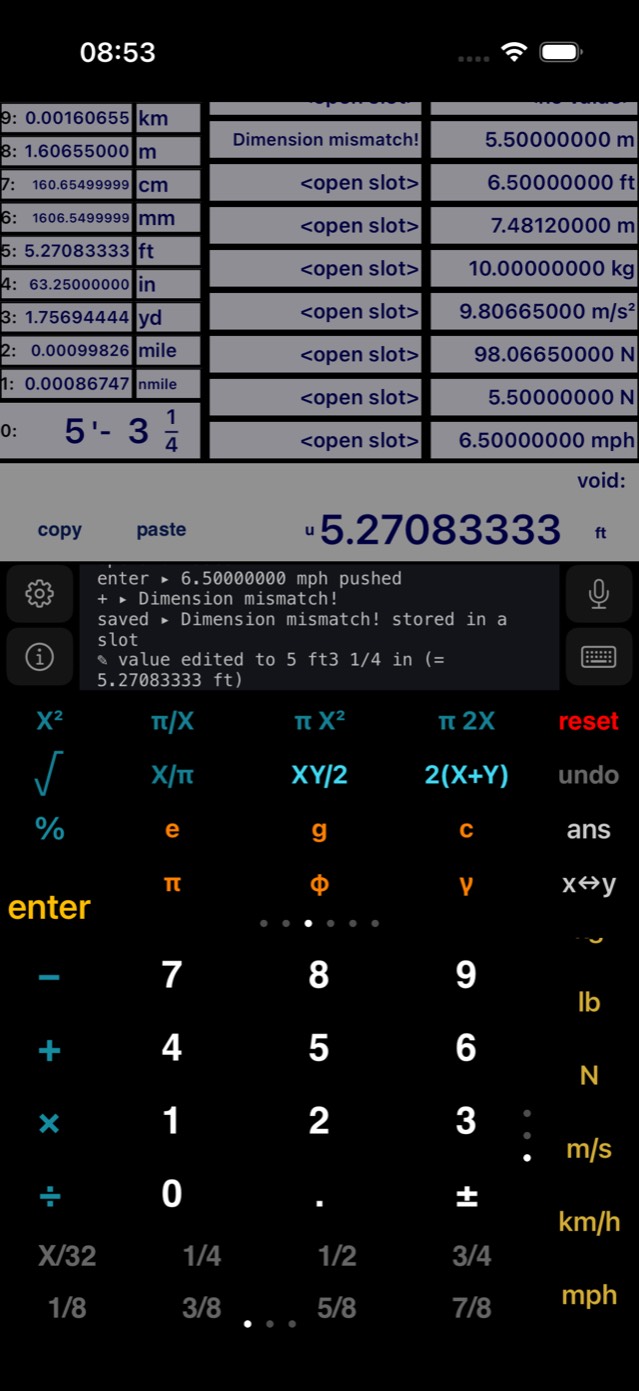
Illustrated · edit to 5 ft 3¼ in
Constants carry units here too. The orange g key inserts 9.80665 m/s² and c inserts 299792458 m/s — commit one and the value enters the dimensional algebra as a real acceleration or speed. The E key types scientific-notation exponents (1.5E6), ± flips the sign, and / with the space key builds any custom fraction.
Typed & spoken requests
The two keys beside the help feed — ⌨ and 🎤 — both open the same compose surface, laid out down the screen: the help box takes what you said or typed, a reading panel below it shows what the calculator made of it and what that computes to, the suggestion strip rides above the keys, and the keyboard rises from the bottom exactly the way the press-hold value editor's does — same black ground, same keys. Nothing you say or type reaches the calculator until you commit it there, which is the point: dictation mishears, thumbs mistype, and you should see the interpretation before it becomes an entry.
The panel has two lines. The top one is what arrived — the transcript as the recogniser heard it, or exactly what you typed — and it is editable, so when one word comes out wrong you fix that word instead of saying the sentence again. Below it, READS AS shows what the calculator made of it, in the syntax of the mode you are in, with the result previewed underneath. The preview is computed for real but thrown away; only commit touches the stack.
A coloured dot reports how sure it is. Green means every word matched cleanly. Amber means something was corrected to get there, and the correction is named underneath — “meaters → meters”. Orange means part of the phrase was not understood and was set aside; the words it ignored are listed. Committing an amber or orange reading is perfectly reasonable once you have looked at it, which is exactly what the panel is for.
What it understands. Numbers as words or digits, decimals spoken as “point”, and tape fractions — “three and a quarter”, “and a half”. Feet-and-inches the way the trade says it: “five foot three” is 5 ft 3 in, not five plus three. Every unit the calculator knows, in singular, plural and abbreviation. The operators in words — plus, minus, times, over, divided by, per, to the power of, squared, cubed, square root of. Filler is discarded without complaint, so “ok so what is the total of three feet and two inches” is understood. And the names of your stored programs: “two sph” runs SPH on 2.
Partial results are kept. If the phrase runs out or turns to nonsense, whatever was understood still commits rather than being thrown away. “five feet plus” pushes 5 ft and leaves the + waiting on the command line, just as keying it would. “twelve times the whatsit” pushes 12 and tells you it ignored the rest.
The suggestion strip offers the word you are reaching for, drawn from the calculator's own vocabulary — units, operators, functions and every stored program name. It completes the word you are part-way through rather than appending to it, so tapping inches after typing “in” gives “inches”, not “in inches”. What it offers follows what you have already written: the words that open a calculation when the line is empty, and units and operators straight after a number.
Keys, clear and commit. The panel carries its own keyboard in the same dark style, so no grey system keyboard appears underneath and the whole thing reads as one object. Three planes, the way a phone does it: letters with ⇧ (tap once for one capital, twice to lock), 123 for digits and punctuation, and #+~ for the symbols a calculator actually wants — × ÷ √ π ² ³ ° and the ' and " that mean feet and inches. Space and erase are the widest keys. clear sits to the left of commit and empties the line without closing the panel.
The mic and keyboard keys are the calculator's own — the two that always flank the help box, microphone above and keyboard below. The keyboard key opens the surface and closes it again; the microphone key starts and stops listening and turns red while it does. Dictating and typing are the same surface, not two of them: the keys stay there while you speak, so a misheard word is one tap away from being fixed.
All of it runs on the device. Dictation uses the offline recogniser only — if a language has no offline model installed the panel says so rather than sending your audio anywhere. The recogniser is told the calculator's vocabulary in advance, which is why it hears “ft”, “yd” and “PENDUL” rather than guessing at them. No part of this feature makes a network connection, and no model is bundled: the understanding is a grammar over the calculator's own unit and command tables.
Help feed, sessions & PDF export
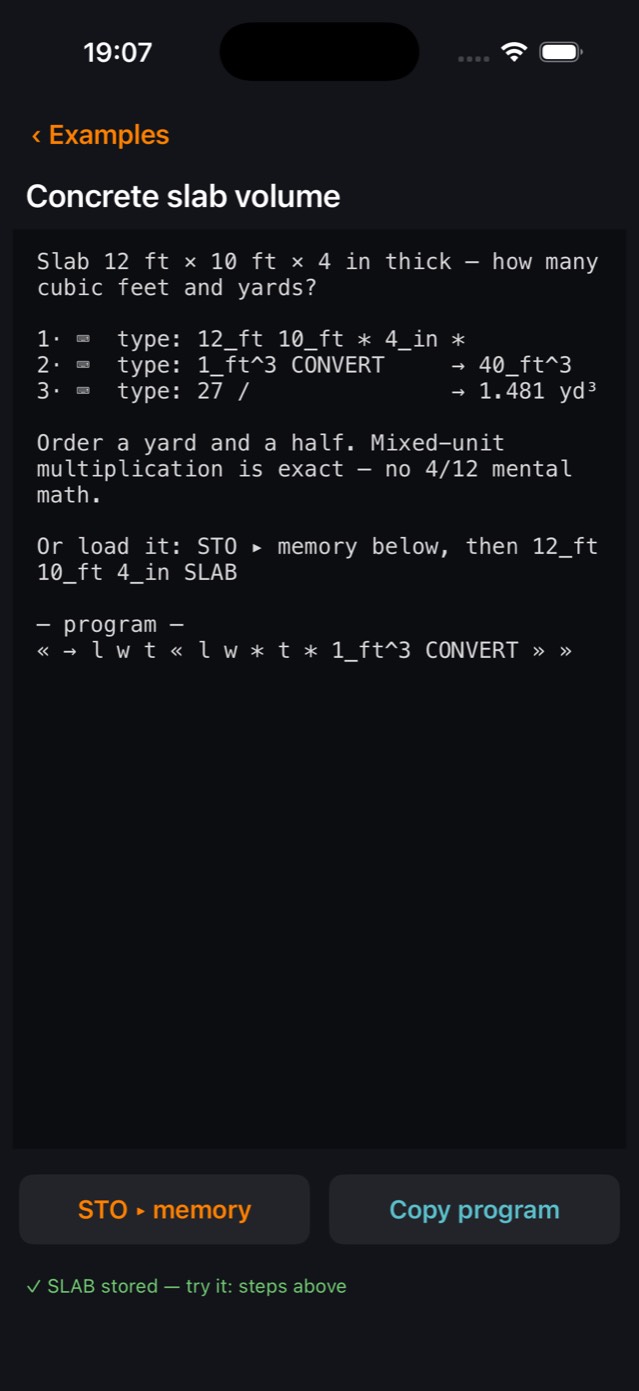
The help feed narrates everything: every key you press, every value pushed, every result — and pressing an operation on an empty stack prints a one-line explanation of what that key does. The feed scrolls, and tapping it opens the session view.
A session is the timestamped transcript of your work. From the session view you can Export PDF (US Letter, with help lines or values only — share, print or save to Files), Save the session into the past-sessions list, start a New one, or Clear the transcript. Up to twenty past sessions are kept, and the current session survives restarts.
Settings & About
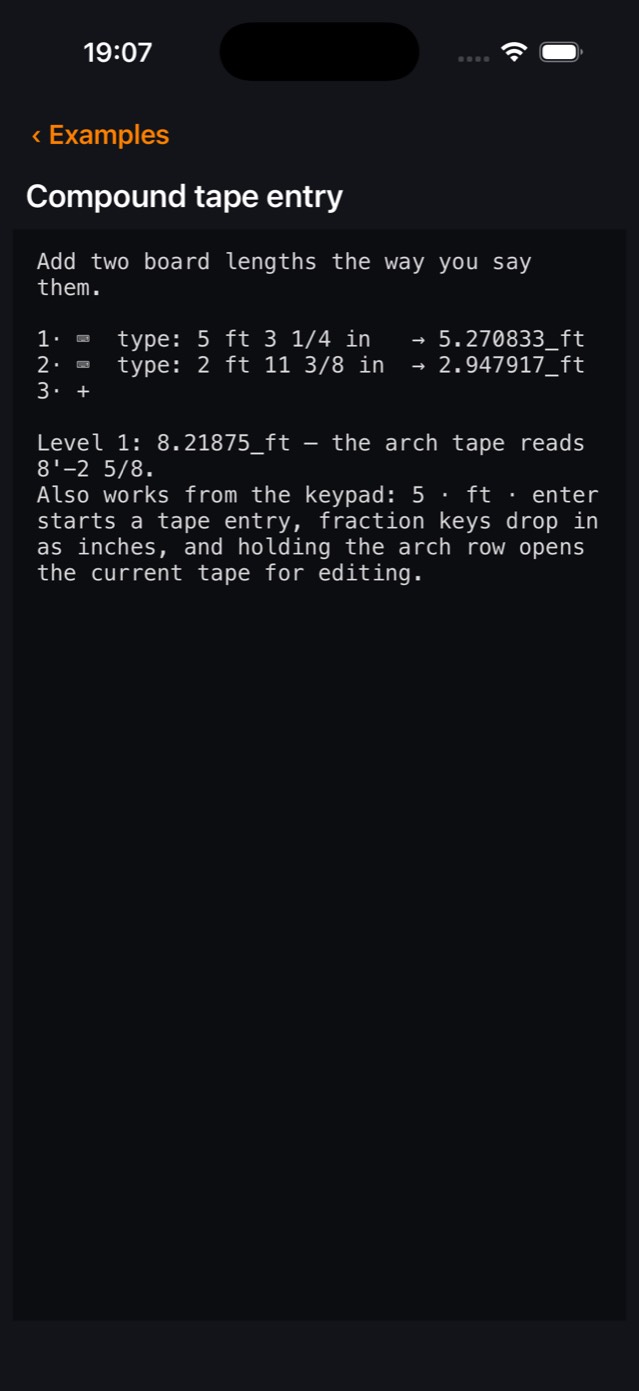
The gear opens Settings: displayed decimals (0–8), key sounds, haptics, the DEG/RAD angle unit, the guide & examples language (EN/ES), the RPL workspace, the Examples & modules library (searchable, with mode filters), this guide, the session view and the About page. The ⓘ key jumps straight to About, with Share Calculator ft and a link to macdevstudio.com/calculator. Both pages close with a tap on the background.
Customize the layout
Your three prime slots
The three keys above enter are placement slots, preloaded with X² √ %. Press-hold one and it lights up orange; then tap any key on any function page — swipe pages freely while choosing — and that operation moves in, colour, formula pieces and all. Hold the slot again to cancel. Your choices persist across restarts, and the original keys always remain on their pages.
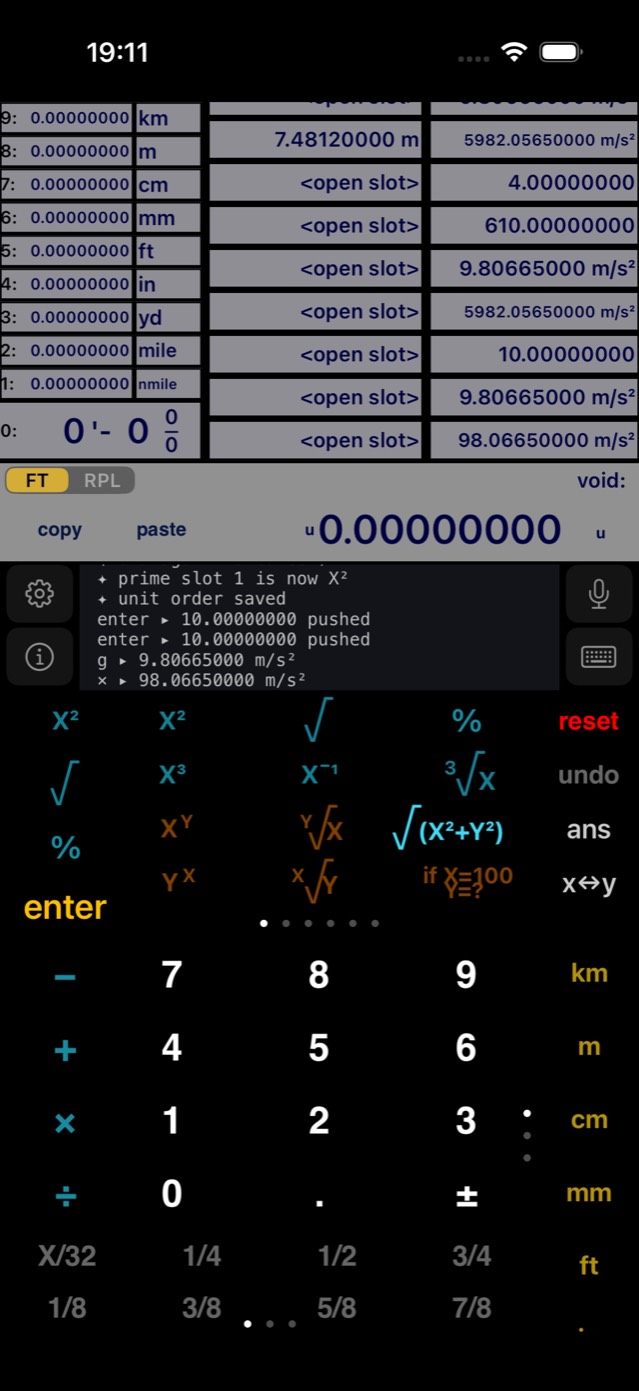
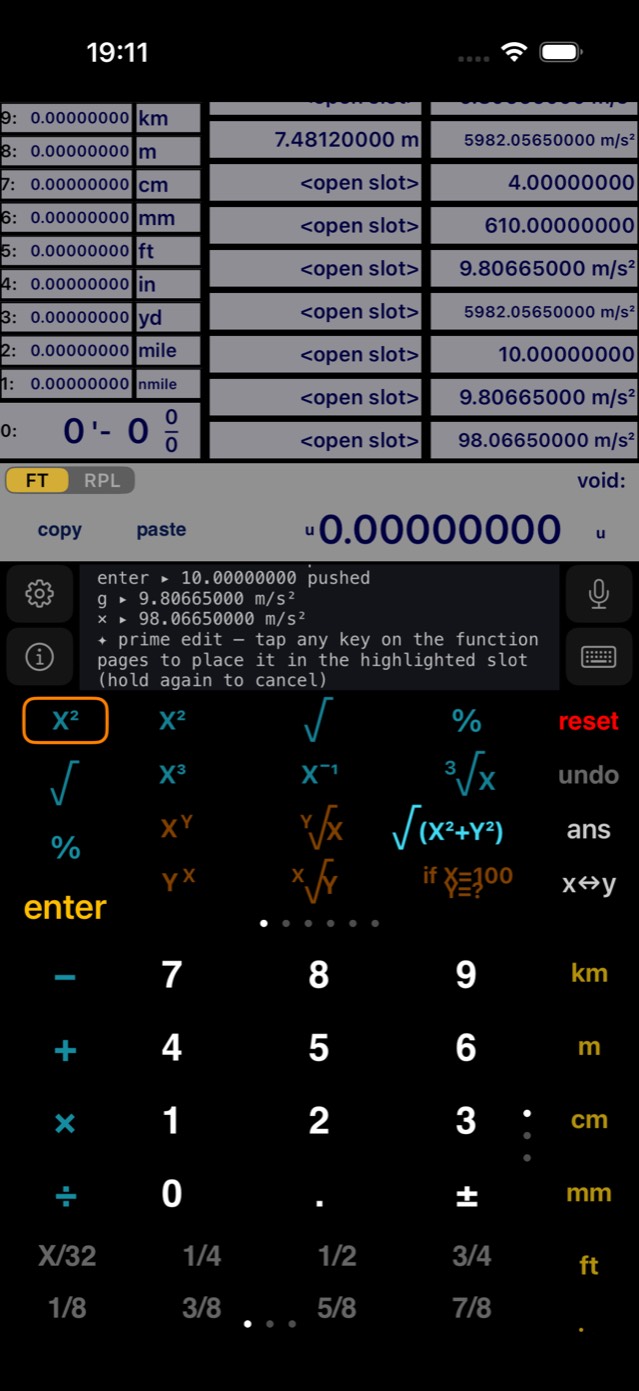
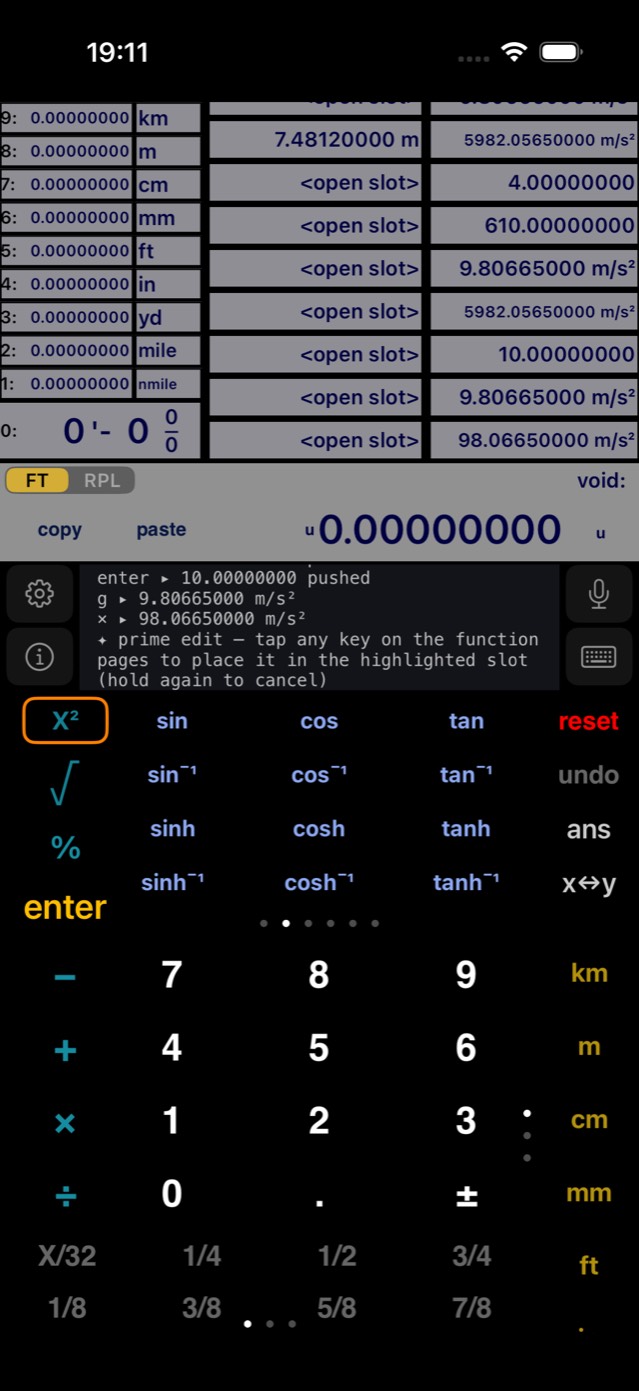
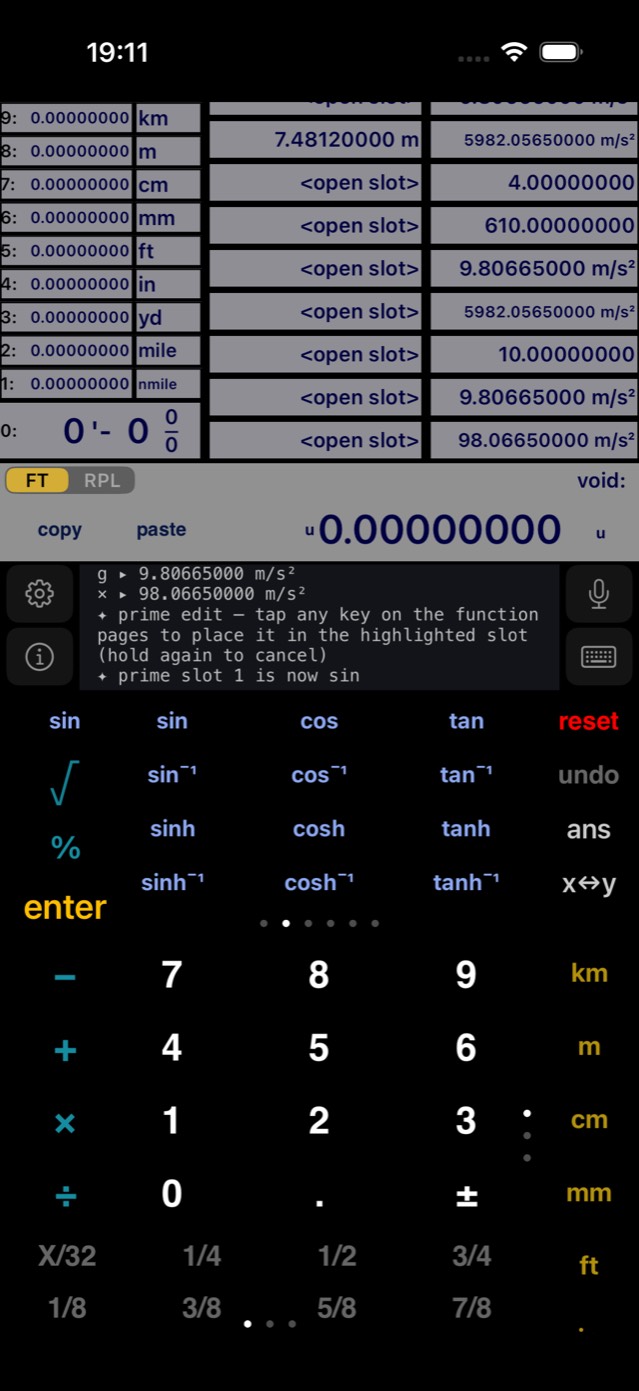
Illustrated · put sin in a prime slot
Reorder the unit column
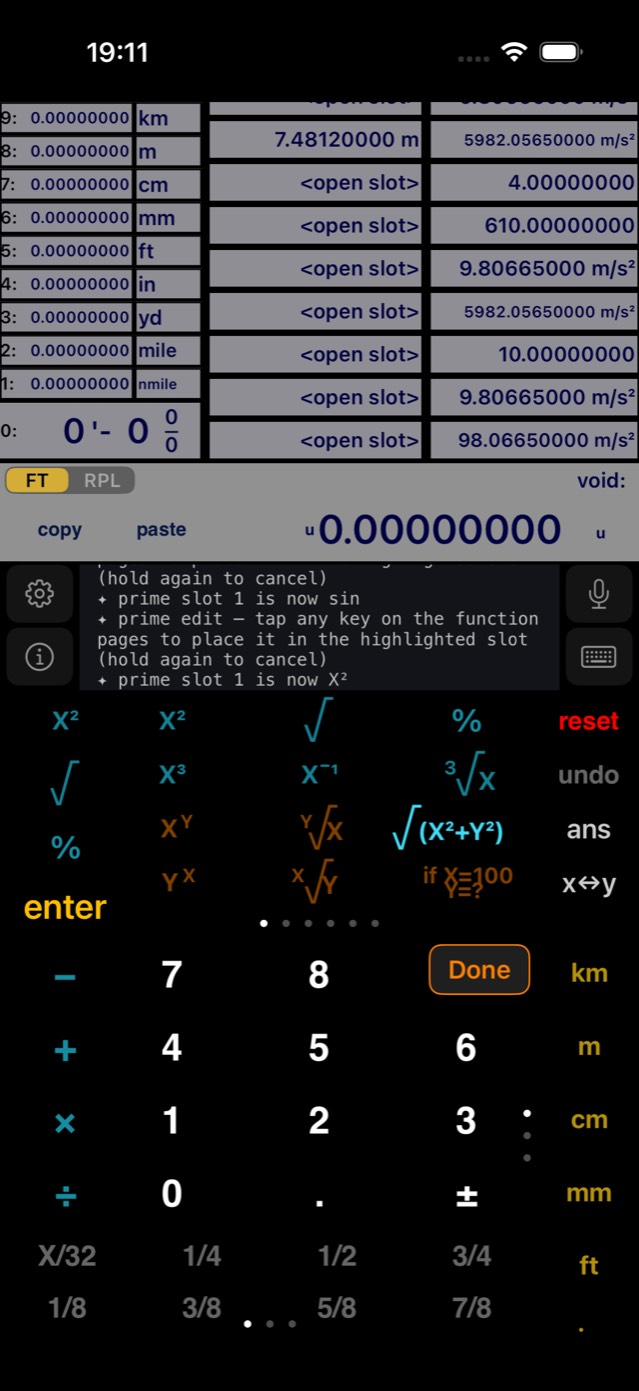
Press-hold any key in the vertical unit column and drag it up or down — the other keys resettle around it. Repeat with as many keys as you like: put your everyday units at the top and the surveying page wherever suits the job. Tap Done to save; the order is restored every launch.
RPL mode: the machine
Settings → RPL mode opens a second calculator: a from-scratch implementation of the RPL language (via the open-source newRPL engine) with an infinite object stack, 32-digit arbitrary-precision reals, and every value a typed object — reals, integers, strings, lists, vectors, unit objects, programs « » and algebraics 'X^2+1'. ‹ Calc returns to the construction calculator; everything you build here is saved and restored across launches.
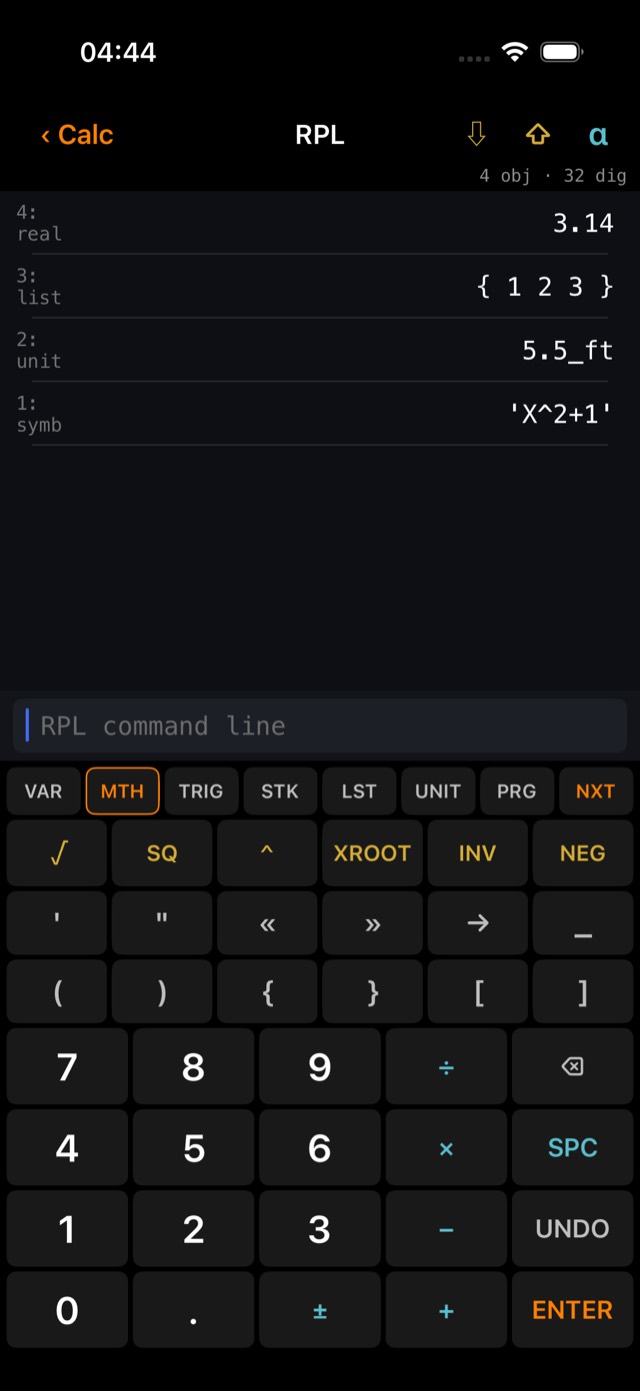
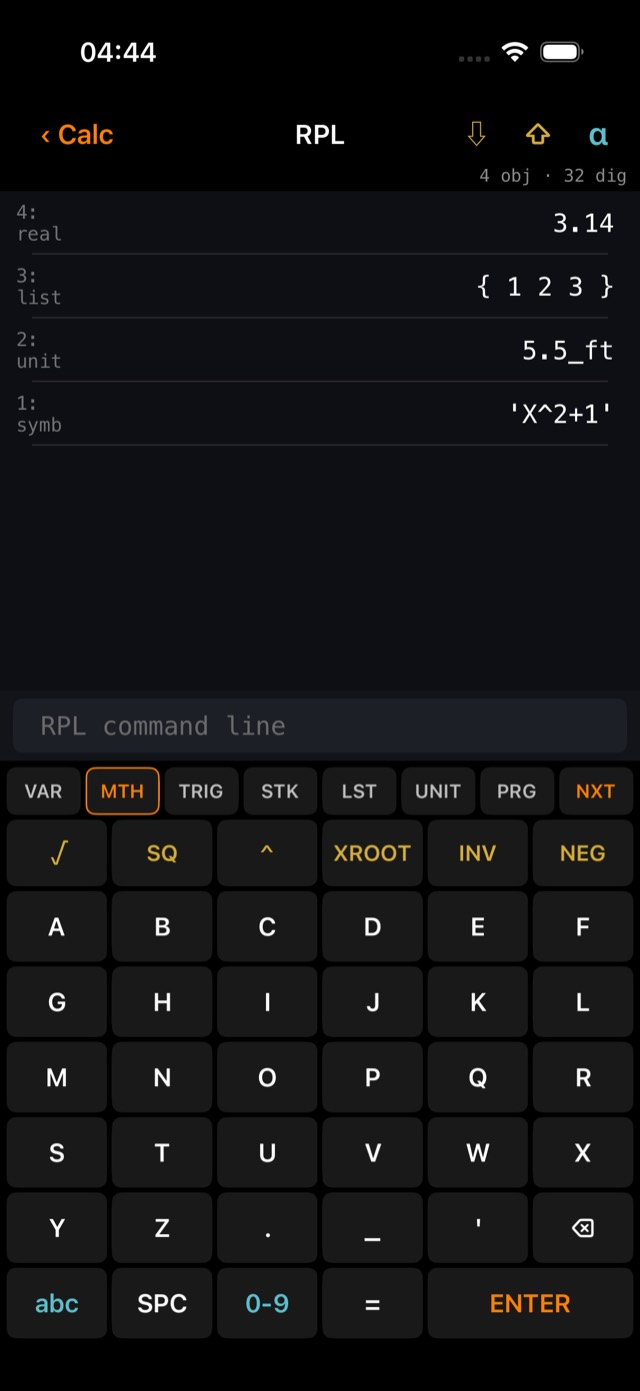
Menus & soft keys
The tab row selects a menu — VAR (your variables), MTH, TRIG, STK, LST, UNIT, PRG — and NXT pages through it. The six gold soft keys behave like a real HP: on an empty command line a command executes immediately; with text pending it types itself into the line. Structural tokens («, IF, STO, units…) always insert.
Objects on the stack
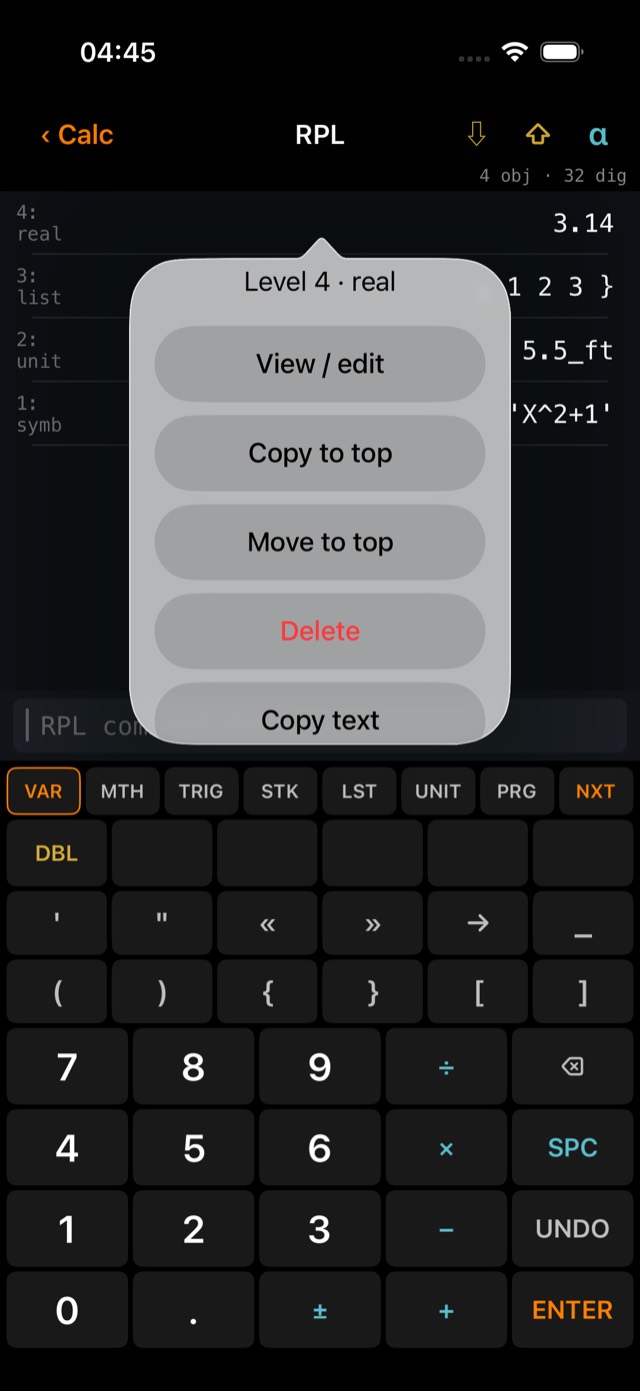
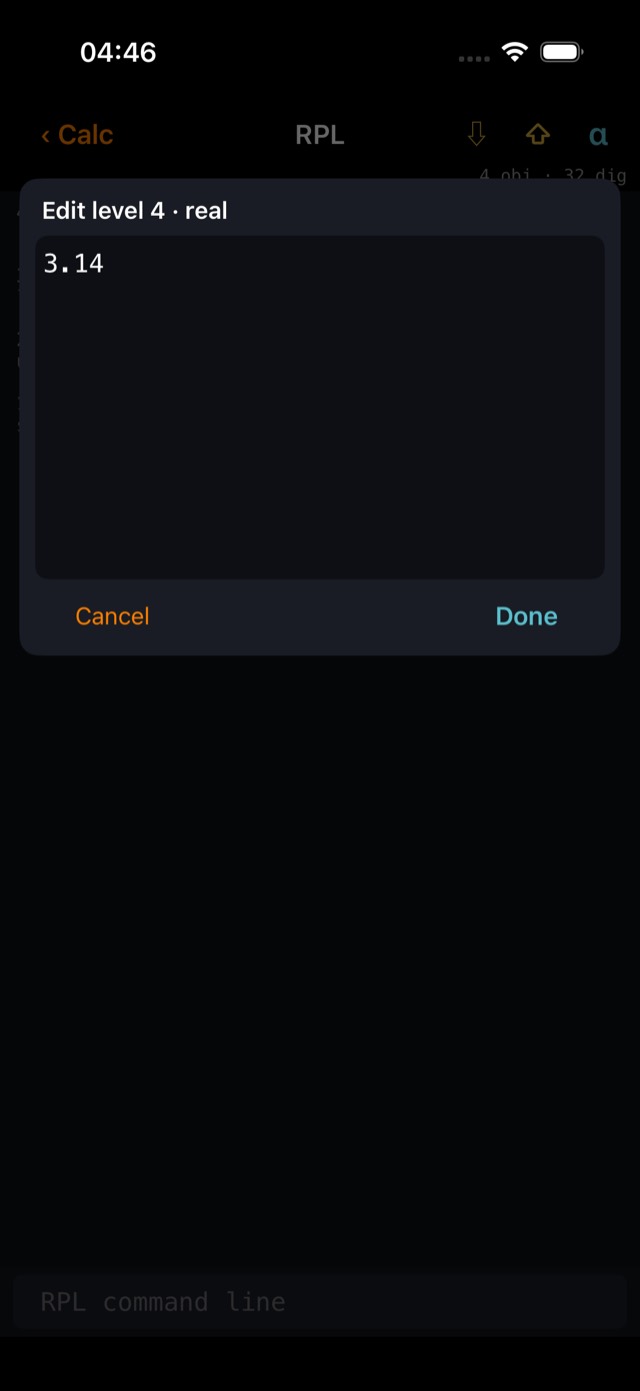
Tap a row to copy its contents into the command line. UNDO restores the previous stack (ten levels deep). Errors from the engine appear in a banner and leave your command line untouched for correction.
RPL programming & variables
Programs are objects: anything between « and » is code you can store, pass around and run. Name one with STO and it appears in the VAR menu as a soft key — tap to run it.
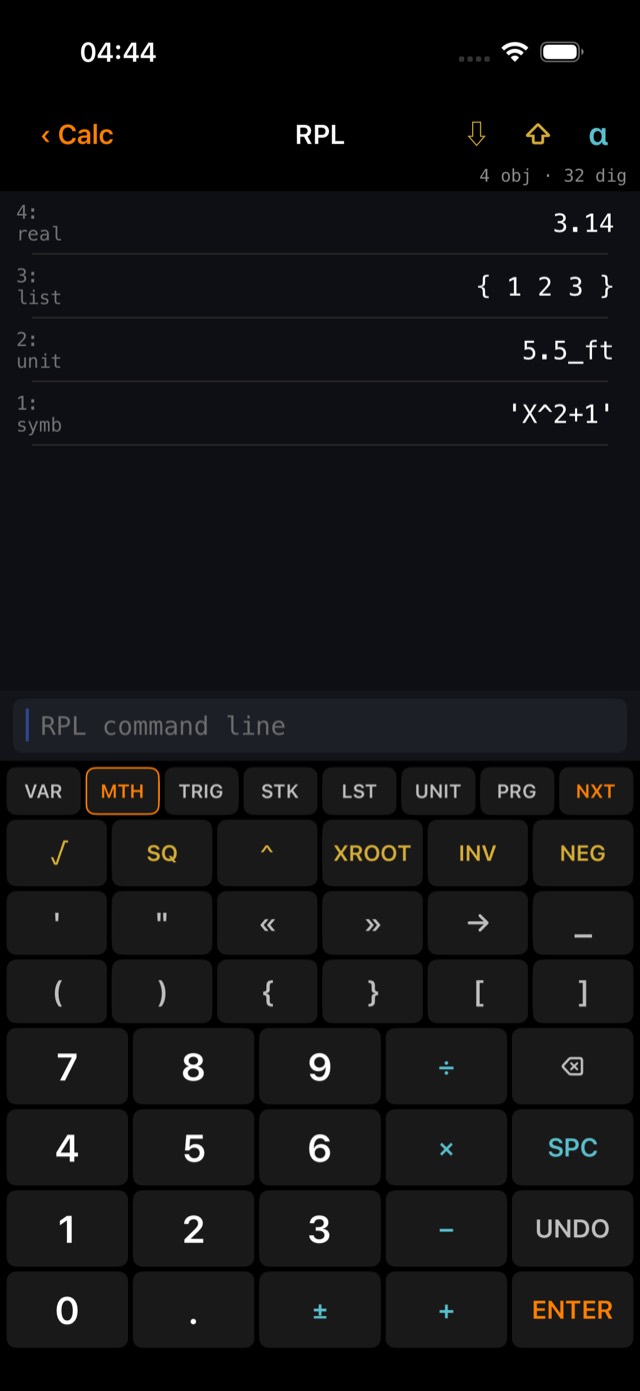
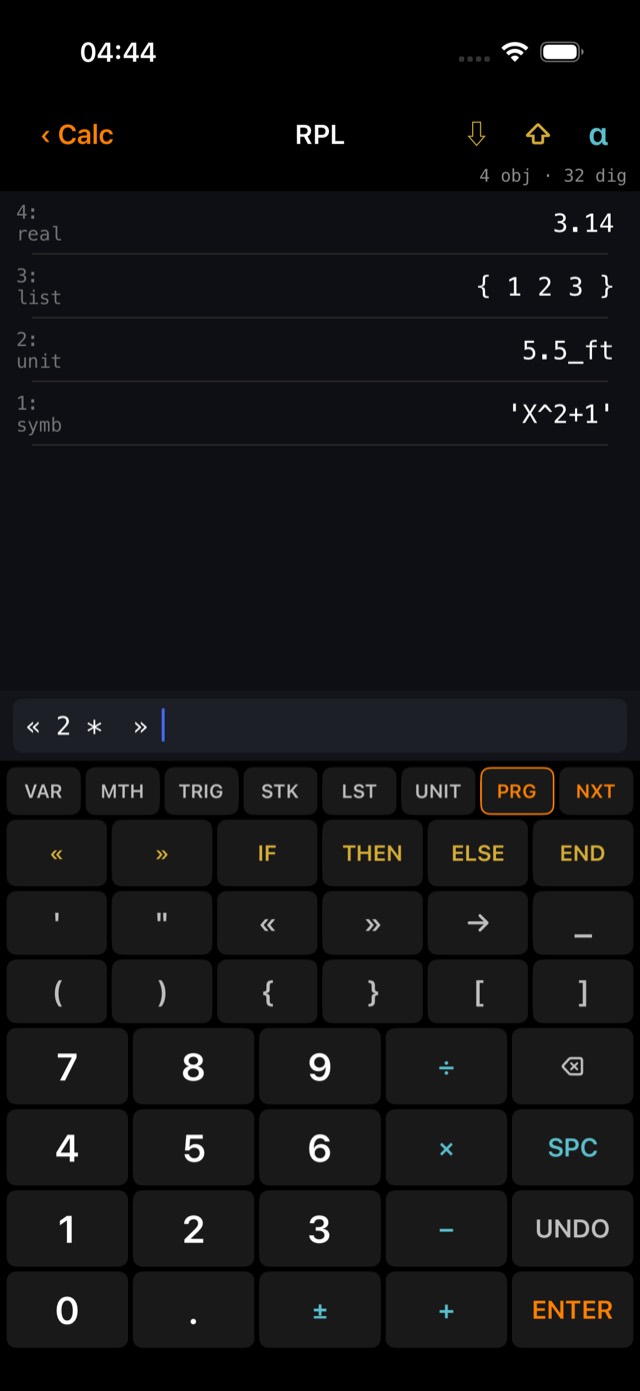
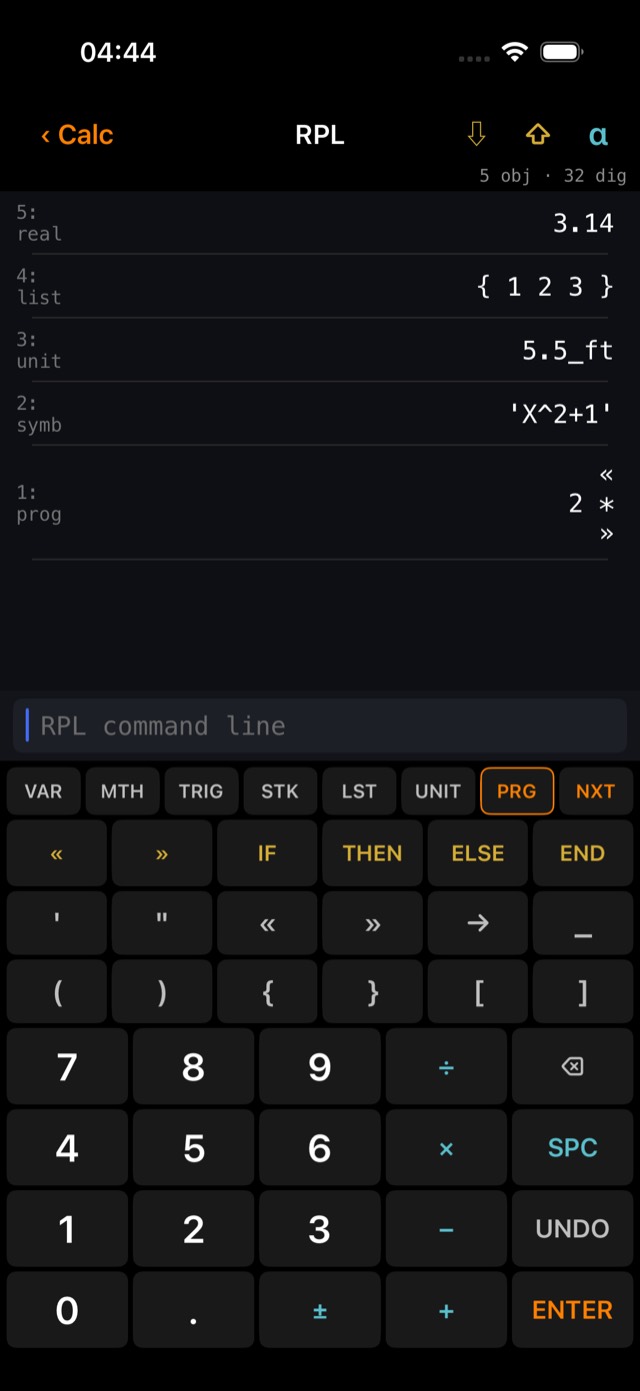
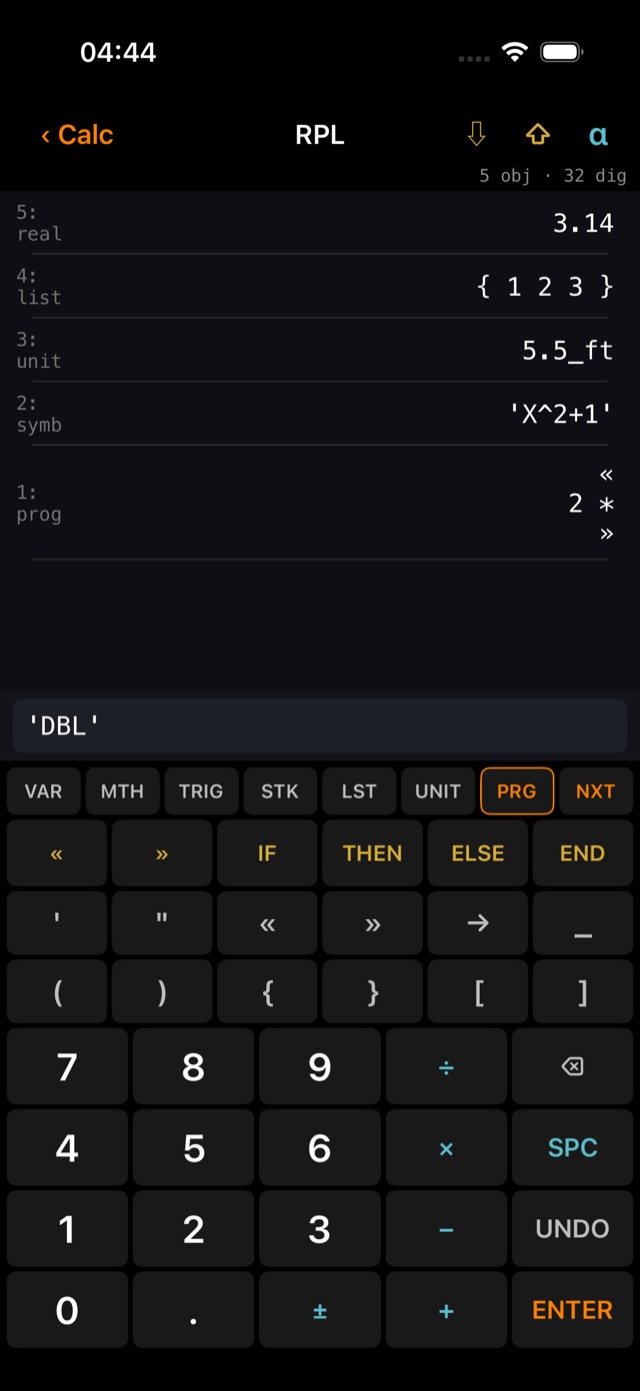
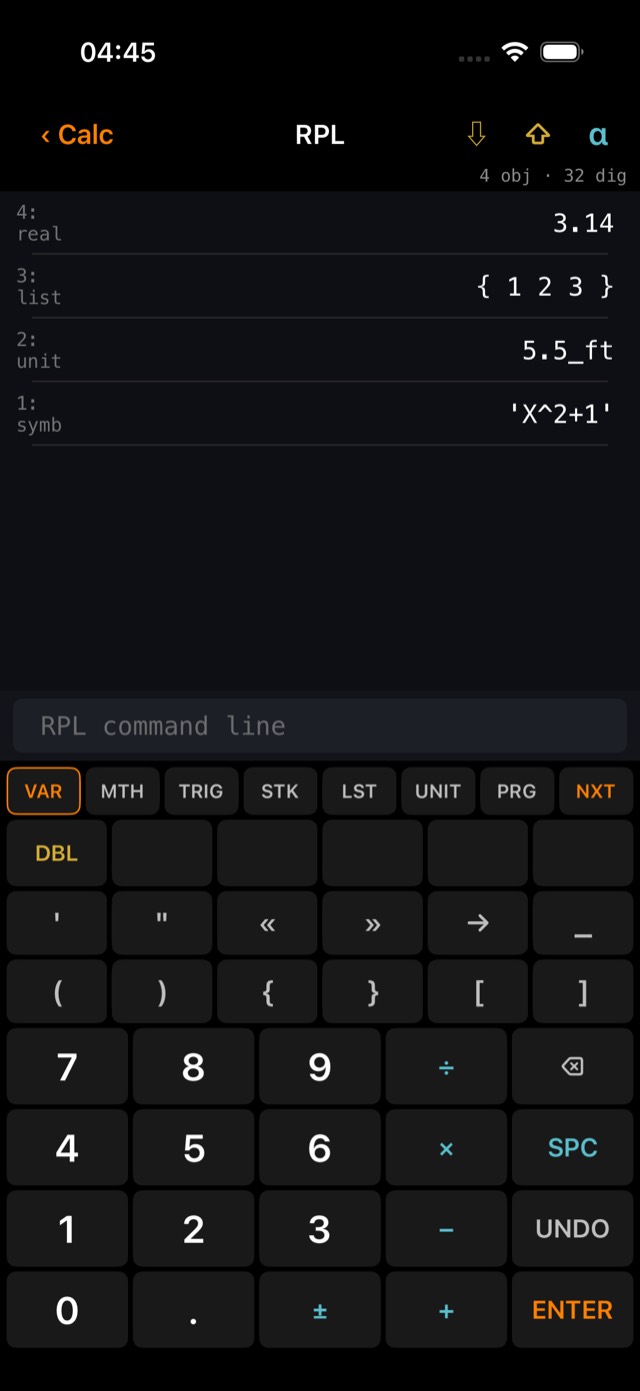
Illustrated · store a program
The full RPL control set is on the PRG menu: IF THEN ELSE END, FOR NEXT, START STEP, DO UNTIL, WHILE REPEAT, plus RCL and PURGE, and directories via CRDIR / UPDIR / HOME on the VAR menu's last page. The whole RPL memory — stack, variables, directories — is saved automatically and restored on the next launch.
The units bridge
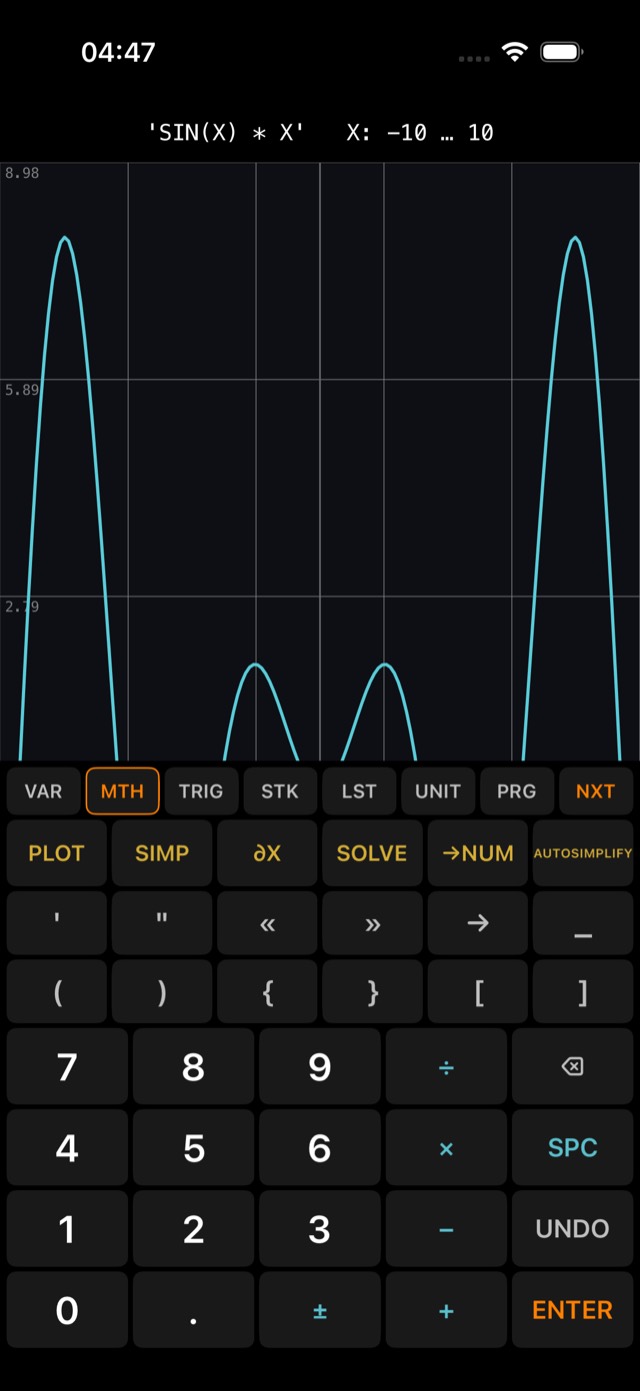
The two gold arrows in the header connect the worlds. ⇩ takes the construction calculator's display value — unit and all — and pushes it as a true RPL unit object. ⇧ sends stack level 1 back: the display, the nine-unit panel and the tape-measure readout all update.
Plotting
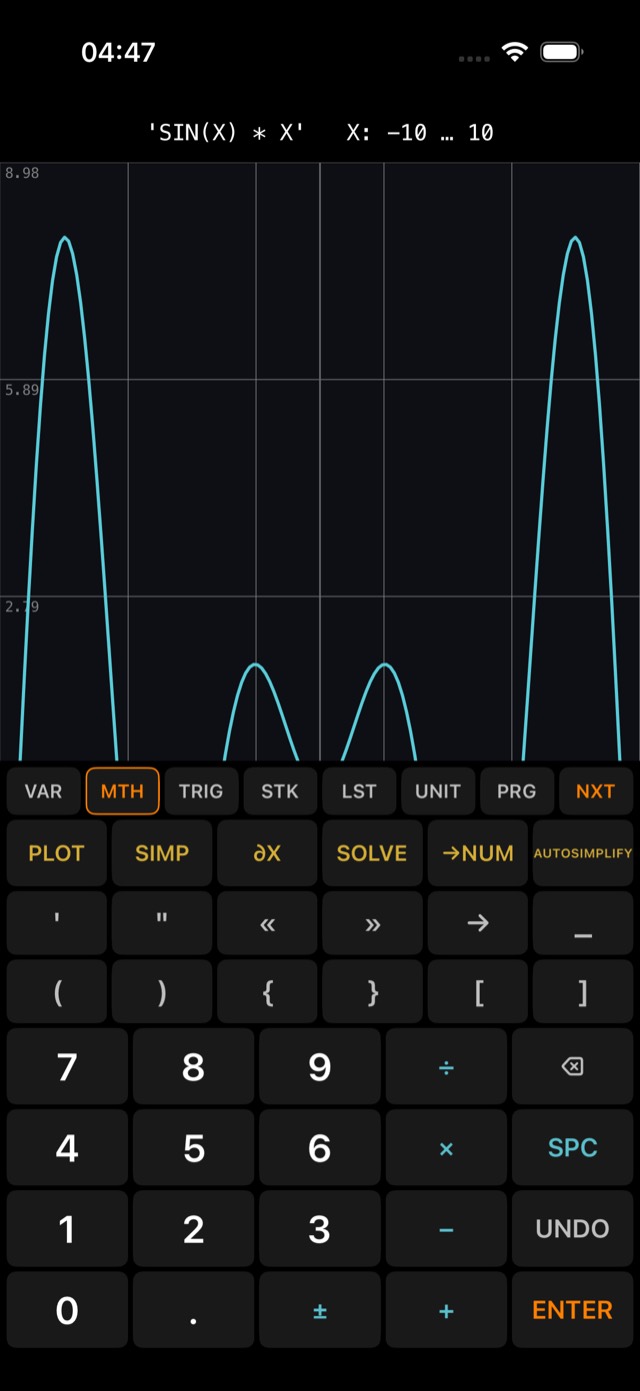
PLOT (MTH menu, last page) graphs the expression on the command line — or a symbolic on stack level 1. The curve is sampled through the engine itself, so anything RPL can evaluate can be drawn; singularities become gaps rather than spikes.
Controls: ⊖ ⊕ zoom, ◀ ▶ pan — each resamples live. Mind the angle mode: the same 'SIN(X)*X' is a shallow parabola in DEG and the classic lobes in RAD.
Symbolic algebra (CAS)
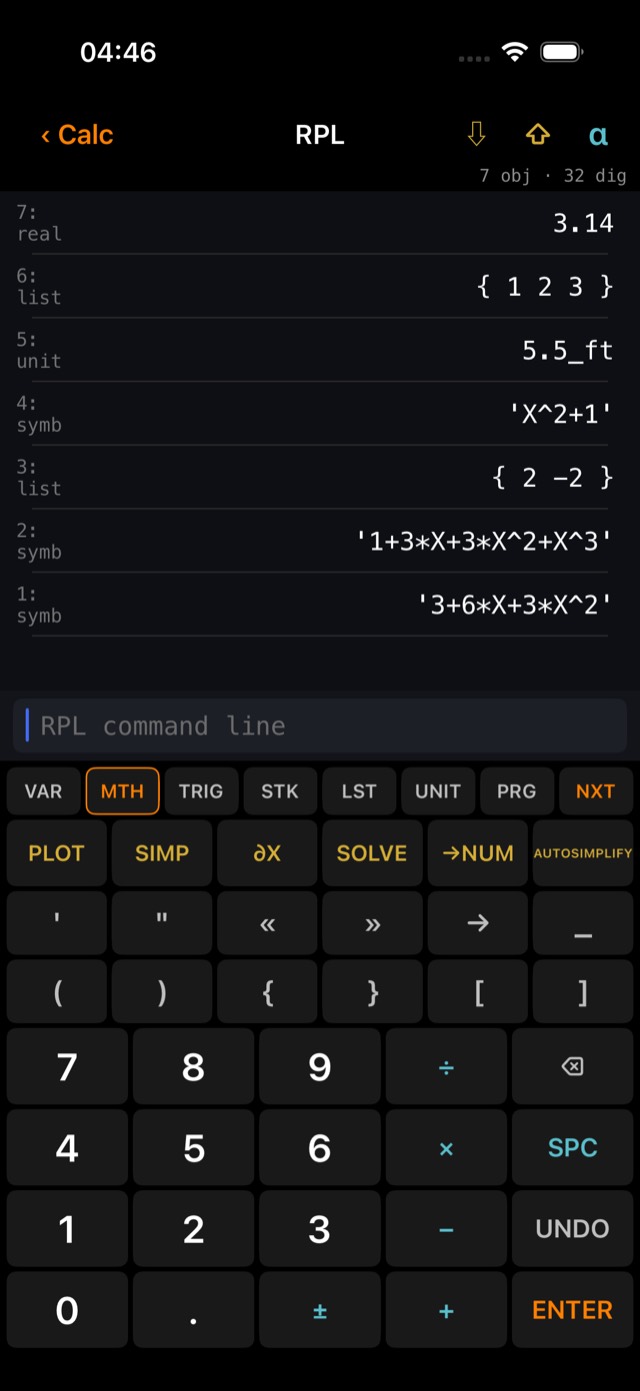
Three CAS keys live beside PLOT on the MTH menu, powered by the SymEngine library. They take the expression from the command line or stack level 1 and push the result as a new symbolic object — ready for more algebra, →NUM, or PLOT:
| Key | Does | Example |
|---|---|---|
| SIMP | expand / simplify | '(X+1)^3' → '1+3*X+3*X^2+X^3' |
| ∂X | derivative with respect to X | → '3+6*X+3*X^2' |
| SOLVE | polynomial roots in X, as a list | 'X^2-4' → { 2 -2 } |
AUTOSIMPLIFY (same page) is the engine's own rule-based simplifier: 'X+X' → '2*X'.
Unified RPL mode
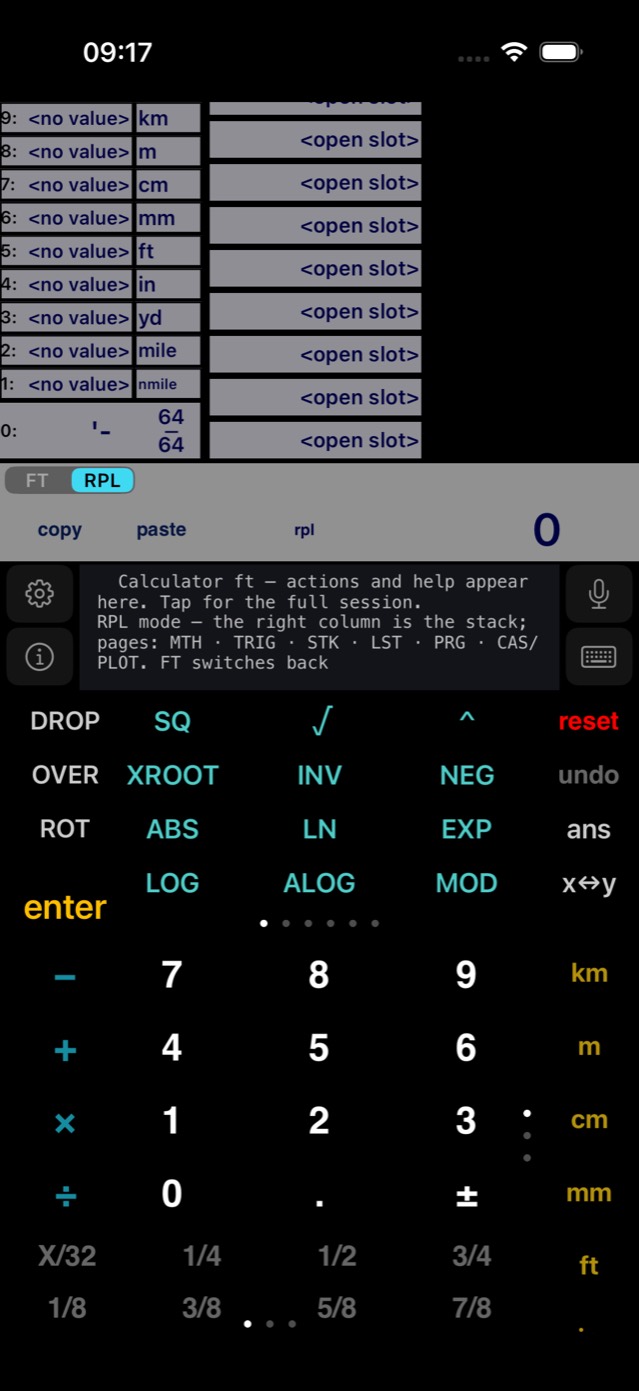
The little RPL key on the left of the expression row flips the whole calculator — not the layout, the meaning. The history column becomes the object stack (level 1 parks at the bottom; tap a level to copy it to the top), the display bar becomes the command line — type with the keys, or long-press it to select and paste straight from this guide — with level 1 ghosted behind it and its type where “got:” usually sits, and the expression row previews levels 3 · 2. Hold a stack row to pull its text into the line. The ▤ key beside the switch hides the slot column so the stack gets the full width; with a line typed the slots turn white and a tap stores the line's text. The key reads FT while you're in RPL — tap again to come home. The mode is remembered across launches.
The function scroller becomes six soft-menu pages — MTH · TRIG · STK · LST · PRG · CAS/PLOT — plus four FN pages holding the example-program library (HYP, QUAD, EUCLID, LOAN, BOARD, DEFL…), preloaded into memory so every key runs out of the box — in the same role colors. Keys execute immediately; inside « », ' ' or quotes they insert as text instead. Memory slots store and recall any object as text — programs and lists included. The gold unit column applies units (5.5 ft→5.5_ft) and converts a unit object already on level 1; when level 1 is a length, the nine-unit panel and the tape readout mirror it live. The ⌨/mic feed compiles straight to RPL — and tape phrases like 5 ft 3 1/4 in become real length objects. The ⌫ key erases the line (hold it for fast repeat) — and on an empty line it pulls level 1 down for editing, so results are never read-only. A bare number added to a unit object inherits its unit, FT-style: with 10.1_ft on the stack, 5 + behaves as 5_ft → 15.1_ft. And every example in Settings → Examples & modules can float over the calculator as a draggable, resizable picture-in-picture tutor — step-by-step frames with color-coded key highlights, a ⧉ copy and a → send-to-line on every step, and its own enter key. PLOT and the CAS keys work right here; the full HP-style workspace remains in Settings → HP 50g workspace, looking at the same memory.
The example library
Settings → Examples & modules opens 190 worked examples, grouped into twenty sections from tape-and-construction through to a twenty-program RPL course. The box at the top searches every title and every step; the chips beside it filter to FT, RPL or CAS, and the ▣ chip narrows to the examples whose program is already stored in memory.
Open one and you get the same anatomy every time: what it is, what you are trying to find, the formula card, the reference figure, a screenshot of the calculator, and then the steps. 1,169 steps across the library, and every key you have to press is drawn as its own chip — 2 enter — with a ring on the screenshot showing exactly where that key sits. Tap a step to move the screenshot to it; the ⧉ beside it copies that step's command, and the → runs it on the calculator without leaving the page.
The ‹ › arrows at the top right walk the list as you have filtered it, so you can read a whole section end to end. STO ▸ memory at the bottom compiles the program into engine memory under its name — after that it is a word you can type and a key on the FN pages, and it survives relaunch. The ◱ button floats the example over the calculator as a small draggable card, so the steps stay in view while you work the keys; drag its corner to resize, and it carries EVAL and enter of its own.
Formula cards & figures
Every computing example carries a formula card above the steps, and each row copies with one tap:
- MATHS — the equation as it is written on paper, ω = √(g/L), T = 2π/ω.
- RPL — PASTE AND RUN — the shortest line that produces it, 1 PENDUL, using the stored program.
- PROGRAM + EVAL — the program's own source with EVAL already on the end. Put the argument on the stack, paste, press enter, and it computes — no second step.
- VARIABLES — what every letter means, in the guide's language.
Ninety-one of the examples also carry a reference figure: a small diagram lettered with the same symbols as the card above it, so the r₁ in the lens drawing is the r₁ in the variable list. There are 68 of them — ray diagrams, a mass on a spring, field lines around a wire, series and parallel networks, a loaded beam and a cantilever with all three of their loads marked, Mohr's circle, a nozzle throat, a three-layer wall, a PN junction and a JFET channel. They are drawn by the app rather than shipped as pictures, so they stay sharp at any size and match the theme. On iPhone the figure sits between the formula and the screenshot; on iPad it moves under the screenshot, in the pinned left column.
The HP equation library
Seven sections cover the whole ground a classic scientific calculator's equation library covers, as programs you can read, edit and store — 86 of them, verified one by one against the engine itself rather than against arithmetic done by hand.
- Optics, oscillations, magnetism, waves — refraction and the critical angle, mirrors and thin lenses, mass–spring and pendulums, the field around a wire, inside a solenoid and inside a toroid, wave speed and the speed of sound in a medium.
- Motion, forces and energy — constant acceleration straight and rotating, circular motion, terminal and escape velocity, linear and angular mechanics, centripetal force, Hooke's law, elastic collisions, drag, gravitation, mass–energy.
- Electricity — the whole subject: Ohm's law and power, dividers, wire resistance, series and parallel R·C·L, stored energy, capacitor and inductor transients, RLC phase and resonance, plate and cylindrical capacitors, solenoid and toroid inductance, sinusoidal sources.
- Gases and heat transfer — the ideal gas law and state change, isothermal expansion, polytropic processes, isentropic flow, the real gas law and kinetic theory; heat capacity, thermal expansion, conduction, convection, a three-layer wall with fluid films on both faces, and black-body radiation with its band fraction.
- Columns, beams and stress — elastic buckling with an effective-length factor, eccentric columns and the secant formula, deflection, slope, moment and shear for simply supported spans and for cantilevers under a point load, an applied moment and a distributed load at once; normal and shear stress, stress on a rotated element, and Mohr's circle.
- Fluids — pressure at depth, Bernoulli's equation, flow with pump power and head loss, and flow in a full pipe with the Fanning friction factor solved from Colebrook.
- Solid state devices — the PN step junction, the NMOS transistor, the Ebers–Moll bipolar and the JFET.
These are the same equation sets found in the reference manuals for HP's 48, 49 and 50 series, and where those manuals print a worked answer this app reproduces it — which is how eleven places where the printed originals do not balance were found and are noted in the examples themselves. Units flow through: feed a radius as 2_ft and the volume comes back in ft^3.
On iPad
The example pages use the extra width. The title and the ‹ › example arrows run across the top, the calculator screenshot is pinned in the left column, and everything else — description, goal, formula card, figure, steps — scrolls on the right. The screenshot stays put because it is a live illustration of whichever step is selected: tap step 6 and the rings move, with the screenshot still in front of you. The step pager travels with it, and moving the pager scrolls the right-hand column so the matching step comes into view.
The RPL workspace is sized for the larger screen too — taller keys, larger glyphs, and a fifth row of soft keys, so a dozen more variables are on screen at once and the display gives up the height it was leaving empty.